
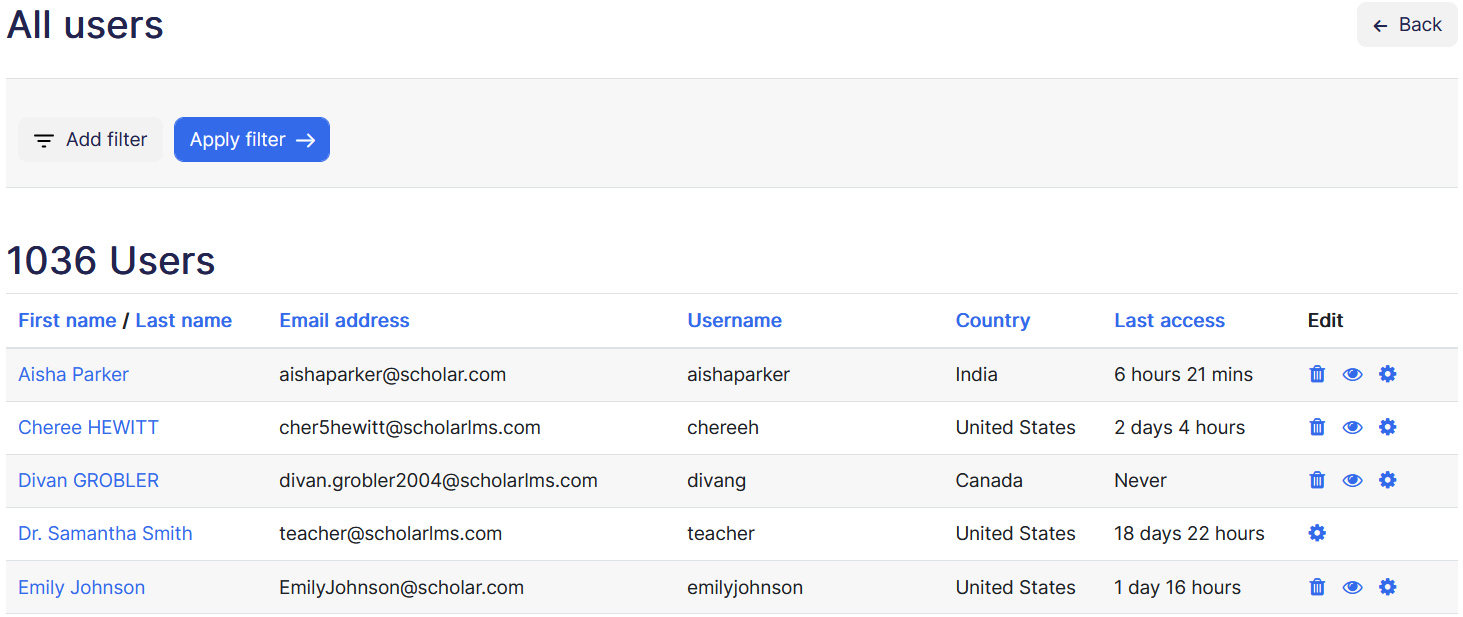
The ‘All Users’ page displays all registered users on your LMS site, providing a comprehensive overview of user information, along with filtering options and user management functionalities.
Understanding Terminology: Users, Learners, and Students
Throughout the site, we use the terms Users, Learners, and Students interchangeably. However, it’s essential to understand if there is any difference in them. Users refer to any individual registered user on the site, this includes every user for instance site administrators, managers, teachers, or students. On the other hand, Students and Learners are your end-users who primarily engaged in learning activities on the site.
User actions #
From the ‘All Users’ page, various actions specific to individual users are available, you can view user profile, edit user profile, suspend and delete an individual user from this page.

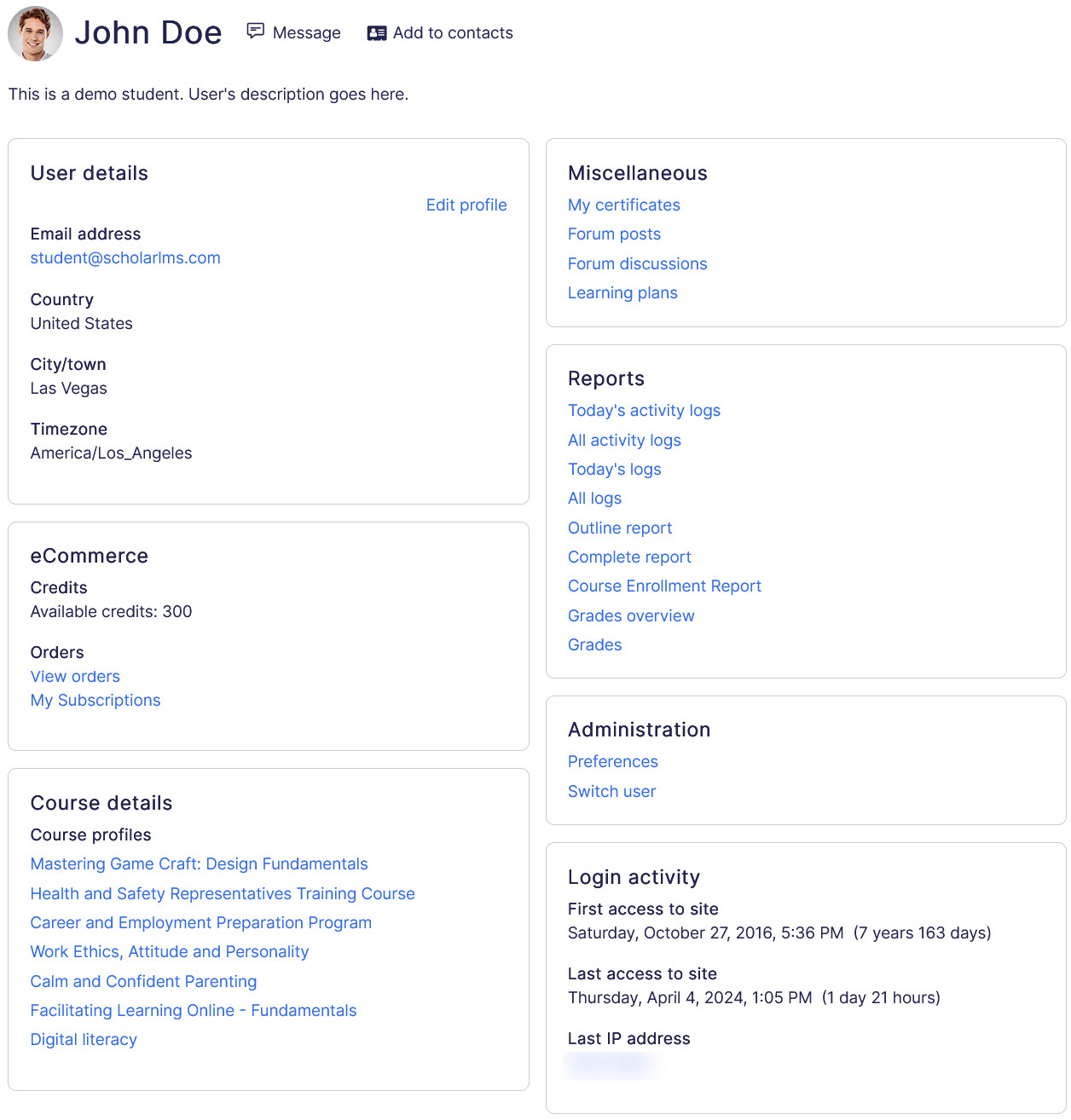
Viewing user profile: By clicking on a user’s name, you can access their profile and view detailed information.
- User details
- Course details
- eCommerce details
- Certificates
- Login activity
Activate/Suspend user: Users can be suspended or activated by clicking on the eyeball icon. Once suspended a user will not be able to login. The site will show “Your access to the site has been suspended. To restore your access, please contact the site administrator/teacher.” message while a suspended user try to login.

Delete user: Removing a user from the system can be done by clicking on the trash icon.
It’s important to note that suspending a user does not delete or affect any user data.
Editing user profile #
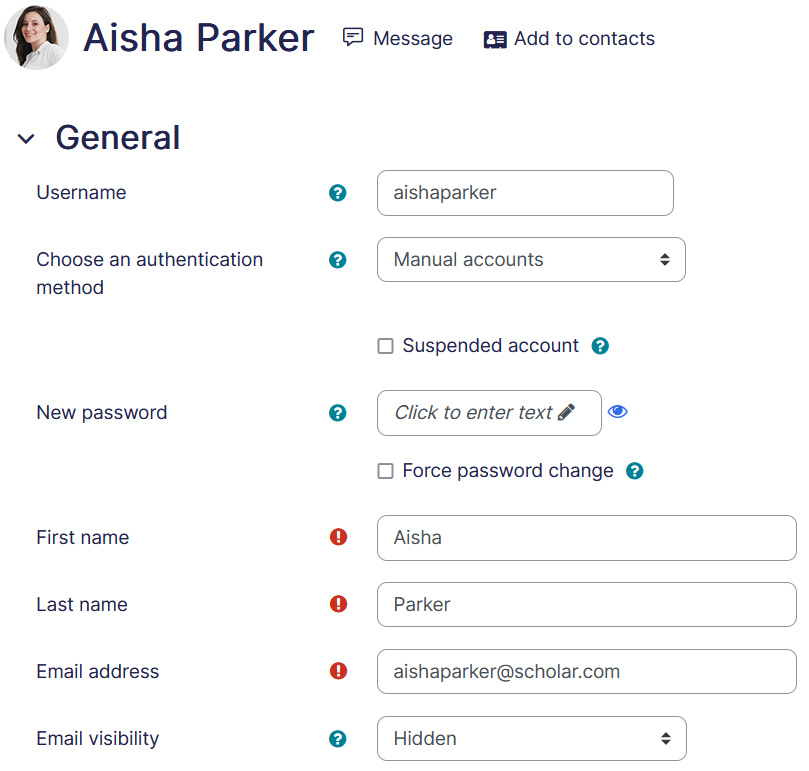
To edit a user’s profile, click on the cog icon which opens the user profile in Edit mode. Once edits are completed, click the ‘Update profile‘ button to save changes.
Filtering users #
The filtering feature located at the top of the page enables refined searches for specific user(s). Whether seeking users with a particular role (e.g., ‘Student’), a specific name (‘Tarryn’), or a combination of criteria, the filter options shows filtered results.

- Click on Add filter to add a filter.
- Click Apply filter button to get filtered result.
- To delete a filter, click on the trash icon and click again Apply filter button.
The ‘All Users’ page serves as a central hub for managing users, providing administrators with the tools necessary for efficient user administration and management.
