
In this article, we will explore the process of user registration from the sign-up page. Email-based self-registration enables a user to create their own account via a ‘Sign Up‘ button on the login page. The user then receives an email containing a secure link to a page where they can confirm their account. The email confirmation is required to confirm their account, eliminating the need for intervention from the site admin or site staff. If you would prefer admin confirmation instead of user confirmation, explore Email-based self-registration with admin confirmation authentication method.
Note: By default, email-based self-registration is enabled on your site.
Disabling User Self Registration #
If your site should not allow user self-registration, maybe your staff manually add users through the CSV bulk upload feature or authenticate users via third-party applications (Single Sign-on method), in that case you can disable the user self-registration.
To disable user’s Self Registration:
- Navigate to Settings->Advanced Settings, click the Plugins tab, Scroll to the Authentication section and click Manage authentication.
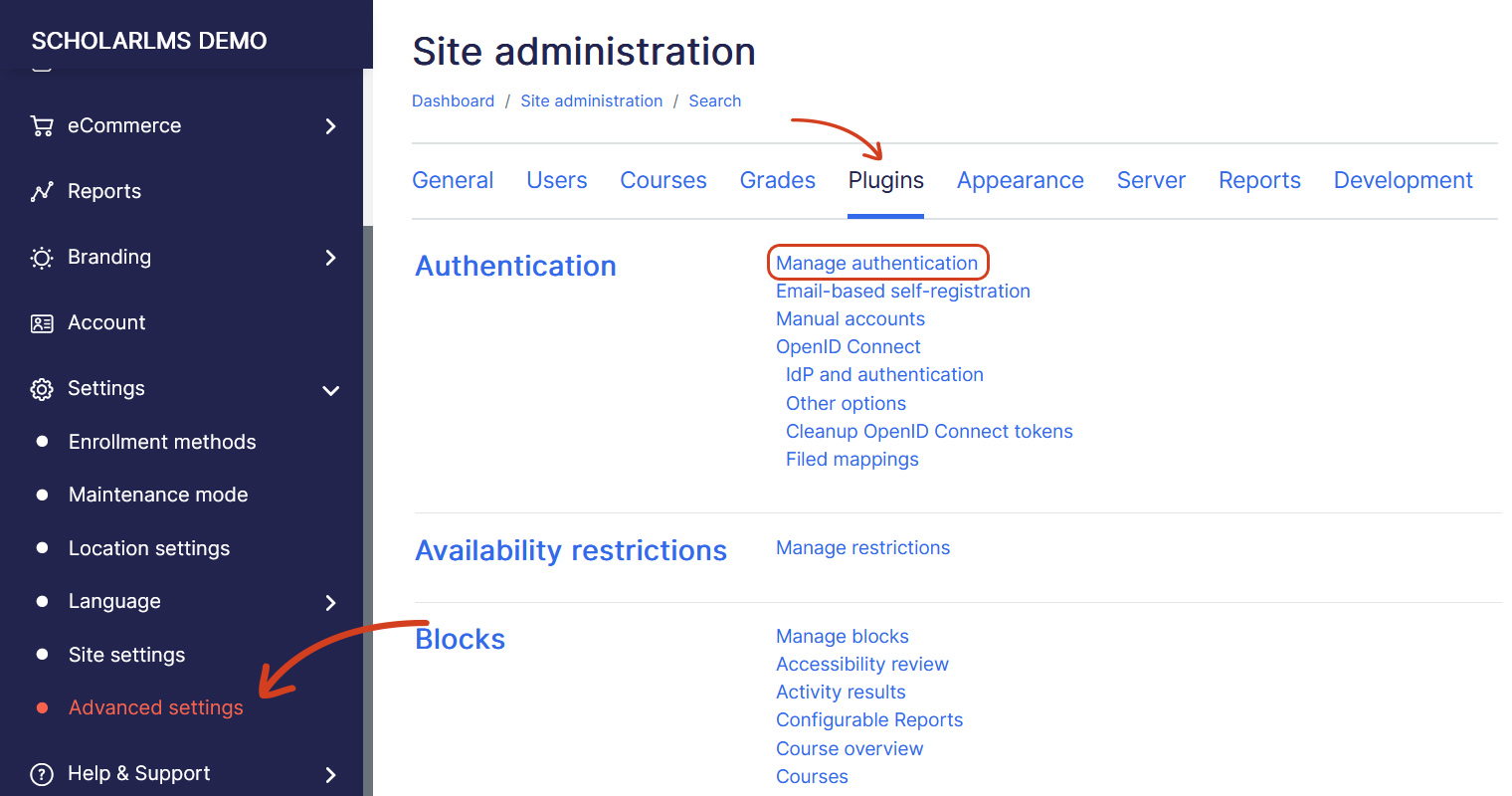
- On Manage authentication page scroll down, choose Disable from the Self Registration dropdown under Common settings.

- Once done, click Save changes.
Spam protection #
When your site allows self-registration, there is a risk of receiving spam user accounts. There are layers of protection that minimizes spam account creation. Such as:
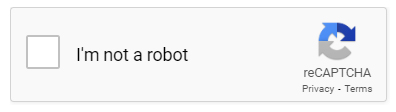
- reCAPTCHA — This serves as a first line of defense against most spam bots attempting to register on your site. Contact our support team if this feature is not enabled on your site and you would like to enable it.
- Account Confirmation — Account confirmation is required before a user can sign in.
- Account Cleanup — Any unconfirmed account is automatically deleted after 7 days, clearing out registrations that may not be from real users.
Student view #
Let’s take a look at what the self-registration process looks like from the student’s perspective.
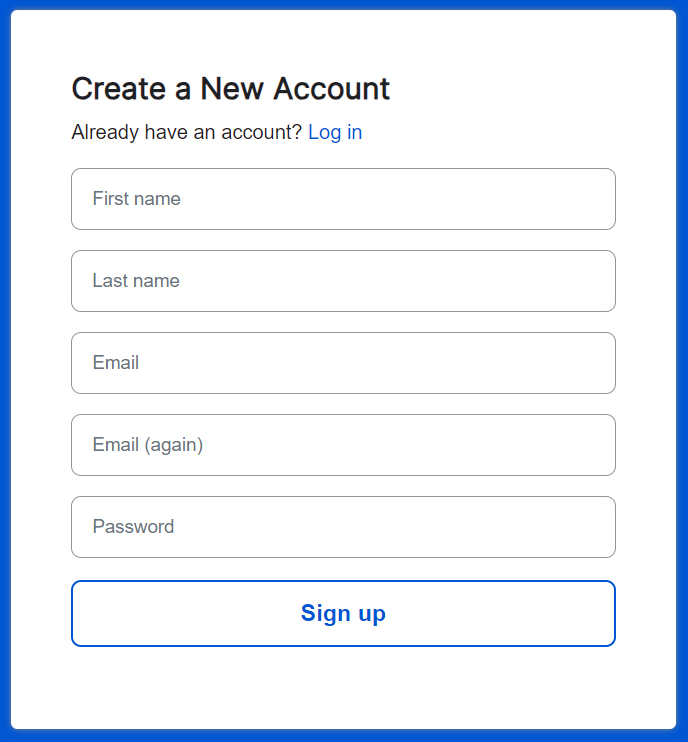
- User visits registration page by clicking Sign up button on header.

- User creates account from the registration page
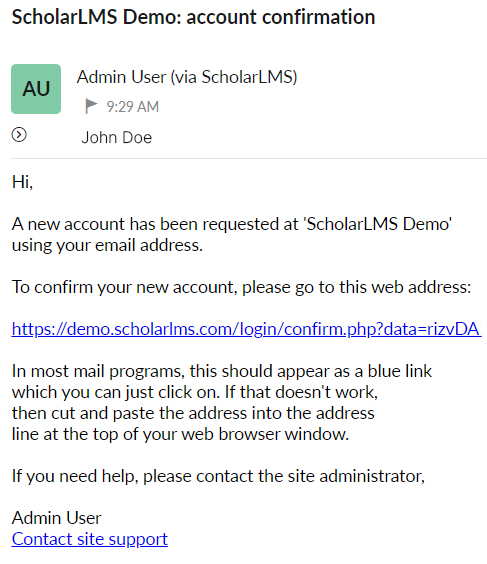
- User receives an email with confirmation link
- Once clicked on the secured confirmation link, user gets a success message “Your registration has been confirmed”.
Confirm user account manually
If for any reason users are not getting confirmation email, you can manually confirm user account by navigating to Users->All User page from left navigation. Search for the user from filters, and click on Confirm link to manually confirm the user account.

