The Book module enables a teacher to create a multi-Page resource in a Book-like format, with chapters and subchapters. Books can contain media files as well as text and are useful for displaying lengthy passages of information which can be broken down into sections. A Book activity can be used in cases where a large number of content pages are to be shared which can be categorized into chapters and subchapters.
Features of a Book activity:
- Offers to add a table of contents for easy navigation throughout the Book
- Ability to include text, images, links, sound and video
Adding a Book #
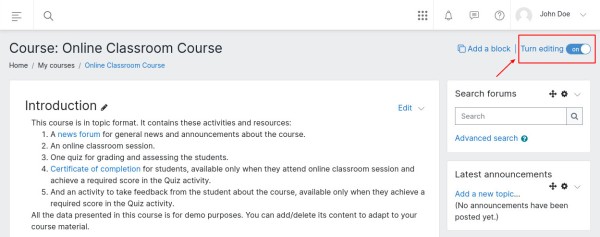
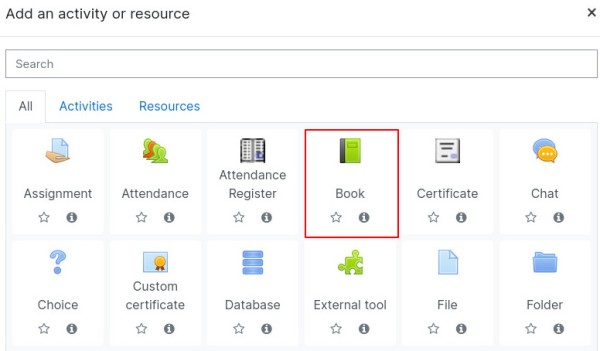
To add the Book resource, go to the course, click on “Add activity” and choose Book from the activity chooser window. Do not forget to “Turn editing on” if the course is not in editing mode.
Book Settings #
This section explores the settings for the Book resource once you have added it to the course.
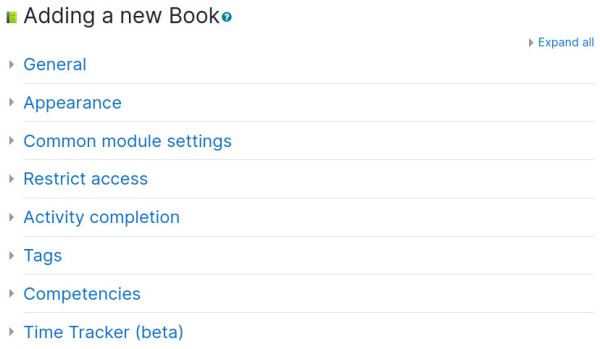
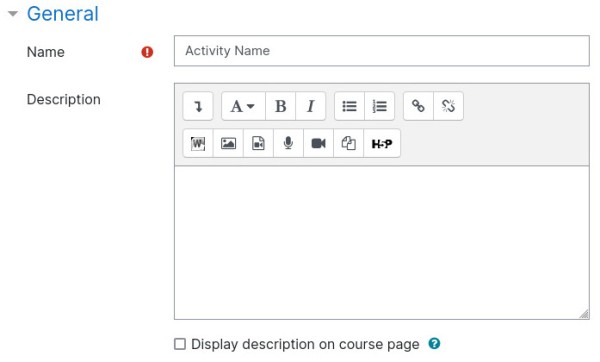
General #
- Name – This is a mandatory field. Put in the name as you desire for the Book instance.
- Description – Any details about the Book resource could be put in here. If the box below this section is checked, it will enable the description to be displayed on the course page below the link to activity.
Appearance #
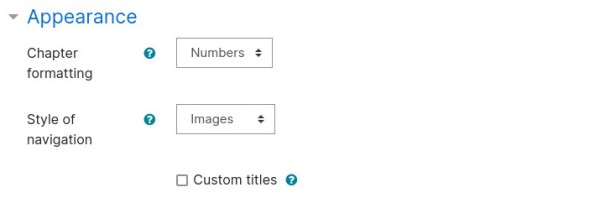
- Chapter formatting – The options are:
- None – Chapter and subchapter titles are not formatted at all, use if you want to define special numbering styles. For example, letters: in chapter title type “A First Chapter”, “A.1 Some Subchapter”,…
- Numbers – Chapters and subchapters are numbered (1, 1.1, 1.2, 2, …)
- Bullets – Subchapters are indented and displayed with bullets.
- Indented – Subchapters are indented.
- Style of navigation – This is the navigation appearing at top/bottom of each chapter. Choose between having navigation as:
- TOC – No navigation, only Table of Content on the right side will be visible.
- Images – Arrow icon images appear.
- Text – Text link with arrow icon appears.
- Custom titles – Normally the chapter title is displayed on the table of content (TOC) and as a heading above the content. If enabled, the chapter title is NOT displayed as a heading above the content. A different title (perhaps longer than chapter title) may be entered as part of the content.
Common Module Settings (Optional) #
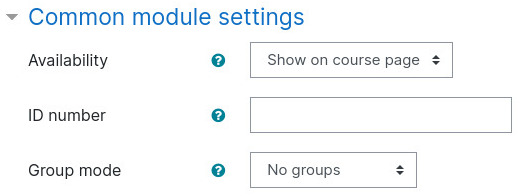
- Availability – If the availability is set to ‘Show on course page’, the activity or resource is available to students (subject to any access restrictions which may be set). If the availability is set to ‘Hide from students’, the activity or resource is only available to users with permission to view hidden activities (by default, users with the role of teacher or non-editing teacher).
- ID number – Setting an ID number provides a way of identifying the activity or resource for purposes such as grade calculation or custom reporting. Otherwise the field may be left blank. For gradable activities, the ID number can also be set in the gradebook, though it can only be edited on the activity settings page.
- Group mode – The group mode defined at course level is the default mode for all activities within the course. Each activity that supports groups can also define its own group mode, though if the group mode is forced at course level, the group mode setting for each activity is ignored. This setting has 3 options:
- No groups
- Separate groups – Each group member can only see their own group, other members are invisible
- Visible groups – Each group member works in their own group, but can also see other groups
Restrict Access #
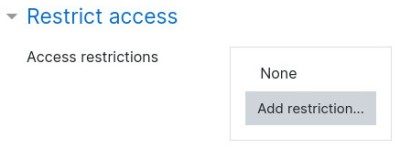
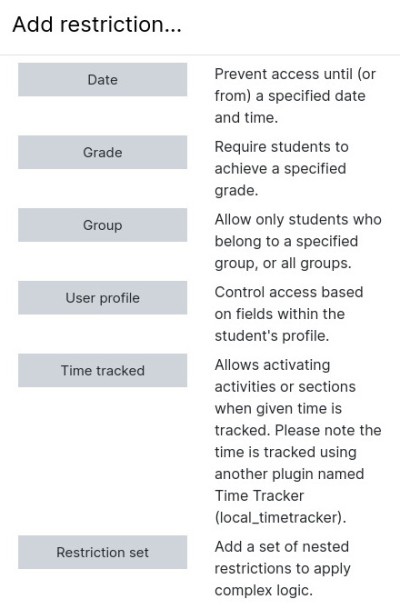
The restrict access feature enables teachers to restrict the availability of any activity according to certain conditions such as dates, grade obtained, group, user profile field, time spent on a different activity, or activity completion. A complex logic can be used with nested restrictions. To know more, explore our detailed guide on access restriction.
Alternatively, an activity can be hidden from students until they are ready to be used.
Activity Completion #
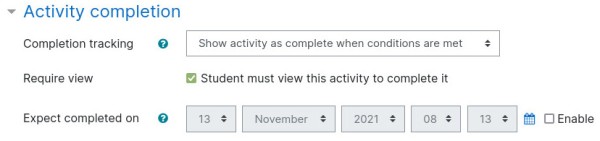
Activity completion allows you to set completion criteria which basically decides when to consider the activity is completed. The following options are available:
- Students can manually mark the activity completed, here you allow students to make this decision.
- Activity is considered complete when certain conditions are fulfilled, where one or more conditions can be added.
- A date of expected completion of the activity
Competencies #
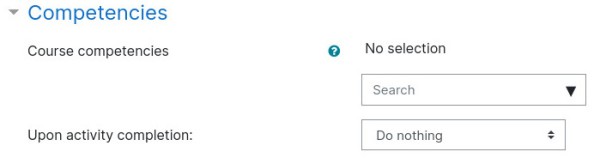
Allows you to link competency to the activity. To know more, explore our guide on Competencies.
Time Tracker #
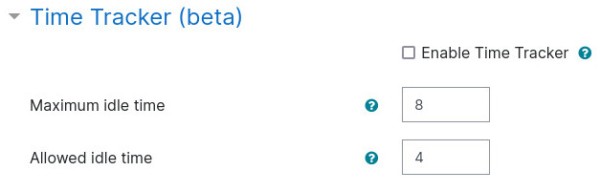
Allows you to enable time tracking of the activity. To know more, explore our guide on Time Tracker.