
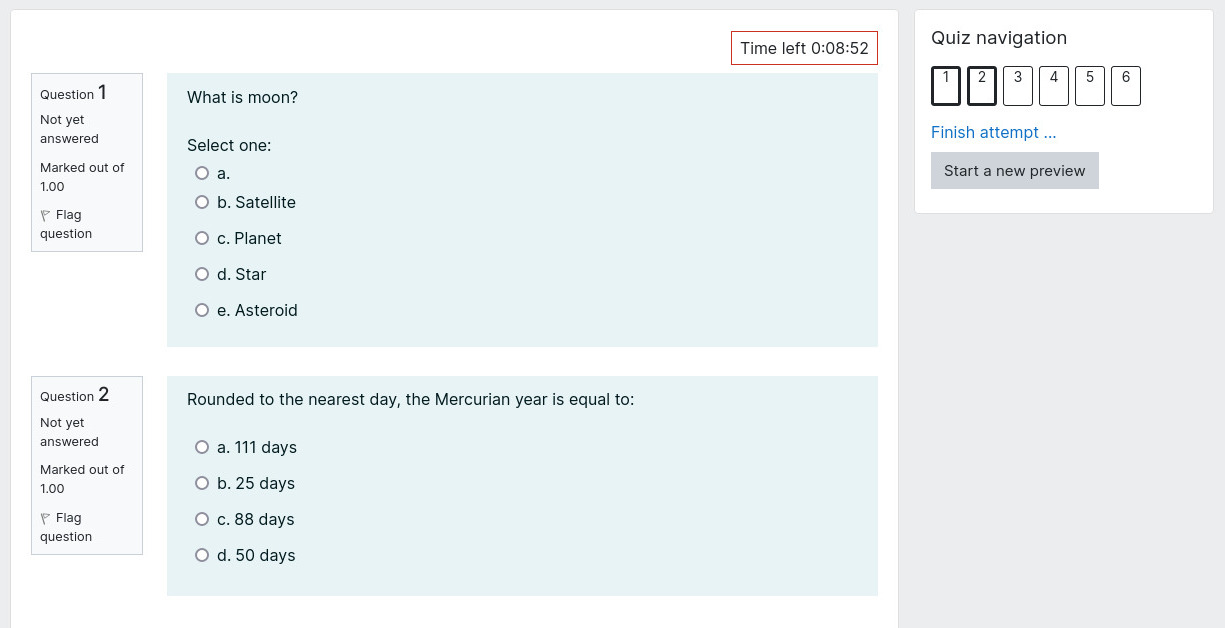
The Quiz is a very powerful activity that can meet many teaching needs, from simple, multiple-choice knowledge tests to complex, self-assessment tasks with detailed feedback. Questions are created and stored separately in a Question bank and can be reused in different quizzes. When creating a Quiz you can either make the questions first and add them to the Quiz, or add a Quiz activity (as below) and create the questions as you go along.
Features of a Quiz activity #
- The Quiz activity enables a teacher to create quizzes comprising questions of various types, including multiple choice, matching, short-answer, essay and numerical.
- Quiz can be graded.
- Quiz questions can be shuffled in each student’s attempt
- The teacher can allow the quiz to be attempted multiple times, with the questions shuffled or randomly selected from the Question Bank.
- A time limit may be set.
- Each attempt is marked automatically, with an exception to essay questions, and the grade is recorded in the gradebook.
- The teacher can choose when and if hints, feedback and correct answers shall be shown to students.
- Apart from ‘restrict access’ settings, the access can be restricted by a password or network address.
Adding a Quiz #
To add a Quiz activity:
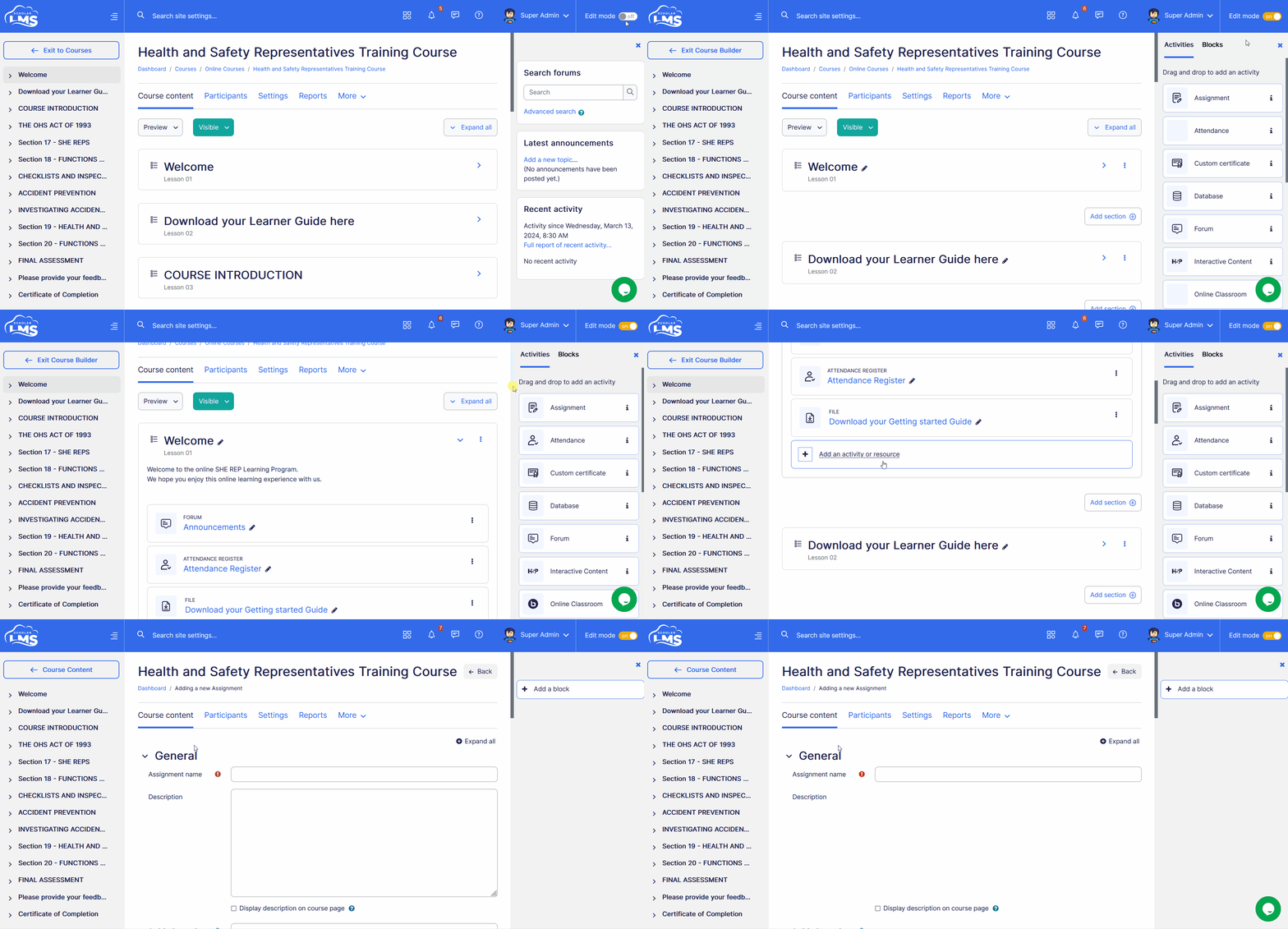
- Navigate to the Courses page.
- Click on “Edit” under Actions for the desired course.
- This takes to Course Builder page. Ensure that the Edit mode is activated on the Course Builder page.

- Navigate to the Course Section, click the ‘Add an Element’ button. Alternatively, you can drag and drop the Quiz from the right sidebar.
Quiz Settings #
This section explores Quiz activity’s settings once you have added it to the course.
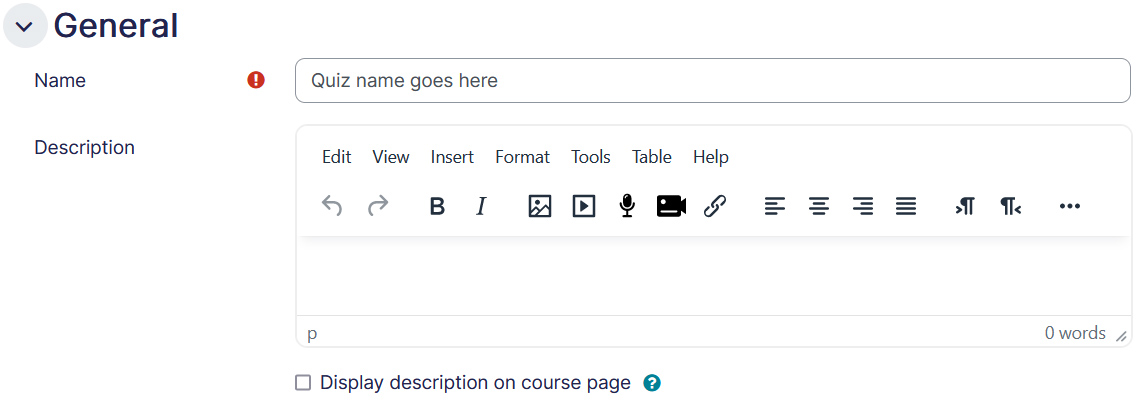
General
- Name — This is a mandatory field. Put in the name as you desire for the Quiz activity.
- Description — Any details about the Quiz activity could be put in here. If the box below this section is checked, it will enable the description to be displayed on the course page below the link to activity.
Timing
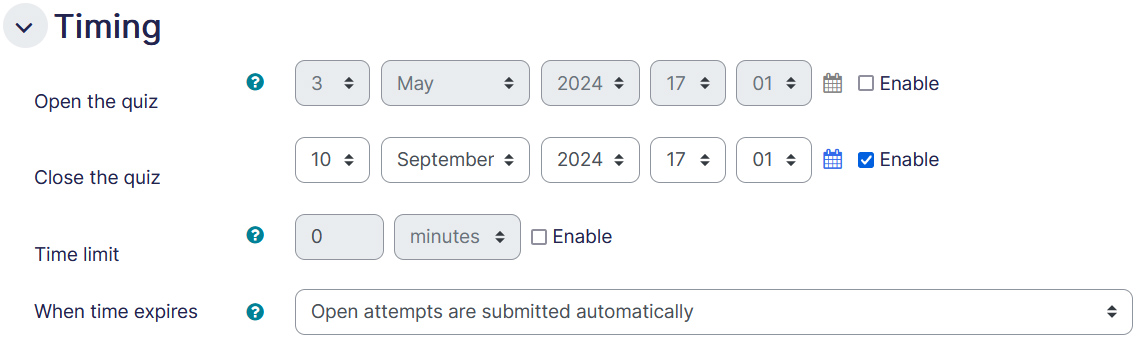
- Open the quiz – If enabled, students can only attempt(s) after the open time.
- Close the quiz – If enabled, students must finish the attempt before close time.
- Time limit – If enabled, time limit is stated on the initial quiz page and a countdown time is displayed in the quiz navigation block.
- When time expires – This setting controls what happened if a student fails to submit their quiz attempt before the time expires. If the student is actively working on the quiz at the time, then the countdown timer will always automatically submit the attempt for them, but if they have logged out then this setting controls what happens.
Grade
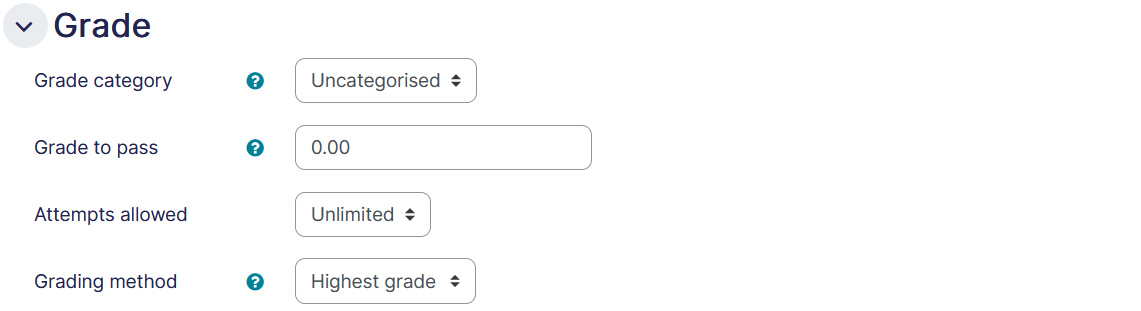
- Grading category – This setting controls the category in which this activity’s grades are placed in the gradebook.
- Grade to pass – This setting determines the minimum grades required to pass. The value is used in activity and course completion, and in the gradebook, where pass grades are highlighted in green and fail grades in red.
- Attempts allowed – Allows you to put the maximum attempts that can be used for the quiz.
- Grading method – When multiple attempts are allowed, the following methods are available for calculating the final quiz grade:
- Highest grade of all attempts
- Average (mean) grade of all attempts
- First attempt only, all other attempts will be ignored
- Last attempt, all other attempts will be ignored
Layout
In the Layout section, you can choose quiz settings whether to have a new page for every question or after a certain number of questions.

Question behaviour
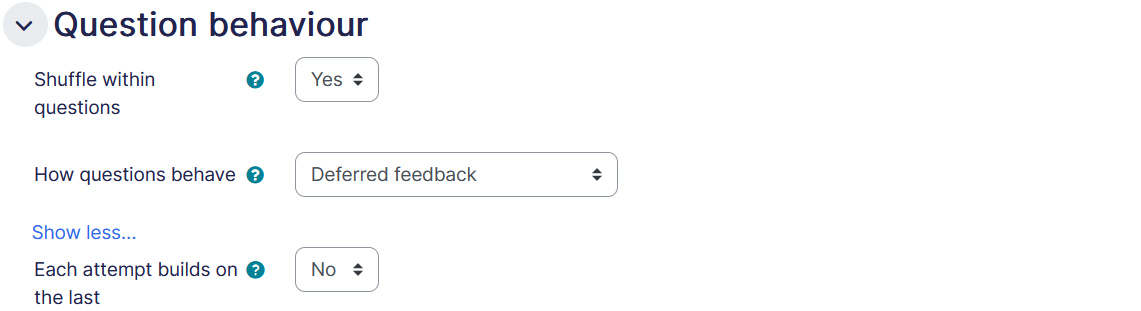
- Shuffle within questions – If enabled, the answers of a question will be randomly shuffled each time a student attempts the quiz, provided this option is also enabled in the question settings. This setting only applies to questions that have multiple parts, such as multiple choice, or matching questions.
- How questions behave – Students can interact with the questions in the quiz in various different ways. For example, you may wish the students to enter an answer to each question and then submit the entire quiz, before anything is graded or they get any feedback. That would be “Deferred feedback” mode. Alternatively, you may wish for students to submit each question as they go along to get immediate feedback, and if they do not get it right immediately, have another try for fewer marks. That would be “Interactive with multiple tries” mode. Those are probably the two most commonly used modes of behaviour.
- Each attempt builds on the last – If multiple attempts are allowed and this setting is enabled, each new quiz attempt will contain the results of the previous attempt. This allows a quiz to be completed over several attempts.
Review options
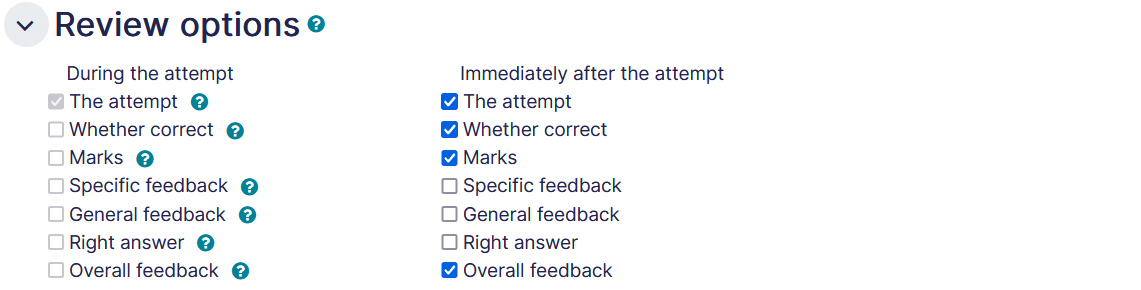
These options control what information students can see when they review a quiz attempt or look at the quiz reports.
- During the attempt settings are only relevant for some behaviours, like interactive with multiple tries, which may display feedback during the attempt.
- Immediately after the attempt settings apply for the first two minutes after submit all and finish is clicked.
- Later, while the quiz is still open settings apply after this, and before the quiz close date.
- After the quiz is closed settings apply after the quiz close date has passed. If the quiz does not have a close date, this state is never reached.
Overall feedback
Overall feedback is text that is shown after a quiz has been attempted. By specifying additional grade boundaries (as a percentage or as a number), the text shown can depend on the grade obtained.
Common module settings
- Availability – If the availability is set to ‘Show on course page’, the activity or resource is available to students (subject to any access restrictions which may be set). If the availability is set to ‘Hide from students’, the activity or resource is only available to users with permission to view hidden activities (by default, users with the role of teacher or non-editing teacher).
- ID number – Setting an ID number provides a way of identifying the activity or resource for purposes such as grade calculation or custom reporting. Otherwise the field may be left blank. For gradable activities, the ID number can also be set in the gradebook, though it can only be edited on the activity settings page.
- Group mode – The group mode defined at course level is the default mode for all activities within the course. Each activity that supports groups can also define its own group mode, though if the group mode is forced at course level, the group mode setting for each activity is ignored. This setting has 3 options:
- No groups
- Separate groups – Each group member can only see their own group members, others are invisible
- Visible groups – Each group member works in their own group, but can also see other groups
Restrict access
The restrict access feature enables teachers to restrict the availability of any activity according to certain conditions such as dates, grade obtained, group, user profile field, time spent on a different activity, or activity completion. A complex logic can be used with nested restrictions. To know more, explore our detailed guide on access restriction.
Alternatively, an activity can be hidden from students until they are ready to be used.

Activity completion
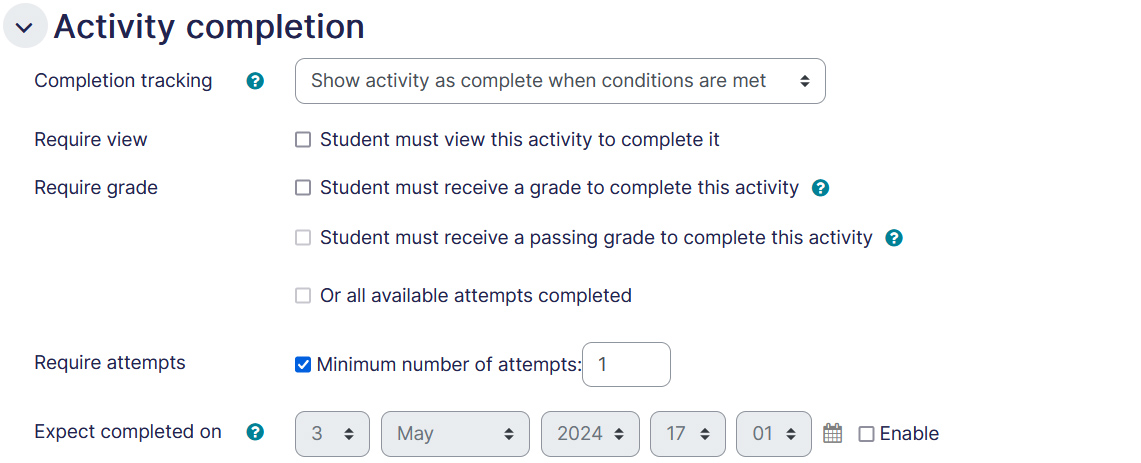
Activity completion allows you to set completion criteria which basically decides when to consider the activity is completed. The following options are available:
- Students can manually mark the activity completed, here you allow students to make this decision.
- Activity is considered complete when certain conditions are fulfilled, where one or more conditions can be added.
- Student must receive a grade to complete the activity
- Student must receive passing grade to complete it
- Minimum number of attempts
- A date of expected completion of the activity
Competencies
Allows you to link competency to the activity. To know more, explore our guide on Competencies.
Adding Quiz Questions #
Once a quiz has been added to the course, the teacher can start to build the quiz. For adding questions to the quiz:
Step 1: Click on the Quiz activity.
Step 2: Then click on the “Questions” link on the secondary navigation which will take you to the quiz builder page.
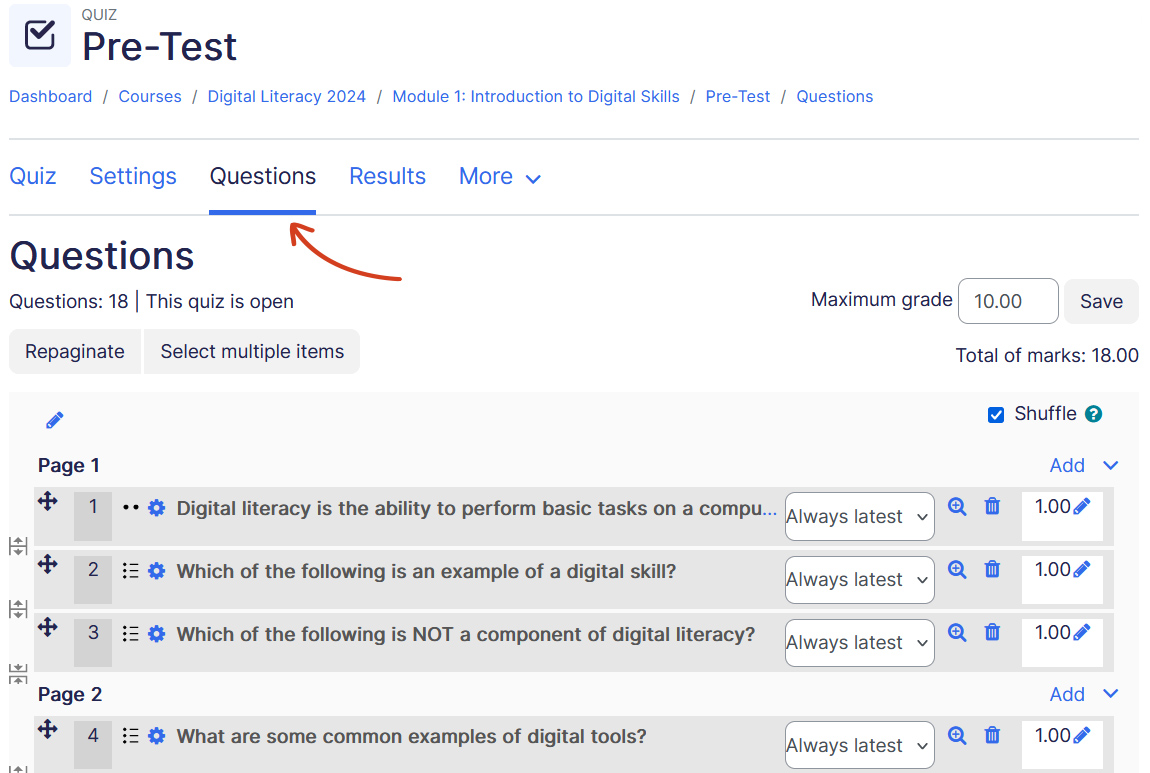
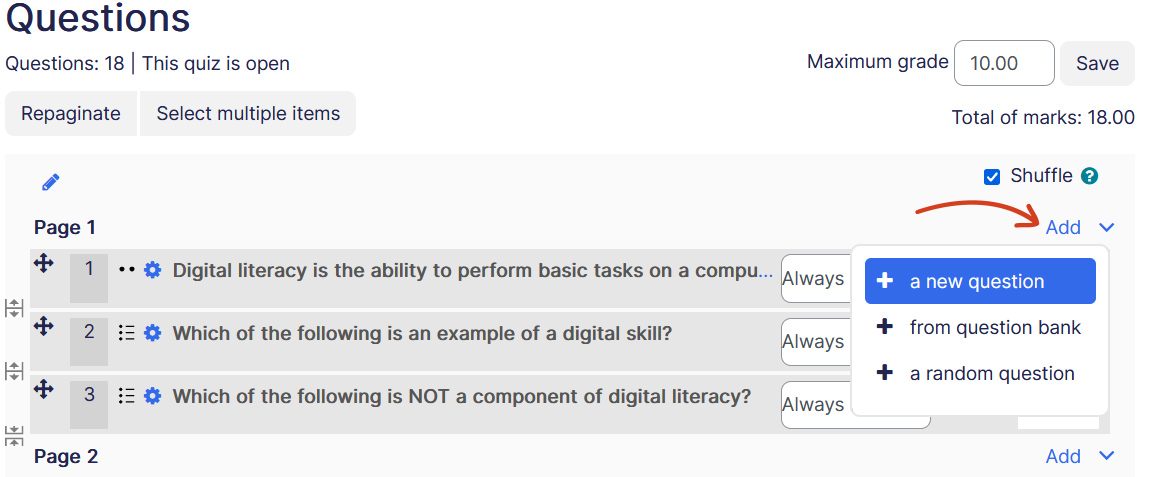
Step 3: Each quiz builder page has an ‘add’ button by which you can add a question. There are couple of ways to add questions to the quiz:
- Add a new question – This allows you to pick a question type and add to the quiz.
- Add question(s) from the Question Bank – This option allows you to pull existing questions from the Question Bank. Explore our detailed guide on Question Bank and Question Types.
Click ‘a new question’ button to add a new question, which opens a pop-up.
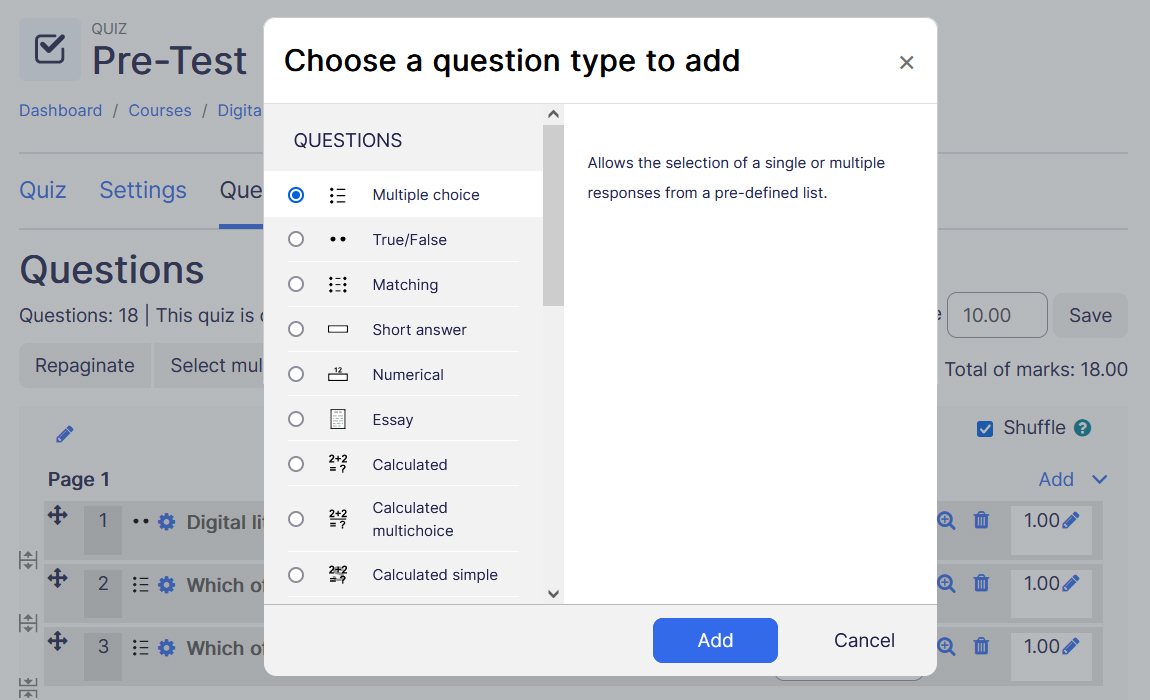
Step 4: The pop-up shows various question types. Choose any of the question types which takes you to the question page. Explore our guide on Quiz Question Types to know all the types of question supported and how they should be added.
Step 5: Once added a question, the page returns to the Quiz Builder page which lists all questions of the quiz.
Previewing quiz #
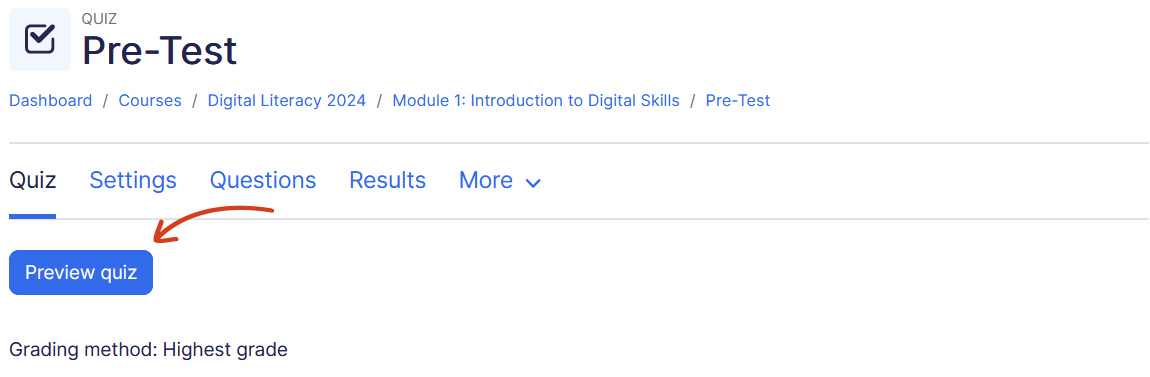
To preview the quiz, click on the ‘Preview quiz‘ button on the Quiz activity page.
Quiz results #
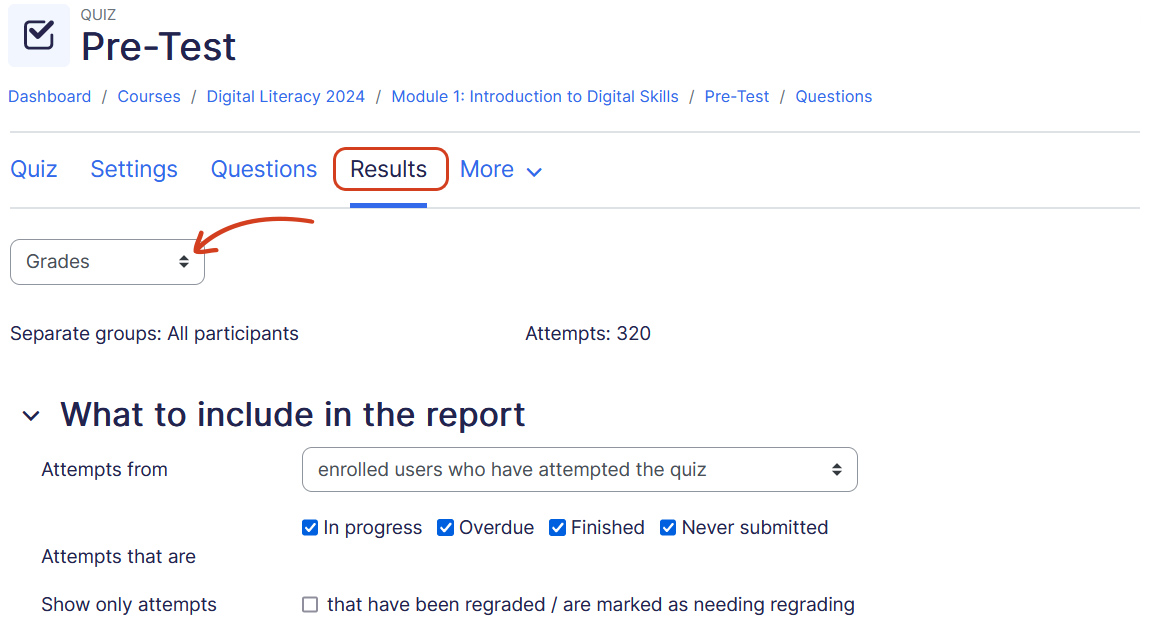
Quiz attempts can be accessed from the Quiz page. The page shows the number of all the attempts which are either done or in-progress. You can click on the number of attempts which takes you to the attempts’ report. From the report’s page you can:
- Filter attempts
- Regrade an individual attempt or regrade all
- Delete one more attempts
- Download report in csv, xlsx, ods and pdf file formats
Editing quiz questions #
The quiz questions can be edited by clicking the editing (gear icon) from the Quiz Builder page.
Although you can edit questions, you cannot add/remove questions after receiving any attempt on the quiz.
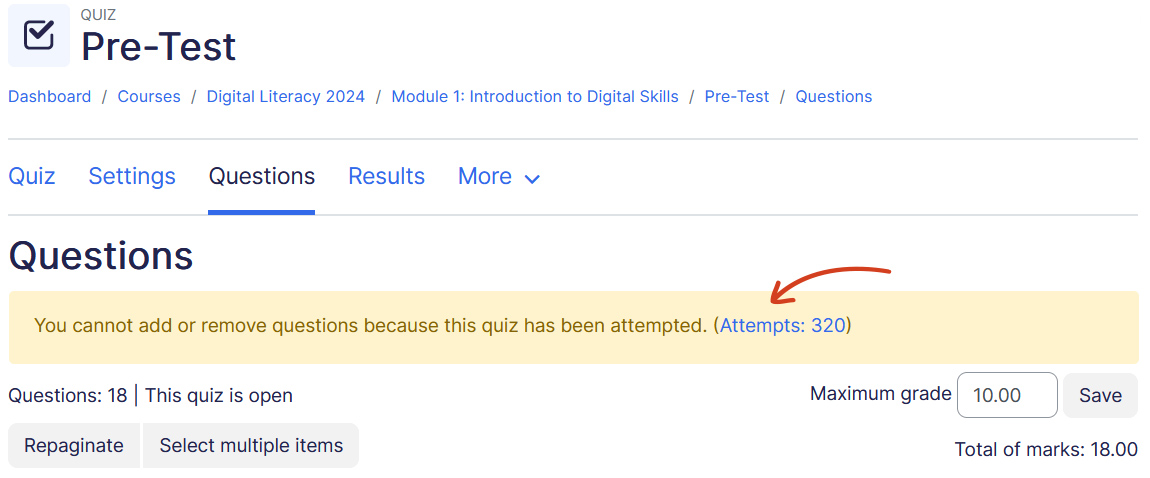
You can change the grade for a question (the scores for all students will recalculate immediately), preview an individual question and click on a question edit link that will allow you to directly edit the question stored in the Question Bank.
Be very careful about editing questions! It is OK to make small changes (e.g. fix a spelling mistake or change the grade for a partially correct response) but if you make a major change (for example deleting a choice from a multiple choice question) then you may break the existing quiz attempts. After editing questions in a way that affects the grading, you will need to re-grade the quiz.
Dealing with Faulty Questions
There are several ways to deal with “bad” questions in a quiz.
- Change the grade for the bad question to 0 in the quiz.
- Edit the question, changing what you will accept as a correct answer, then regrading the exam. Remember when changing a question that the next time it is used it will be as it was in the last edit. Also, regrading will only affect one quiz at a time.
- You can edit the question to explain the situation to the student and then you can set the grade for the question to zero. After you make such changes you should regrade the quiz by clicking on the Results tab and then the Regrade tab. This will change the grade for all students who have taken the quiz so far. Remember, if the question is used by another quiz, your “explanation” will appear as part of that quiz.
- You can change the grade for the bad question and then move or delete the question from your question category. The question will still appear on the quiz. Some places do not like to delete any question, but will move them to a “dead” or “bad” question category.
- When you discover a bad question in your quiz, it may affect the Question Bank. Remember that a final might be made up of a certain number of random questions drawn from different question categories, the same categories used in a smaller subject quiz. It can be very important to do something about bad or invalid questions in a question category when the categories are used in other places.
