
The Assignment activity enables a teacher to assign tasks, collect work and provide grades and feedback based on the submission.
Features of an Assignment activity #
- Students can submit any digital content (file), such as word document, spreadsheet, image, pdf, even audio or video clips.
- Alternatively, or in addition, the Assignment activity may require students to type text directly into the text editor.
- The Assignment activity can also be used to remind students of ‘real-world’ assignments which they need to complete offline, such as art work, and thus does not require any digital content.
- Students can submit work individually or as a member of a group.
- When reviewing assignments, teachers can leave feedback comments and upload files, such as marked-up student submissions, documents with comments or (spoken) audio feedback.
- Assignments can be graded using a numerical or custom scale or an advanced grading method such as a rubric. Final grades are recorded in the gradebook.
Adding an Assignment activity #
To add an Assignment activity:
- Navigate to the Courses page.
- Click on “Edit” under Actions for the desired course.
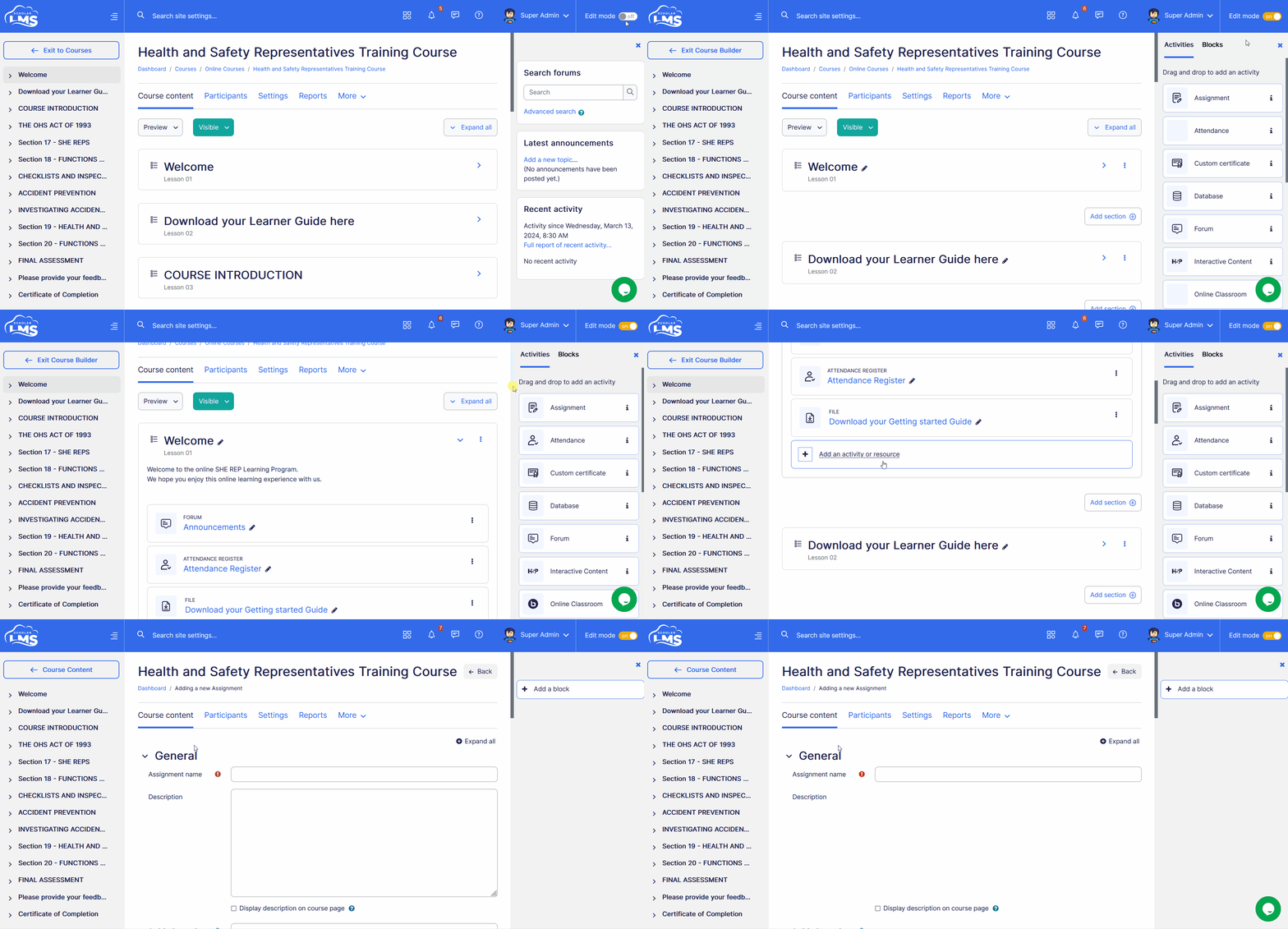
- This takes to Course Builder page. Ensure that the Edit mode is activated on the Course Builder page.

- Navigate to the Course Section, click the ‘Add an Element’ button. Alternatively, you can drag and drop the Assignment from the right sidebar.
Assignment settings #
This section explores the settings for the Assignment activity once you have added it to your course.
Note that if you want to edit an existing Assignment activity, click the Edit link to its right and choose the action you wish to take, eg ‘Edit settings’.
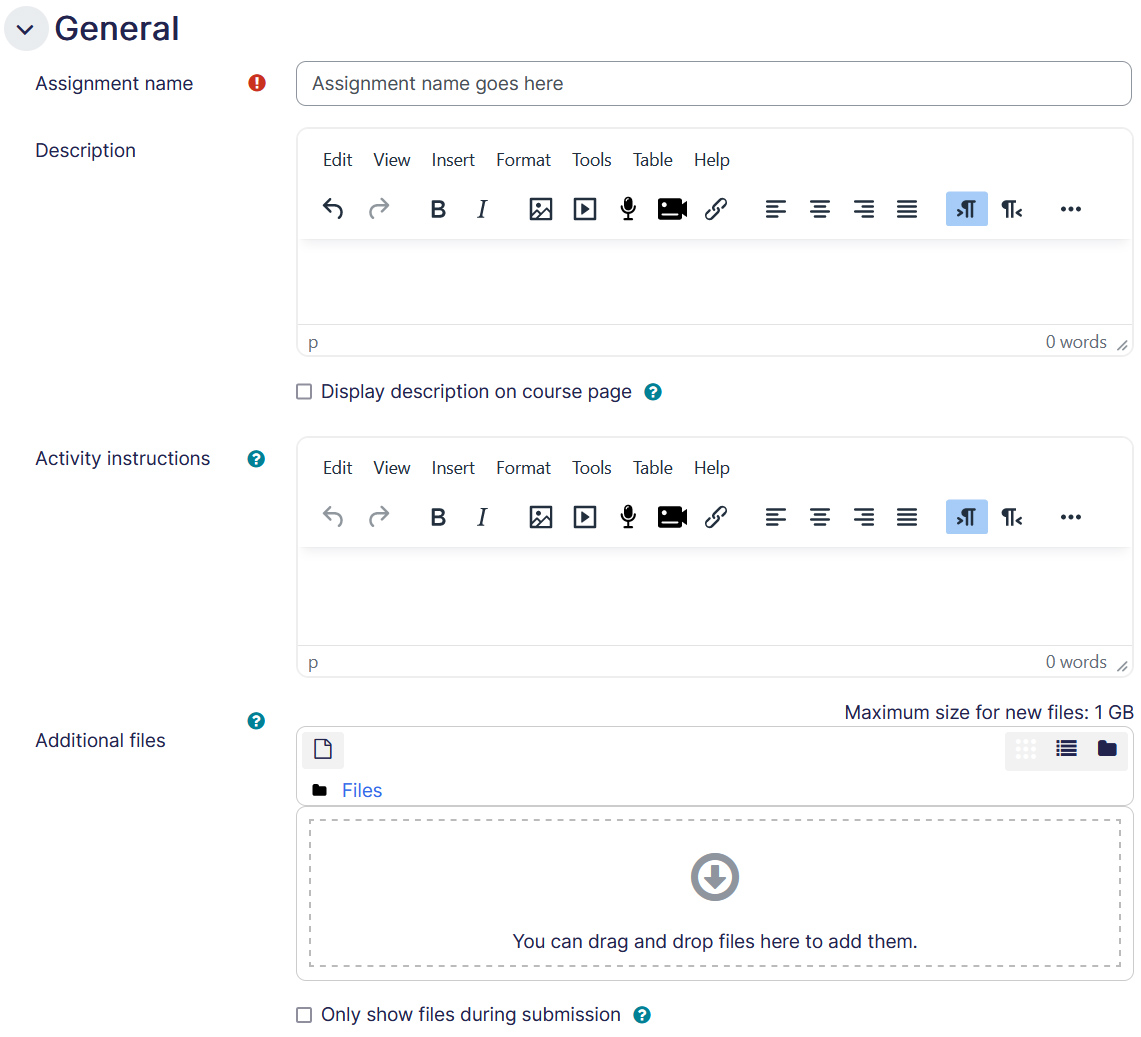
General
- Assignment name — This is a mandatory field. Put in the name as you desire for the Assignment you are creating.
- Description — The details of the Assignment activity could be put in here. “Display description on course page” checkbox will enable the description to be displayed on the course page below the link to activity.
- Activity instructions — The actions you would like the student to complete for this Assignment. This is only shown on the submission page where a students edits and submits their Assignment.
- Additional files — Additional files for use in the Assignment, such as answer templates, may be added.
- Only show files during submission — Tick the box to only show files on the submission page. Otherwise, files will be shown on both the Assignment and submission pages.
Availability Settings
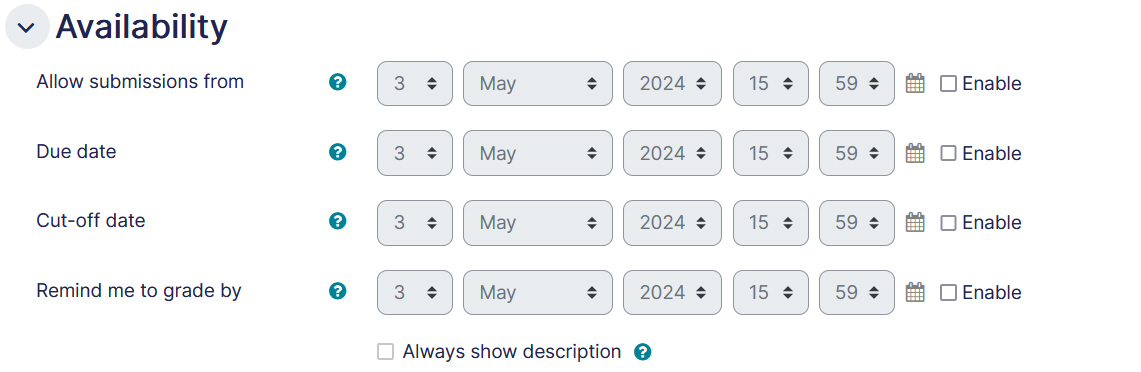
- Allow Submissions from — This is for students. If you enable this, students will be able to make submissions from a defined date otherwise the submissions could be done right after the activity is available for students to access.
- Due Date — Enable this setting to define when the submission is due. The assignments will be accepted after this date but will be marked as late submission.
- Cut-off Date — This will restrict the students from submitting after the mentioned date.
- Remind me to grade by — This helps teachers prioritize their dashboard. Enabling this notifies the teacher to grade a particular Assignment by the defined date.
- Always show description — If disabled, the Assignment description above will only become visible to students on the “Allow submissions from” date.
Submission type
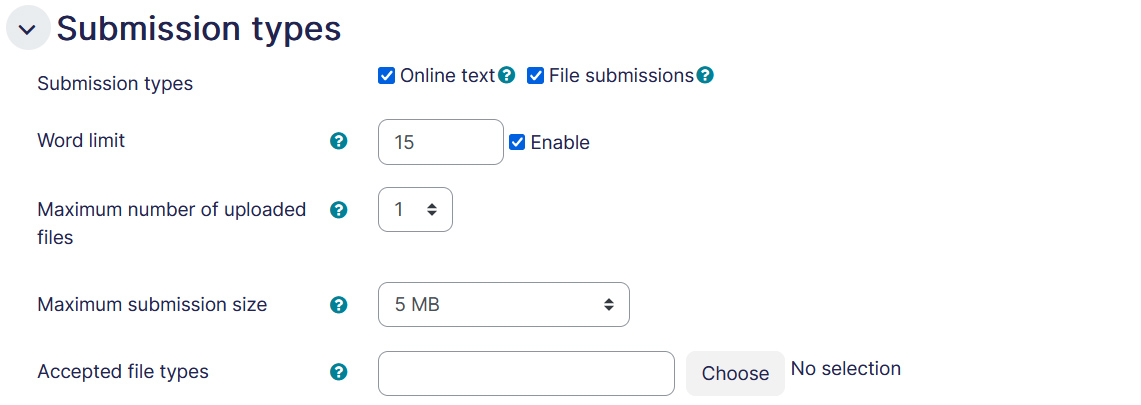
Defines the form in which submissions could be made.
- File Submissions — If enabled, students are able to upload one more file as their submission. Further you can define the maximum number of files, total file size and acceptable file formats.
- Online Text –– If enabled, students are able to type rich text in the text editor. If needed, word limit can be defined.
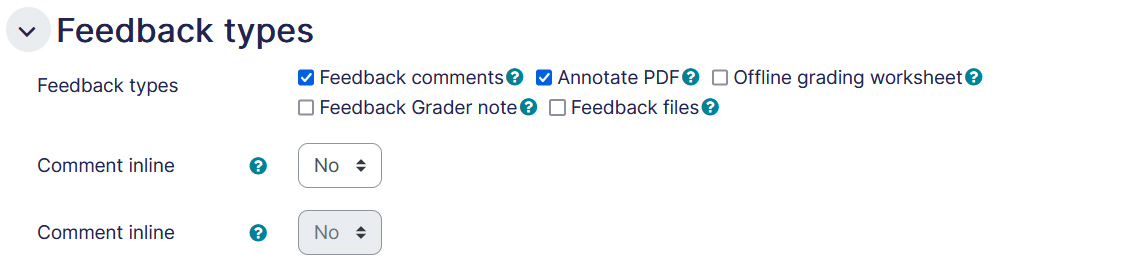
Feedback Type
This section defines the way feedback shall be provided on the Assignment.
- Feedback comments — With this option, markers can leave feedback comments against each submission.
- Annotate PDF — The teacher can annotate uploaded PDFs, docx and odt files within the browser, and on saving, the annotated file is made available to the student.
- Feedback files — With this setting teachers can upload files with their feedback on submissions. These files could be marked up submissions, documents with remarks or audio feedback.
- Feedback Grader note — The marker can simply leave a note for each submission.
- Offline grading worksheet — This allows the teacher to download the student work. Do the marking and upload the marked Assignment back.
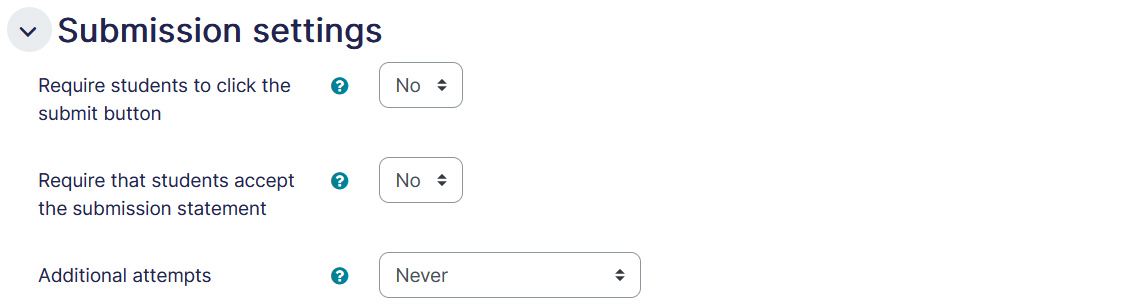
Submission settings
- Require students to click submit button — If enabled, students will have to click on submit button to declare their submission as final. This allows students to keep a draft version of the submission on the system. If this setting is changed from “No” to “Yes” after students have already submitted, those submissions will be regarded as final.
- Require that students accept the submission statement — An administrator can define a “Submission statement/declaration” i.e. a statement where students promise the work is their own and which they must agree to before submitting their work.
- Additional attempts (Attempts reopened) — Determines how student submission attempts are reopened. The available options are:
- Never – The submission cannot be reopened.
- Manually – The submission can be reopened by the teacher.
- Automatically until pass – The submission is automatically reopened until the student achieves the passing grade.
- Maximum attempts — Here you can decide how many attempts to allow if students can resubmit. If a student has to keep trying until they get a pass grade, you might decide to limit the attempts even though they have not yet passed – or they might be trying forever!
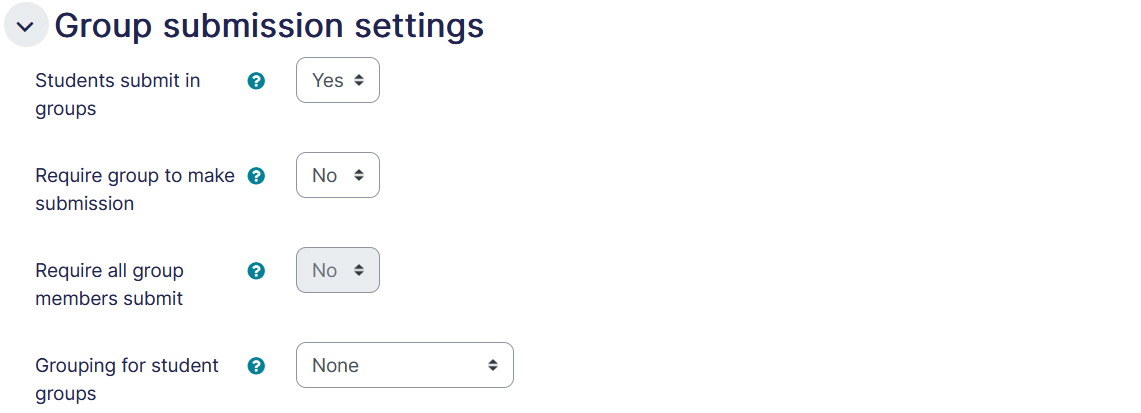
Groups submission settings
These settings allow students to collaborate on a single Assignment, eg. working in the same online area or uploading, editing and re-uploading a word document in the common Assignment area.
When grading, the teacher may choose to give a common grade and feedback to all students in the group or to give individual grades and feedback to each member.
Notifications
Allows you to set up notifications for submissions.
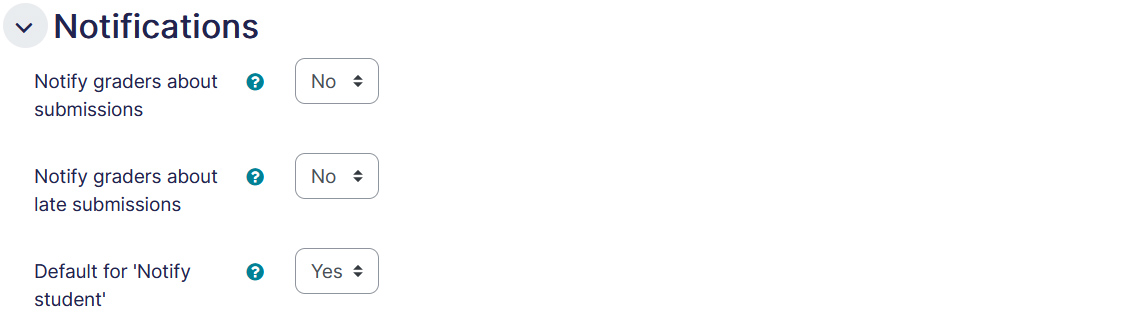
Note that if you are using group mode then course teachers need to be present as members of the group in order to receive submission and late submission notifications.
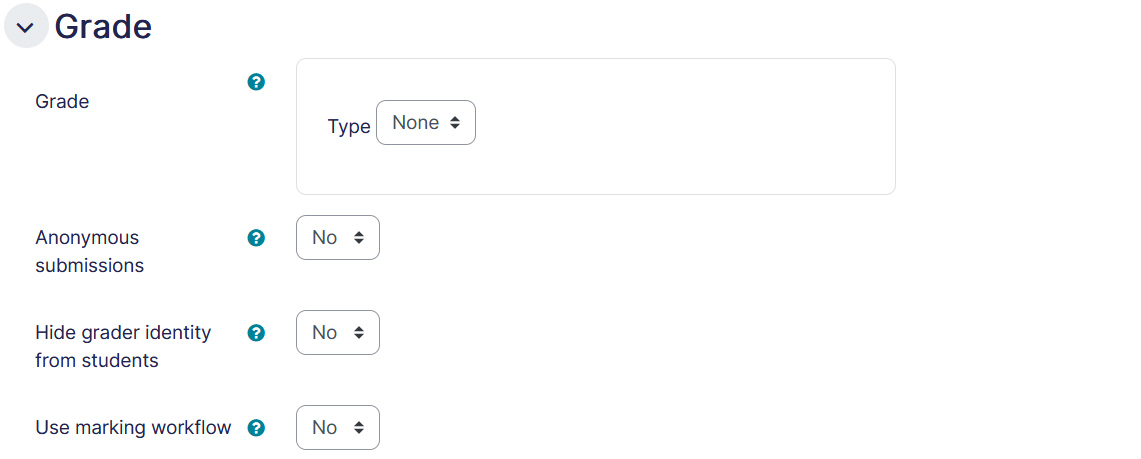
Grades
Allows you to set up grades for the Assignment.
- Grade — Select the type of grading used for this activity. If ‘scale’ is chosen, you can then choose the scale from the dropdown menu. If using ‘point’ grading, you can then enter the maximum grade available for this activity.
- Grading method — Choose simple grading or advanced type of grading like Marking guide, or Rubric.
- Grading category — This setting controls the category in which this activity’s grades are placed in the gradebook.
- Grade to pass — This setting determines the minimum grades required to pass. The value is used in activity and course completion, and in the gradebook, where pass grades are highlighted in green and fail grades in red.
- Blind marking — Blind marking hides the identity of students from markers. Blind marking setting will be locked and cannot be changed once a submission or grade has been made in this Assignment.
- Hide grader identity from students — If enabled, the identity of any user who grades an Assignment submission is not shown, so students can’t see who marked their work. Note, this setting has no effect on the comments box on the grading page.
- Use marking workflow — This lets you keep grades and feedback hidden until you are ready to release them to students. It is also useful if you want to show your progress in grading, or co-ordinate with multiple markers/graders.
Common module settings
- Availability – If the availability is set to ‘Show on course page’, the activity or resource is available to students (subject to any access restrictions which may be set). If the availability is set to ‘Hide from students’, the activity or resource is only available to users with permission to view hidden activities (by default, users with the role of teacher or non-editing teacher).
- ID number – Setting an ID number provides a way of identifying the activity or resource for purposes such as grade calculation or custom reporting. Otherwise the field may be left blank. For gradable activities, the ID number can also be set in the gradebook, though it can only be edited on the activity settings page.
- Group mode – The group mode defined at course level is the default mode for all activities within the course. Each activity that supports groups can also define its own group mode, though if the group mode is forced at course level, the group mode setting for each activity is ignored. This setting has 3 options:
- No groups
- Separate groups – Each group member can only see their own group members, others are invisible
- Visible groups – Each group member works in their own group, but can also see other groups
Restrict access
The restrict access feature enables teachers to restrict the availability of any activity according to certain conditions such as dates, grade obtained, group, user profile field, time spent on a different activity, or activity completion. A complex logic can be used with nested restrictions. To know more, explore our detailed guide on access restriction.
Alternatively, an activity can be hidden from students until they are ready to be used.

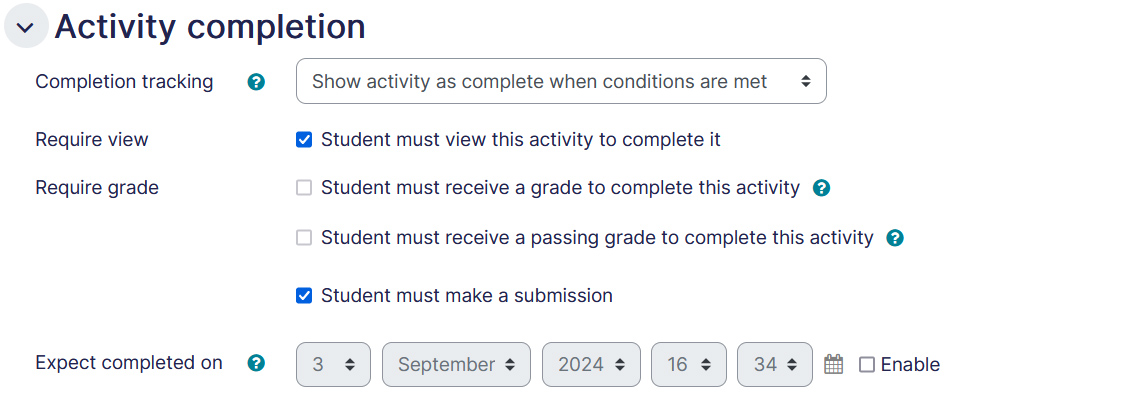
Activity completion
Activity completion allows you to set completion criteria which basically decides when to consider the activity is completed. The following options are available:
- Students can manually mark the activity completed, here you allow students to make this decision.
- Activity is considered complete when certain conditions are fulfilled, where one or more conditions can be added.
- Student must receive a grade to complete the activity
- Student must submit Assignment to complete it
- A date of expected completion of the activity
Competencies
Allows you to link competency to the activity. To know more, explore our guide on Competencies.
