
Introduction #
Course Recompletion allows administrators and instructors to reset course and activity completion data for learners after a defined period or on demand.
This is especially useful for compliance training, certifications, or recurring learning requirements where users must revisit and complete courses periodically.
When to Use This Feature #
Use Course Recompletion when you need to:
- enforce annual or periodic training
- ensure learners retake certification courses
- reset course progress for new training cycles
- maintain compliance with regulatory requirements
Key Features #
1. Scheduled Recompletion
Automatically resets course and activity completion data based on a predefined schedule.
2. On-Demand Recompletion
Allows manual reset of course completion for specific users whenever required.
3. Selective Data Reset
Supports resetting or managing data for specific activities, including:
- Assignments
- Quizzes
- SCORM packages
- Lessons
- LTI activities
- Choice activities
- Questionnaires
- Course certificates
4. Archiving Capability
Cleared data (such as grades and completion records) can be archived for future reference and reporting.
5. Custom Report Integration
Archived data can be accessed using ScholarLMS custom reports for compliance tracking and analysis.
6. User Notifications
Learners are notified when they are required to recomplete a course.
What Happens During Recompletion #
When recompletion is triggered, the following changes occur:
- All activity grades are cleared (stored in grade history)
- Course and activity completion status is reset
- Optional archiving of completion and grade data
Activity-Specific Behavior #
1. Quiz
- Delete attempts
- Archive attempts
- Allow new attempts while keeping old ones
2. SCORM
- Delete or archive attempts
3. Assignment
- Reopen submissions (if allowed and attempt limits permit)
4. Other Activities
- Completion is reset, but some may require manual handling
How to Access #
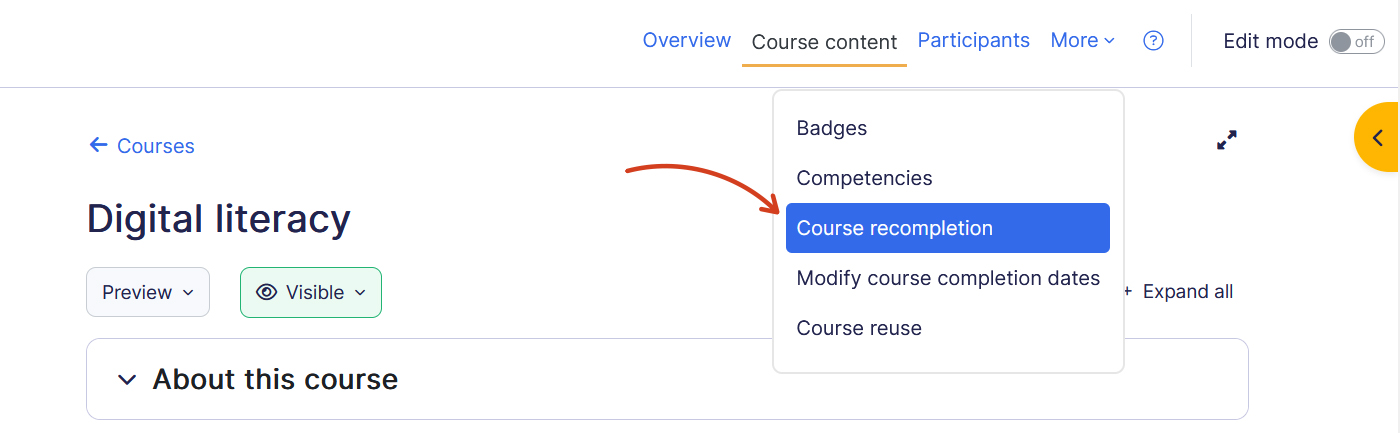
- Go to Courses
- Open the required course
- Select Course recompletion under More menu dropdown
Setting Options #
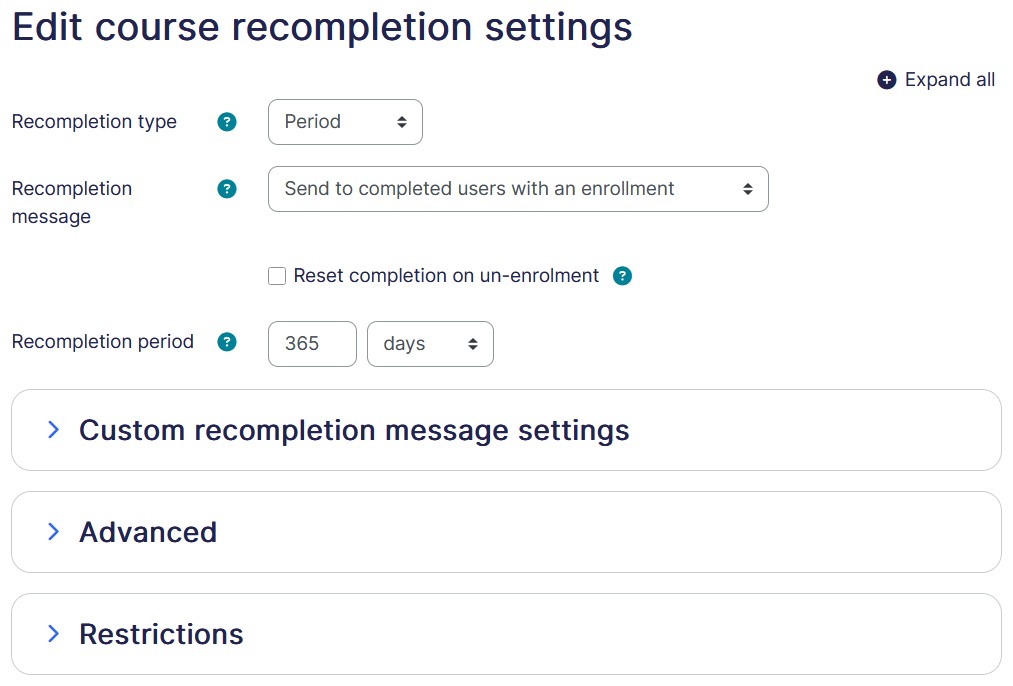
1. Recompletion Types
Defines when course completion should be reset:
- Disabled – No recompletion occurs.
- On Demand – Manual reset for selected users.
- Period – Automatically resets after a defined interval (e.g., every 365 days).
- Schedule – Resets on a specific date each year.
2. Recompletion Message
Defines which users receive recompletion notifications:
- Completed users
- Completed + active enrollment
- Completed + any enrollment
3. Course Recompletion Message Settings
Customize the notification sent to users when recompletion is required.
4. Advanced Settings
Provides additional controls such as:
- archival preferences
- activity-specific reset options
(Use tooltips in UI for detailed explanations of each option.)
5. Restrictions
Allows limiting recompletion based on:
- enrollment status
- group membership
- completion criteria
Reset Course Completion On Demand #
On-demand course recompletion allows administrators or instructors to manually reset or adjust course completion for selected users whenever needed. This provides flexibility to either restart a learner’s progress by clearing completion data or update their completion date without affecting activity progress. It is especially useful for handling exceptions, correcting records, or initiating a new training cycle for specific users.
Access the Recompletion Actions #
- Go to Courses
- Open the required course
- Select “Modify Course Completion Dates” under More menu dropdown
You will see a list of enrolled users along with two available actions:
- Change completion date for selected users
- Reset all completion for selected users
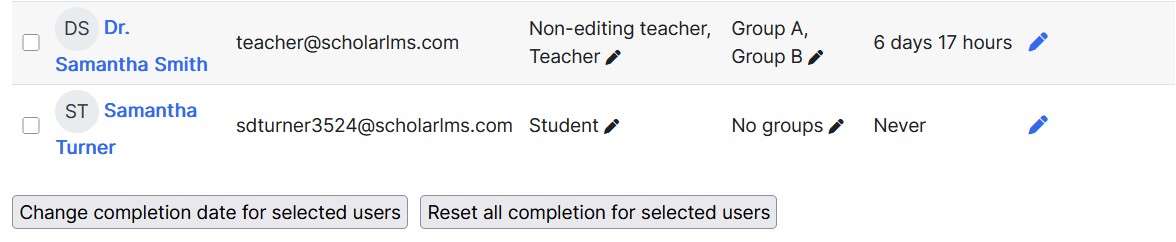
Option 1 — Reset Course Completion #
Use this when you want learners to re-take the course from scratch.
Steps
- Select one or more users
- Scroll to the bottom of the page
- Click Reset all completion for selected users
What this does
- Clears all course completion status
- Resets activity completion
- Applies activity-specific rules (quiz attempts, SCORM, etc.)
- Triggers recompletion behavior as configured
Option 2 — Modify Course Completion Date #
Use this when you want to adjust or correct completion records without resetting progress.
Steps
- Select one or more users
- Click Change completion date for selected users
- Choose the new completion date
- Click Save changes
What this does
- Updates the recorded course completion date
- Does not reset activity progress
- Useful for correcting completion records, aligning with external certification timelines, and backdating or extending completion validity
- Resetting completion cannot be undone
- Modified completion dates do not affect activity data
- Always verify selected users before applying bulk actions
Quick Summary #
You can manage course recompletion in two ways:
- Reset completion → Forces learners to retake the course
- Modify completion date → Adjusts records without resetting progress
