
Introduction #
ScholarLMS provides a suite of tools to support efficient course content management across various training and learning scenarios. Whether you are preparing a course for a new group, archiving it for record-keeping, or recovering past content, these tools ensure flexibility and control over your learning environments.
The following course reuse features are available:
- Course Copy – Duplicate an existing course within the same ScholarLMS site.
- Course Content Import – Import specific activities or sections from another course.
- Course Backup – Create a downloadable copy of the entire course, with or without user data.
- Course Restore – Restore a course from a backup file.
- Course Reset – Clear user data from an existing course while retaining all activities and resources.
Note: These tools are accessible from the course menu and are available to users with the appropriate capabilities (e.g., Teacher, Manager, Administrator).
Course Copy #
The Course Copy feature allows authorized users to duplicate an existing course in your ScholarLMS site. This function is typically used when setting up a course for a new group, duplicating a client-facing training program, or creating a base course template.
Common Use Cases:
- Creating a new session of a course for a different group of learners.
- Building a course variation for a different department or customer.
- Using a previous course as a base template for new training programs.
- Duplicating standard courses for franchise-based delivery or reseller models.
Note: The copy includes all activities, resources, and layout—without carrying over any user-specific data.
Steps to Copy a Course:
- Open the course you want to copy.
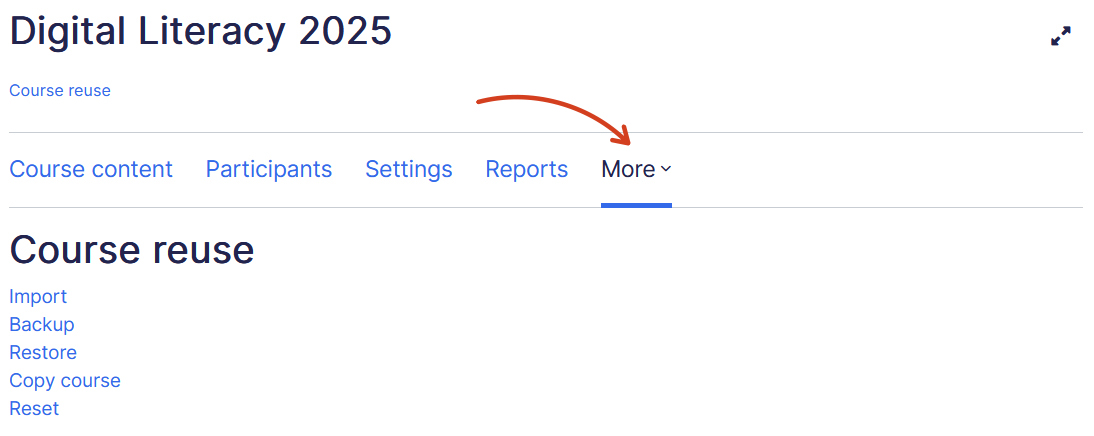
- Navigate to More -> Course reuse -> Copy course.
- Enter a name and short name for the new course, with other optional settings.
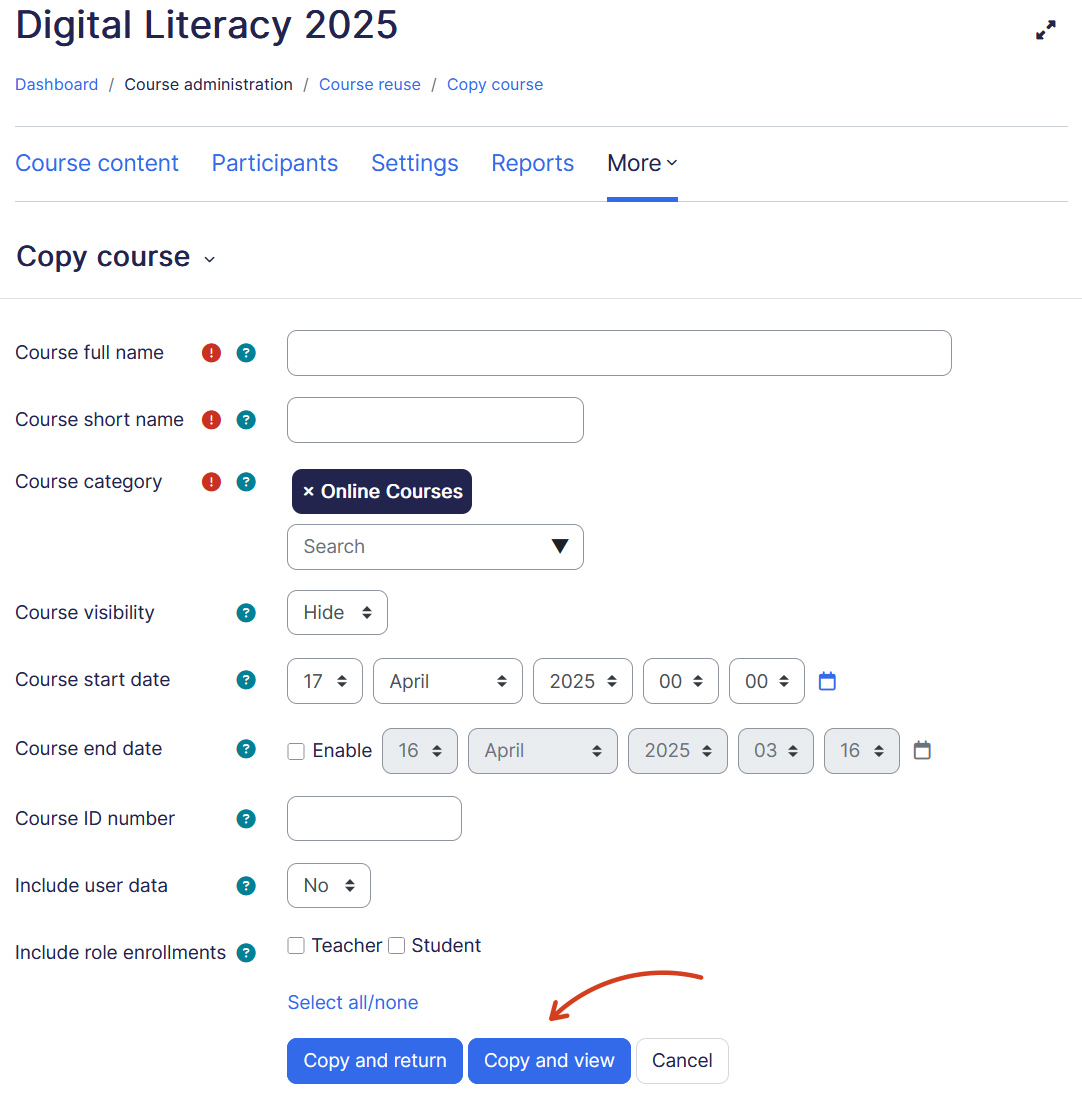
- Click “Copy and view” to begin the duplication process.
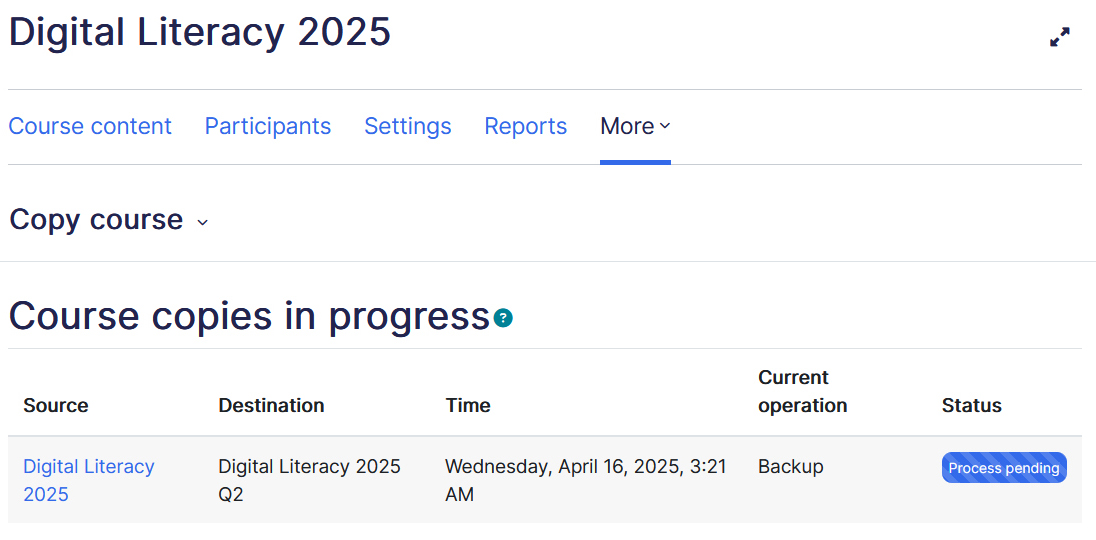
Note: The time it takes to copy a course depends on its size. Larger courses with many activities or media files may take longer to process.
Course Content Import #
The Course Content Import tool allows you to bring in specific content—such as activities, resources, or entire sections—from another course in the same ScholarLMS site. This is ideal when you don’t want to copy an entire course, but just reuse parts of it.
Common Use Cases:
- Reusing a quiz, video, or Assignment from another course.
- Pulling standard onboarding sections into a new training course.
- Consolidating resources from multiple courses into one.
Steps to Import Content:
- Open the course where you want to import content into.
- Navigate to More -> Course reuse -> Import.
- Select the course you want to import content from.
- Use the wizard to choose what to include (e.g. modules, activities and resources).
- Once done, confirm and perform import.
Note: Only content is imported—user data, grades, and progress are excluded.
Course Backup #
The Course Backup feature allows you to create a complete backup file of your course. This file can be downloaded and restored later, either on the same ScholarLMS site or another instance.
Common Use Cases:
- Saving a course before making significant changes.
- Archiving training programs for compliance or auditing purposes.
Steps to Back Up a Course:
- Open the course you want to back up.
- Navigate to More -> Course reuse -> Backup.
- Use the wizard to choose what to include (e.g., activities, user data).
- Click Perform backup.
- After the process completes, download the .mbz backup file.
Tip: If you plan to reuse the course for a new group, you can exclude enrolled users during backup.
Warning: Course backup files are kept for 45 days. Please download to save a copy of the backup file on your computer.
Course Restore #
The Course Restore feature allows you to bring back a course from a previously created backup file. You can restore the course as a brand-new course or merge it with an existing one.
Common Use Cases:
- Recovering deleted courses or training content.
- Setting up a copy of a course from a backup archive.
Steps to Restore a Course:
- Navigate to Courses -> Manage Courses page, then choose More -> Restore course option, or open a course to restore into.
- Upload or choose the .mbz backup file.
- Choose destination, whether to restore as a new course or merge into an existing one.
- Follow the steps in the restore wizard and click Perform restore.
Course Reset #
The Course Reset tool allows you to clear all user-specific data from a course—such as submissions, attempts, and enrollments—while keeping the course structure, content, and activities intact.
Common Use Cases:
- Preparing a course for a new batch without having to copy it.
- Reusing the same course layout with a different group of learners.
- Clearing old progress data to restart a program cleanly.
Steps to Reset a Course:
- Open the course you want to reset.
- Navigate to More -> Course reuse -> Reset.
- Choose what data to remove (e.g., user enrollments, forum posts, grades).
- Click Reset course to apply the changes.
Warning: This action is irreversible. Make sure to back up the course first if you may need the data later.
