
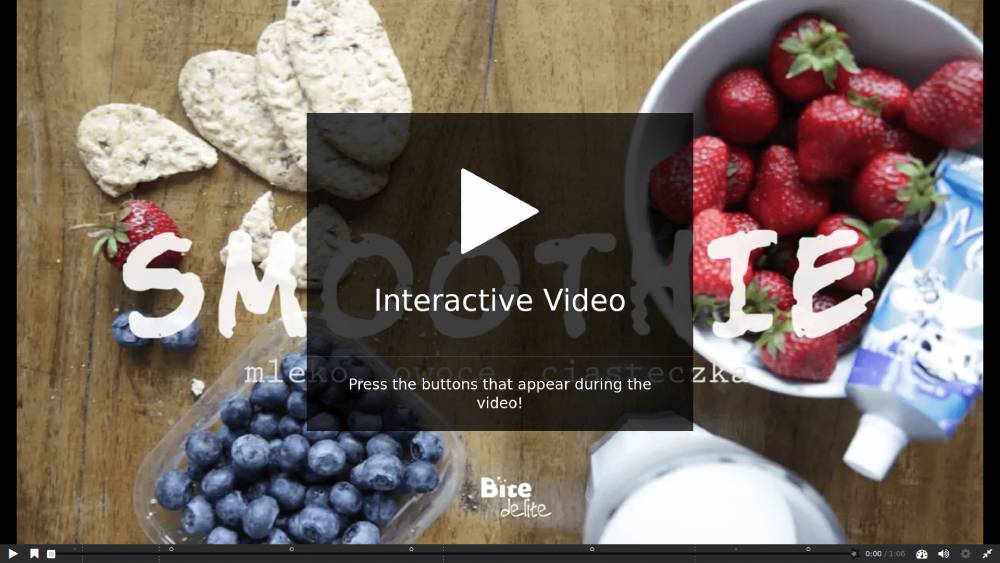
The H5P activity enables you to create Interactive Content such as Interactive Videos, Question Sets, Drag and Drop Questions, Multi-Choice Questions, Presentations and much more. H5P activity could be used as a content authoring tool due to its capability of producing a wide variety of content types.
Adding the H5P Activity #
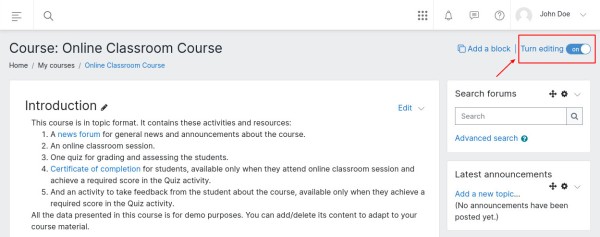
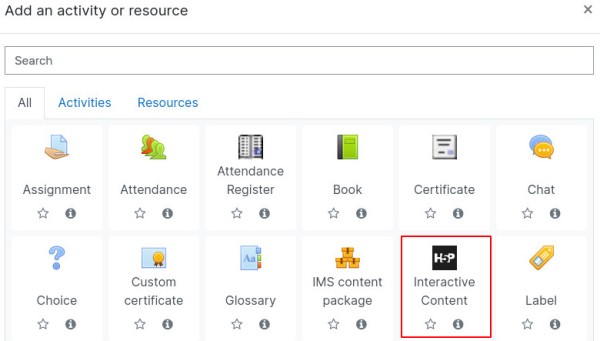
To add an H5P Interactive Content, go to the desired course where you click on “Add Activity” and choose ‘H5P’ from the activity chooser window. Do not forget to “Turn editing on” if the course is not in editing mode. Once added, you will be taken to the settings page.
H5P Settings #
This section explores H5P Interactive Content activity settings once you have added it to your course.
Description #
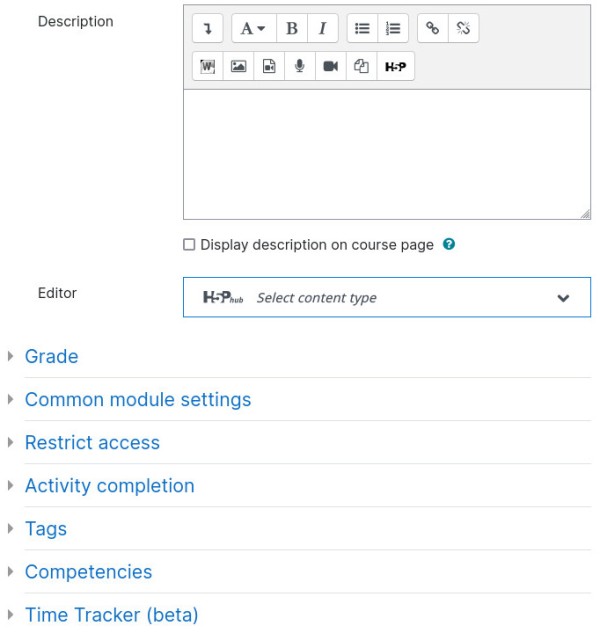
The details of the activity could be put in here. “Display description on course page” checkbox will enable the description to be displayed on the course page below the link to activity.
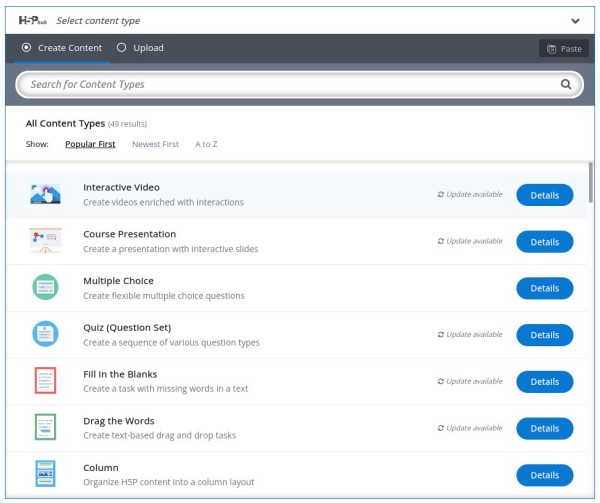
Editor #
The editor section allows you to create content based on several available content types.
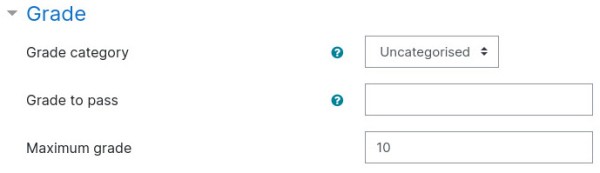
Grade #
- Grading category – This setting controls the category in which this activity’s grades are placed in the gradebook.
- Grade to pass – This setting determines the minimum grade required to pass. The value is used in activity and course completion, and in the gradebook, where pass grades are highlighted in green and fail grades in red.
- Maximum grade – Allows you to put the maximum grade that could be achieved.
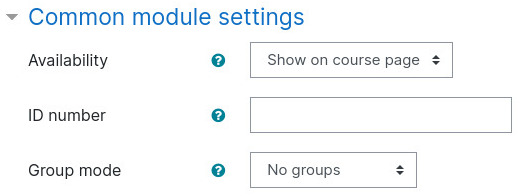
Common module settings (Optional) #
- Availability – If the availability is set to ‘Show on course page’, the activity or resource is available to students (subject to any access restrictions which may be set). If the availability is set to ‘Hide from students’, the activity or resource is only available to users with permission to view hidden activities (by default, users with the role of teacher or non-editing teacher).
- ID number – Setting an ID number provides a way of identifying the activity or resource for purposes such as grade calculation or custom reporting. Otherwise the field may be left blank. For gradable activities, the ID number can also be set in the gradebook, though it can only be edited on the activity settings page.
- Group mode – The group mode defined at course level is the default mode for all activities within the course. Each activity that supports groups can also define its own group mode, though if the group mode is forced at course level, the group mode setting for each activity is ignored. This setting has 3 options:
- No groups
- Separate groups – Each group member can only see their own group, others are invisible
- Visible groups – Each group member works in their own group, but can also see other groups
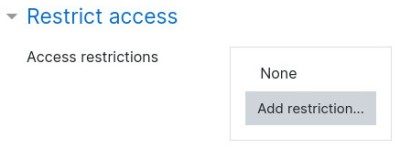
Restrict Access #
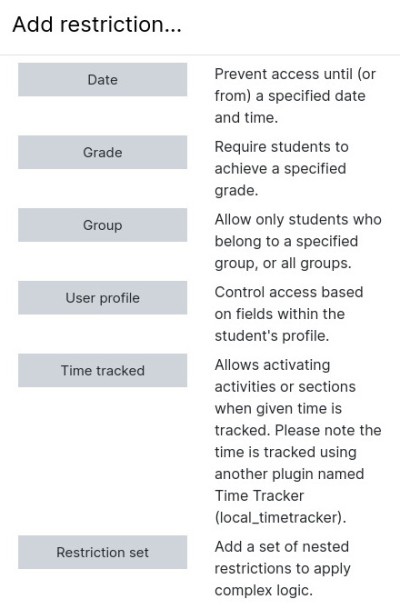
The restrict access feature enables teachers to restrict the availability of any activity according to certain conditions such as dates, grade obtained, group, user profile field, time spent on a different activity, or activity completion. A complex logic can be used with nested restrictions. To know more, explore our detailed guide on access restriction.
Alternatively, an activity can be hidden from students until they are ready to be used.
Activity Completion #
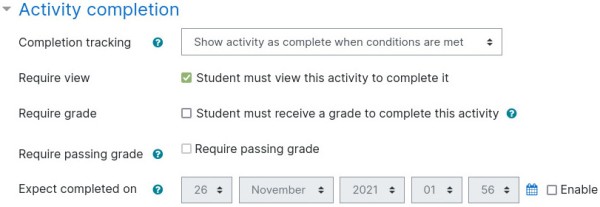
Activity completion allows you to set completion criteria which basically decides when to consider the activity is completed. The following options are available:
- Students can manually mark the activity completed, here you allow students to make this decision.
- Activity is considered complete when certain conditions are fulfilled, where one or more conditions can be added.
- Student must receive a grade to complete the activity
- Student must receive a passing grade to complete it
- A date of expected completion of the activity
Competencies #
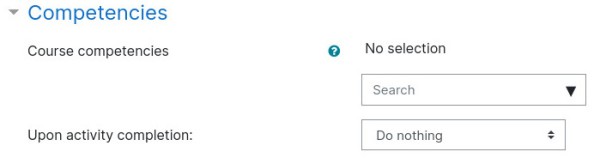
Allows you to link competency to the activity. To know more, explore our guide on Competencies.
Time Tracker #
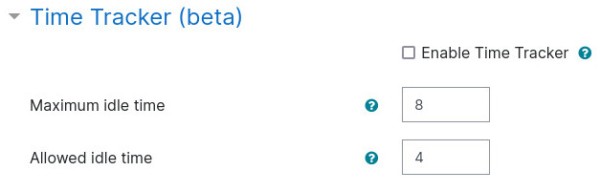
Allows you to enable time tracking of the activity. To know more, explore our guide on Time Tracker.
Creating a H5P Interactive Content #
In the following section, we will explore how to add H5P Interactive Content like presentation, interactive video, quiz, etc.
Step 1: From the editor dropdown, click to select the type of the content you would like to create.
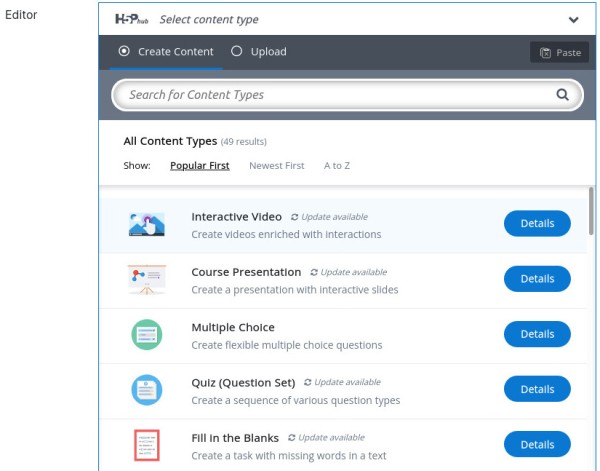
In case you already have a H5P file exported, you can rather upload that H5P archive file (of .h5p extension).
Step 2: Add title of this activity, this will be displayed to students.
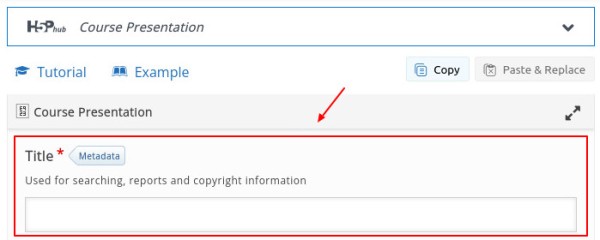
Step 3: Based on the content type you chose, the content creation window would look different. You can always take help from the available tutorial, or examples.
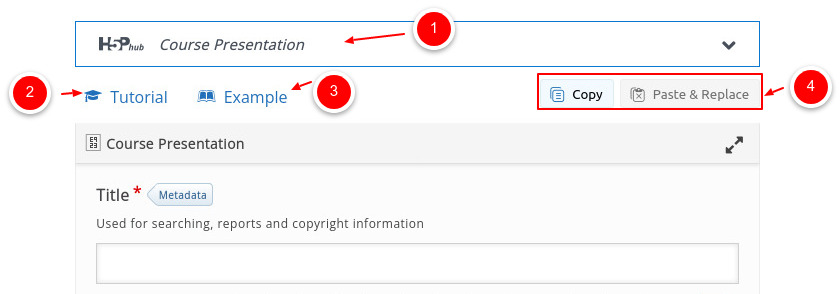
- Interactive Content selector
- Takes you to help tutorial for the content type
- Takes you to content type examples
- Allows you to copy and paste content from the slides.
Step 4: Behavioural settings – This window allows you to choose actions to be taken on the activity. You can go with default settings.

Step 5: Text overrides and translations – In this section, you can add text overrides and translations.
