
Introduction #
The Question Bank is a comprehensive tool designed for teachers to create, preview, edit, and organize quiz questions within a course. These questions can be utilized in Quiz activity to facilitate a streamlined assessment process.
Why Use a Question Bank? #
- Saves Time – Reuse questions across quizzes and courses.
- Organized & Reusable – Store questions in structured categories.
- Diverse Assessments – Supports multiple question types.
- Fair & Randomized – Prevents cheating with random question selection.
- Improves Quality – Tracks question performance and student responses.
- Encourages Collaboration – Share and refine questions with peers.
- Scalable – Use across multiple courses and institutions.
Overall, a Question Bank makes quiz creation easier, and more efficient.
Accessing the Question Bank #
Teachers can access the Question Bank through their course in two ways:
1. Course Navigation
On the main course page, click on “More” -> “Question Bank”.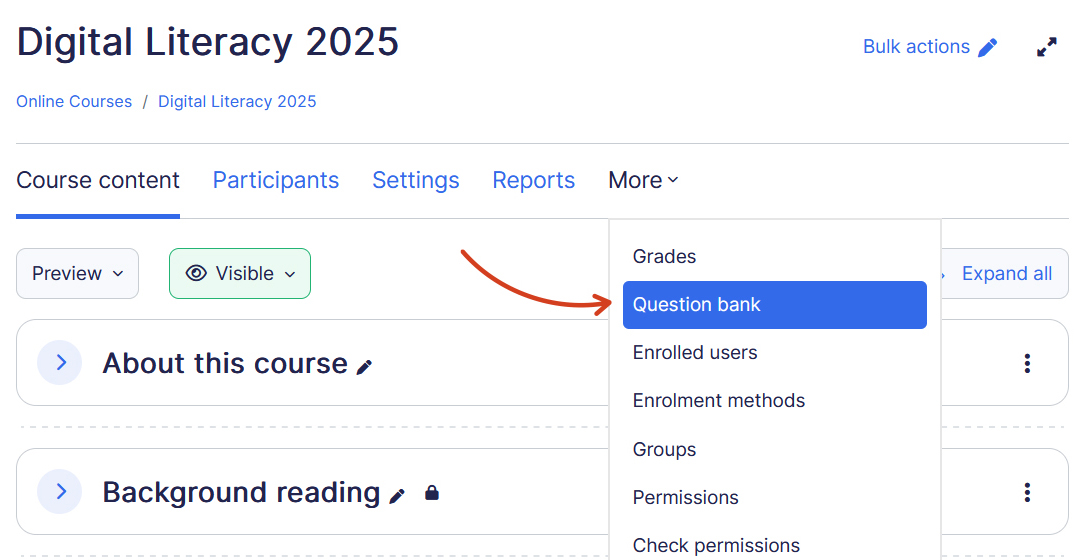
2. Quiz activity Navigation
Within a specific quiz, click on “More” -> “Question Bank” in the activity navigation.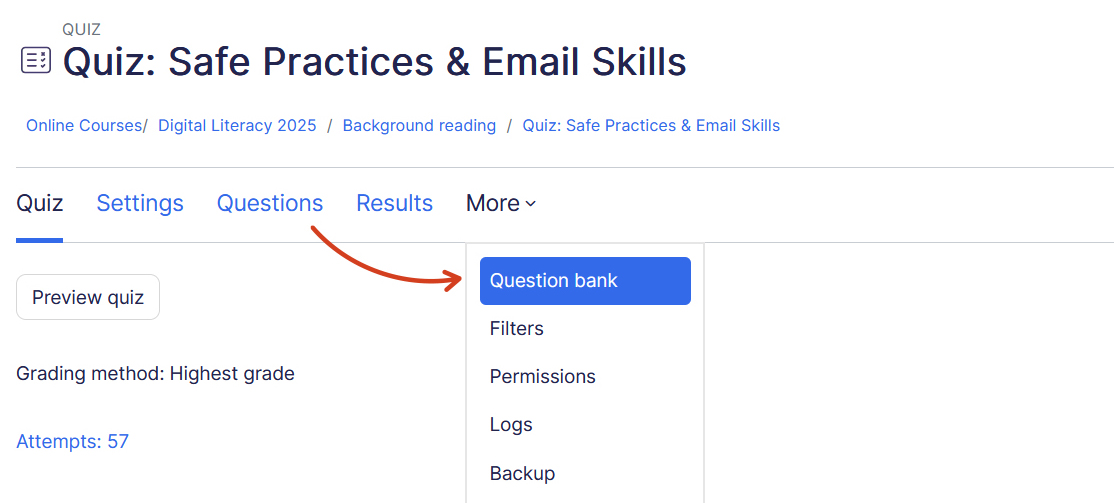
Note: To add questions to a quiz, you must navigate to the specific quiz and add questions from there. Questions cannot be added directly from the Question Bank to a quiz. Instead, the Question Bank serves as a repository where questions are stored and managed before being selected for a quiz.
Organizing Questions #
Questions are organized into categories and subcategories, much like folders and subfolders. Instead of storing all questions in a single list, they can be systematically grouped into categories and further refined into subcategories for better organization and easier management.
Each category has a context which determines where the questions in the category can be used:
- Activity context – Questions only available in the activity module
- Course context – Questions available in all activity modules in the course
- Course category context – Questions available in all activity modules and courses in the course category
- System context – Questions available in all courses and activities on the site
Pro Tip: Categories are also used for random questions, as questions are selected from a particular category.
Question Bank Page #
The Question Bank page includes filters at the top, allowing you to refine questions based on categories and the Question Bank itself.
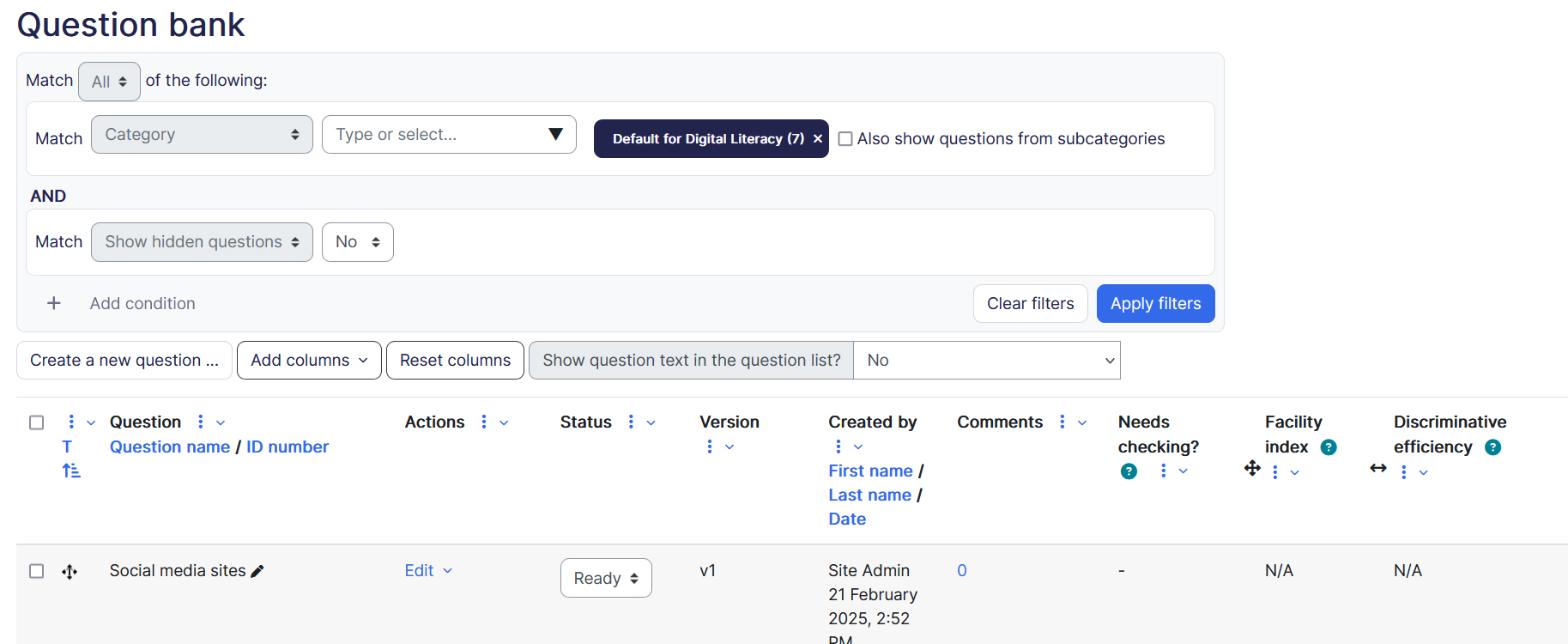
The Question Bank table provides detailed information about each question, including:
- Actions: Allows teachers to edit, duplicate, preview questions, view history, and see different versions.
- Status: Indicates whether a question is ready for use or requires further review.
- Version: Displays the iteration of the question, with access to detailed history.
- Comments: Enables collaborative input from colleagues for quality assurance.
- Usage: Shows the number of quizzes a question is used in, with links to specifics.
- Last Used: Indicates when a question was last attempted by a student.
- Needs Checking: Flags questions that may require review based on performance metrics.
Importing Question Bank #
The Importing Question Bank feature allows you to bring in existing questions from external sources, making it easier to reuse and manage content efficiently. ScholarLMS supports multiple formats for importing questions, including Moodle XML, GIFT, Aiken, and Blackboard.
Before importing, ensure that:
- The file format matches one of the supported question formats.
- Questions are structured correctly to avoid errors.
- You select the appropriate category to organize imported questions effectively.
The import process helps streamline question management, especially when migrating content from other platforms or consolidating multiple question banks.
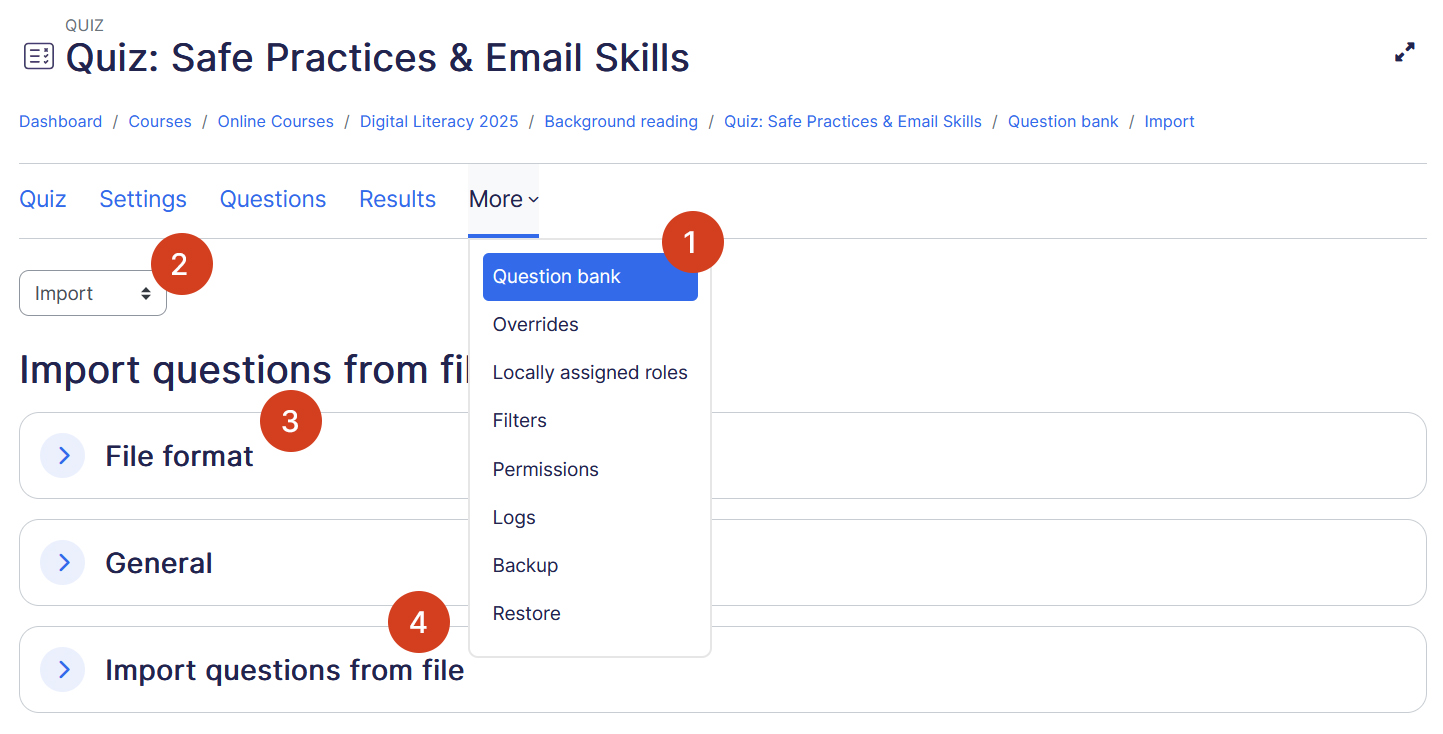
To import a Question Bank in ScholarLMS:
- Access Question Bank – Go to your course, click More > Question Bank.
- Select Import – Click the Import tab.
- Choose Format – Select the file format (e.g., Moodle XML, GIFT, Aiken).
- Upload File – Click Choose a file, upload your Question Bank file, and confirm settings.
- Import & Review – Click Import, verify the imported questions, and organize them into categories.
Exporting Question Bank #
To export a Question Bank from ScholarLMS:
- Access Question Bank – Go to your course and navigate to More > Question Bank.
- Select Export – Click the Export tab.
- Choose Format – Select an export format (e.g., Moodle XML, GIFT, Aiken).
- Select Category – Choose which question category you want to export.
- Download File – Click Export, then download and save the generated file.
The export Question Bank feature is useful for backing up questions, importing into another course, or migrating content.
Moving Questions to Site Level Category #
In ScholarLMS, questions are usually organized into categories within a specific course or Quiz activity. However, to make certain questions available across multiple courses, you may need to move them to a Site-Level Category.
Follow these steps to move questions to a different category:
Step 1: Access the Question Bank – Navigate to the Question Bank from the course page or quiz page.
Step 2: Select or Create a Category – From the dropdown menu, choose the target category. If a site-level category doesn’t exist, create one.
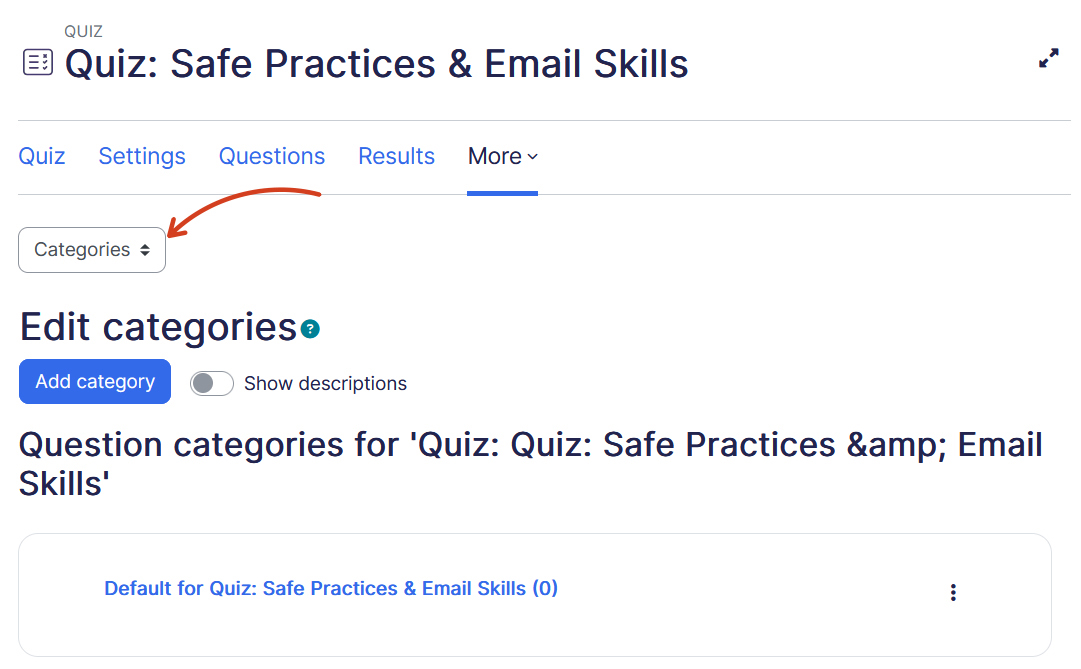
Step 3: Move Questions – Select the questions you want to move, then click “Move to…” and choose the desired category.
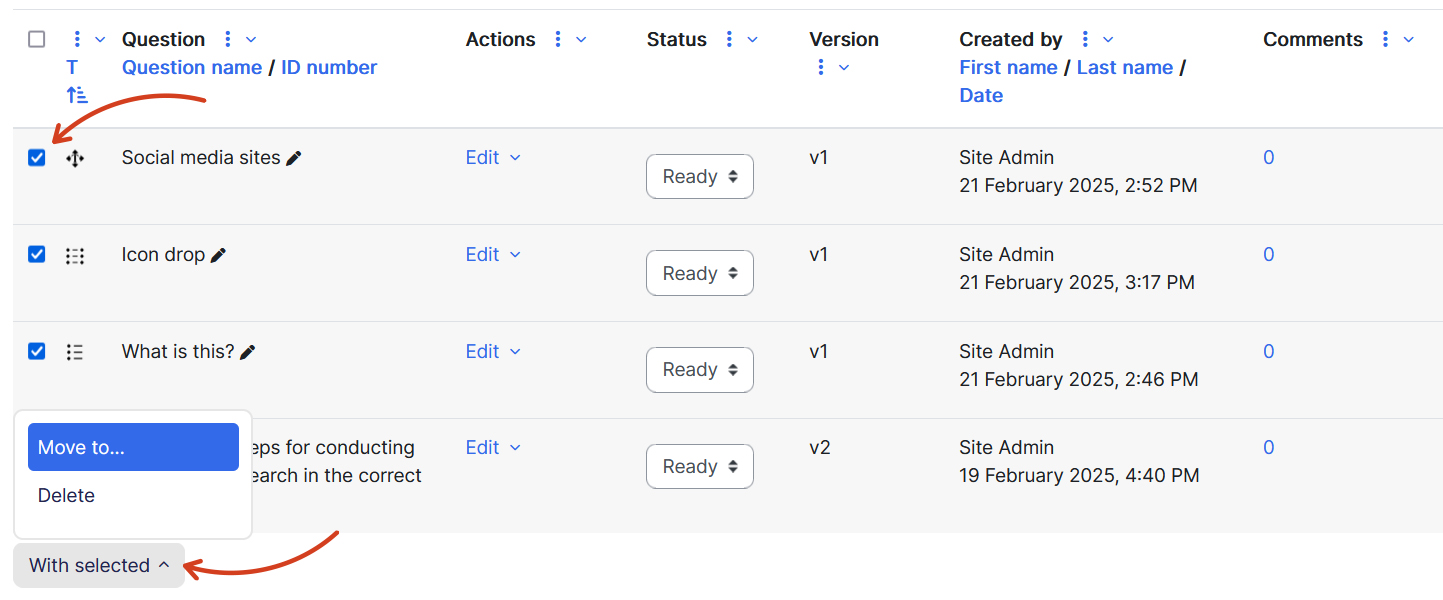
This process helps keep your questions organized and easily accessible within the appropriate categories.
Common Issues & Troubleshooting in Question Bank #
- Questions Not Appearing in Quiz – Ensure questions are added to the quiz, not just stored in the Question Bank.
- Cannot Move Questions – Verify user permissions and confirm that categories allow movement.
- Import Errors – Check if the file format is correct (Moodle XML, GIFT, Aiken) and properly formatted.
- Duplicate Questions – Review and clean up categories to avoid unnecessary repetition.
- Question Edits Not Reflecting – If using question versioning, ensure the latest version is applied in the quiz.
- Random Questions Not Working – Confirm that the selected category contains enough questions for random selection.
- Permissions Issues – Check role settings to ensure users have the necessary rights to edit, move, or share questions.
Regular maintenance and proper organization help avoid these common issues in the Question Bank.
Expert Tips for Using Question Bank #
- Organize with Categories – Structure questions into well-defined categories for easy access and reuse.
- Use Tags for Quick Search – Add tags to questions to simplify searching and filtering.
- Leverage Random Questions – Use random selection to create dynamic quizzes and prevent memorization.
- Maintain Question Versions – Enable version tracking to manage edits without losing historical data.
- Review Question Performance – Analyze student responses to improve question quality and difficulty balance.
- Backup Regularly – Export the Question Bank periodically to prevent data loss.
- Collaborate with Peers – Share and refine questions with colleagues for better assessments.
A well-maintained Question Bank improves efficiency, fairness, and overall quiz quality.
