
Your eLearning site’s Home Page is the first page that your users visit. With the numerous customization available on Home Page settings you can build it as per your needs.
Accessing Home Page settings #
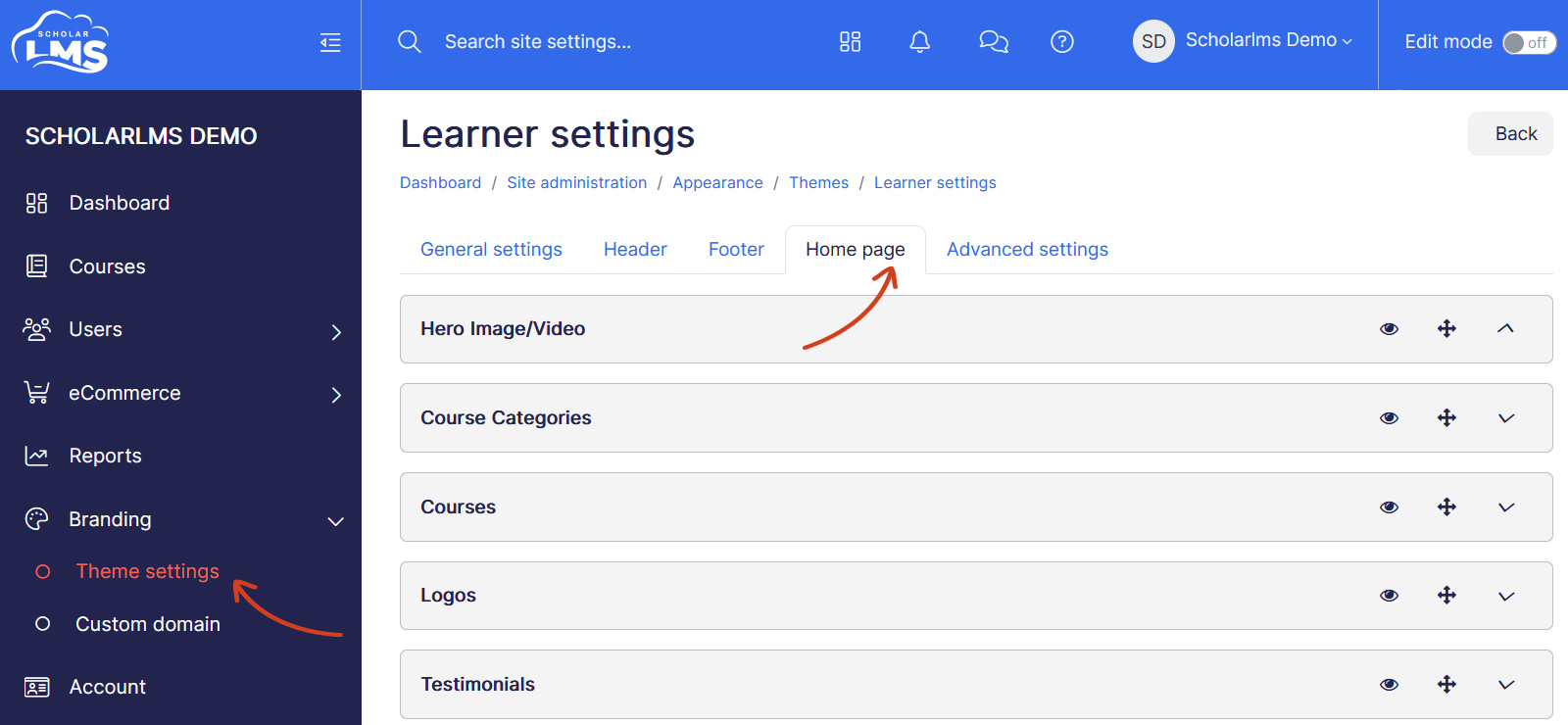
The Home Page settings can be accessed from left navigation Branding -> Theme Settings -> Home Page.
Previewing Home Page #
To preview changes to your home page:
- Save changes.
- Open a different browser where you are not logged in, or use the Incognito mode of the same browser.
- Navigate to your eLearning site to experience how your visitors/students would see it firsthand.
Home Page Sections #
The Home Page is built on horizontal content sections, and so the settings page acts like a Home Page builder where you can add or remove a section and further customize them to your needs.
Available sections to build your home page are:
- Hero Image/Video
- Course Categories
- Courses
- Logos
- Testimonials
Page section actions
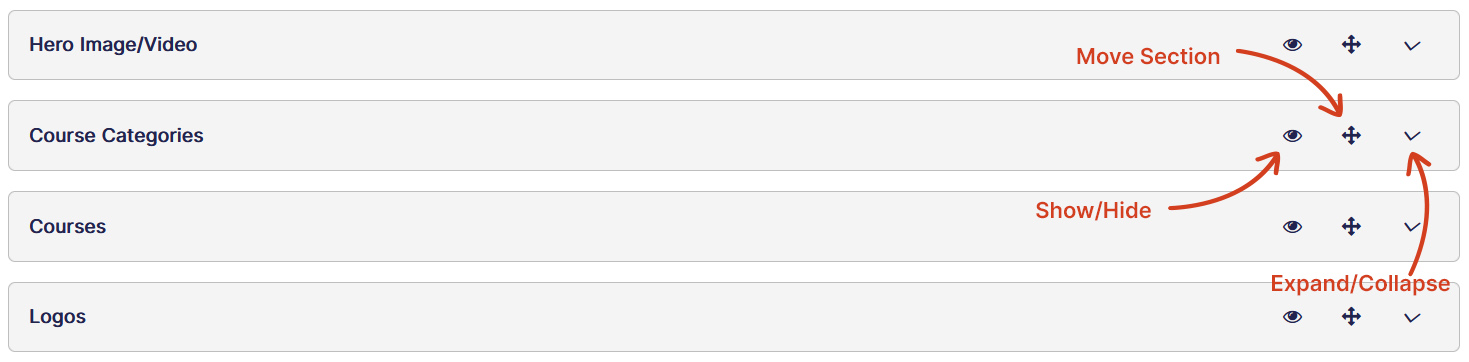
You can take three actions on a home page section:
- Show/Hide – To show or hide a particular section on home page.
- Move – To move up/down a section.
- Expand/Collapse – To expand or collapse a section.
Hero Image/Video
Having a compelling hero image on top of the home page can increase visitor engagement and for that Hero Image/Video section could come handy. This page allows you to either add an Image or Video background with a tagline on the home page.

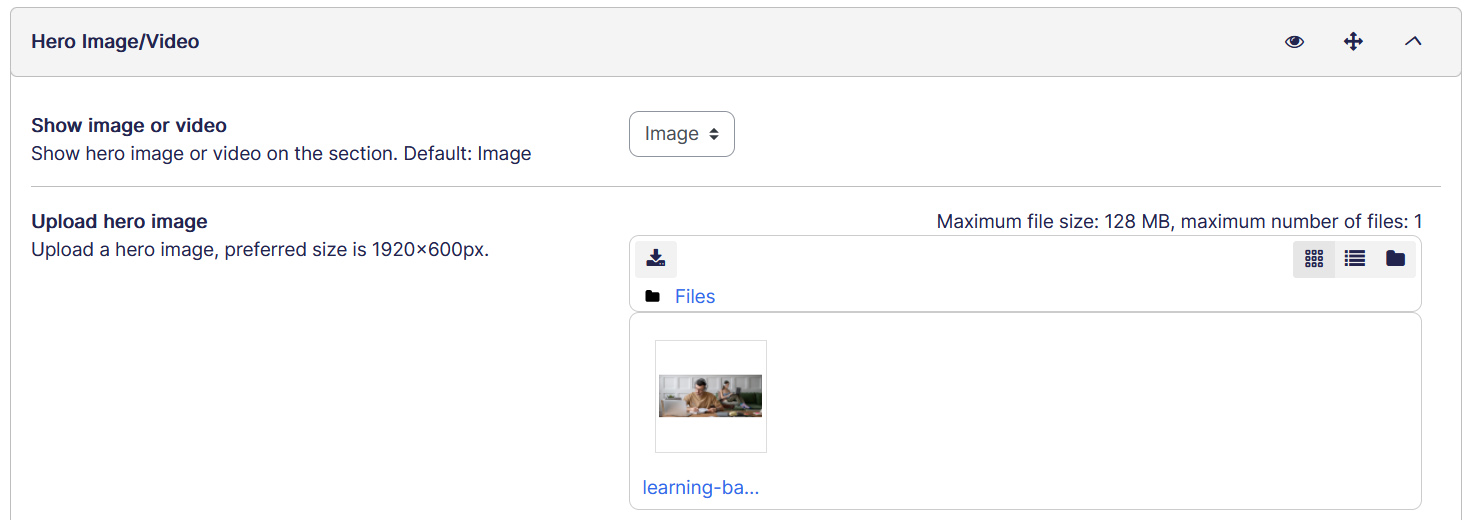
Let’s explore how we can customize Image/Video Section:
- Hero Image/Video – Choose the background for the hero section, it could be an Image or a Video.
- Hero Image Alignment – You can adjust alignment of the image with this option.
- Color overlay – You can use this to have an overlay color on Image/Video
- Top and bottom margin – Option for the Top and Bottom margin of Image/Video. It is useful if Image/Video is not the first section on the Home Page.
- Content alignment – Choose alignment of the title and description.
- Title – Title field allows you to have a business tagline or message. You can customize the Title’s font settings and it’s top/bottom margins.
- Description – Like Title you can have a description or an explainer below Title on Image/Video, which can be further customized with it’s font settings and top/bottom margins.
- Call to Action Buttons – Allows you to have a Call to Action button (up to two) on top of Image/Video. Each button can be customized with their text, URL, accent color, and hover color.
Course Categories #
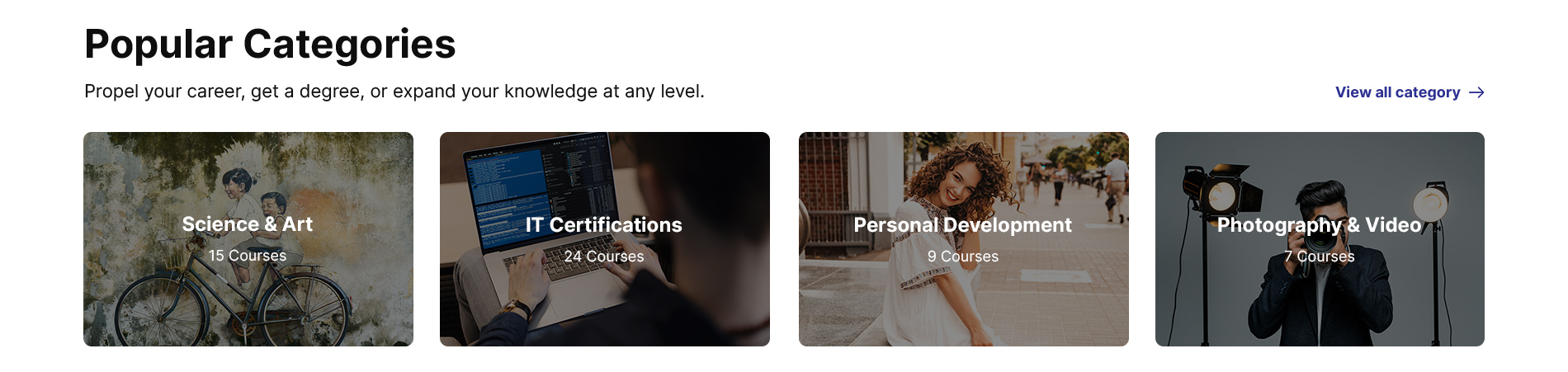
As the name implies, this section allows you to show courses categories available in your site.
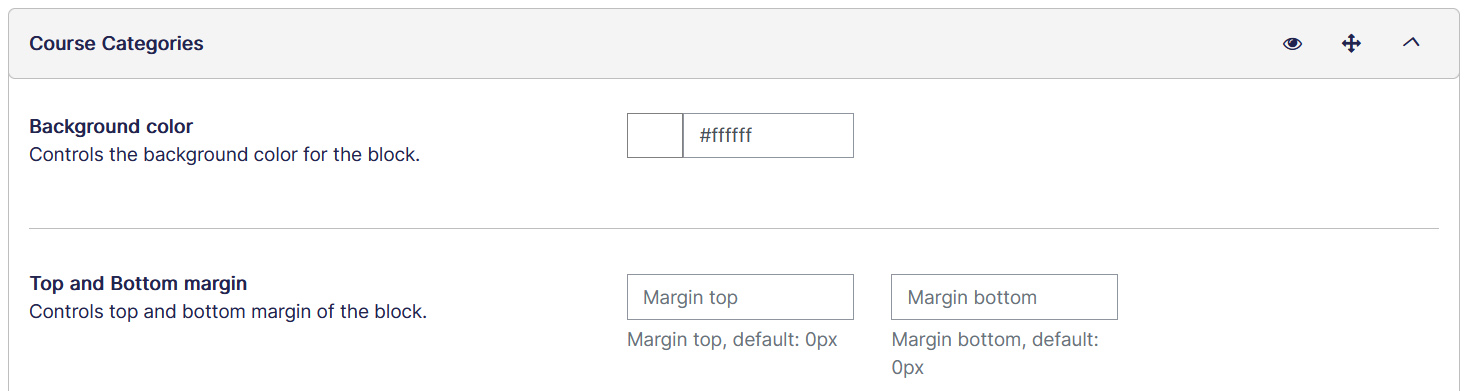
This section has:
- Background color – Controls the background color for the section.
- Top and bottom margin – Controls top and bottom margin of the section. This will create space between two sections.
- Top and Bottom padding – Controls top and bottom padding of the section. This will create space within the section.
- Content alignment – Choose alignment of the title and description.
- Title and font style – Title of the section goes here, and controls the font style of the title.
- Description and font style – Description of the section goes here, and controls the font style of the description.
- Categories – Controls the course categories that should be visible on homepage. You can select multiple categories, by default it shows all parent categories.
- Course counts – Choose if you want to show number of courses available in a category beneath category name.
The category’s featured image is automatically pulled here.
Courses #
Courses section allows you to showcase your featured courses on Home Page.
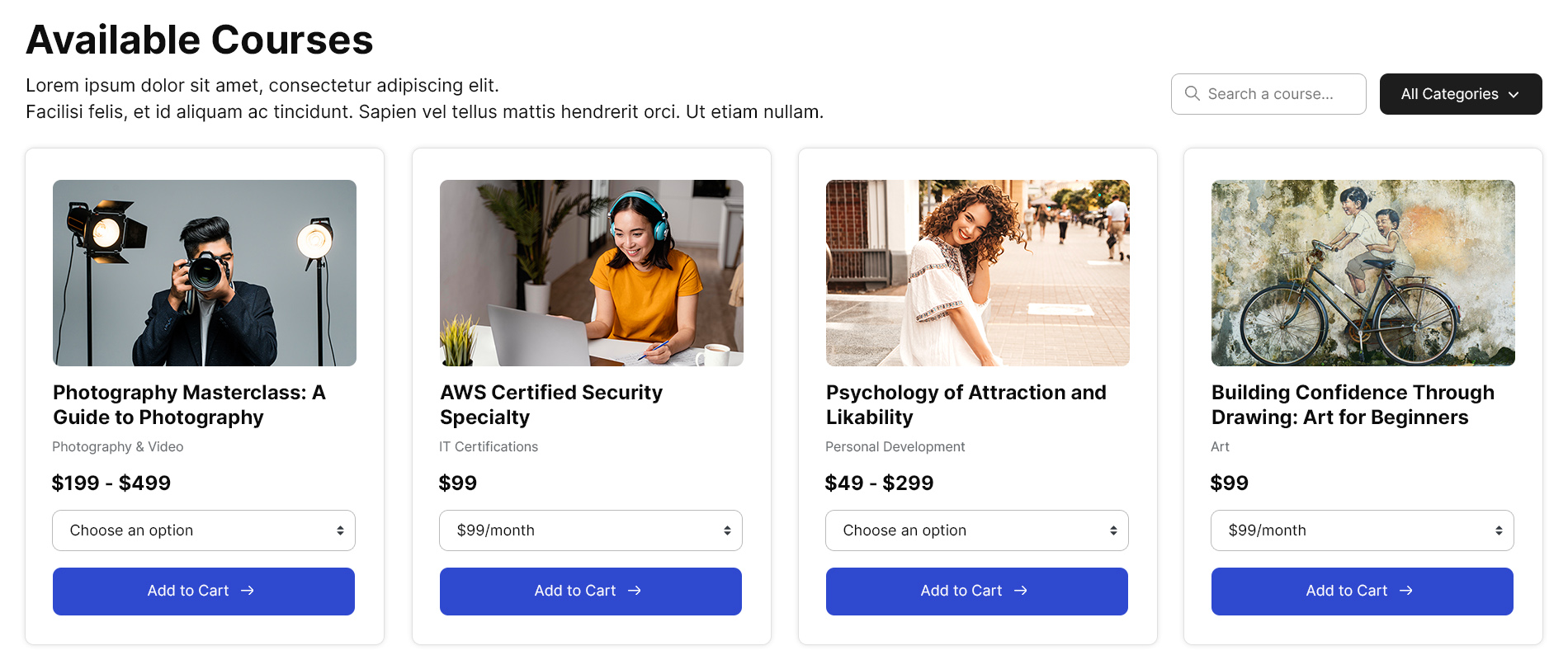
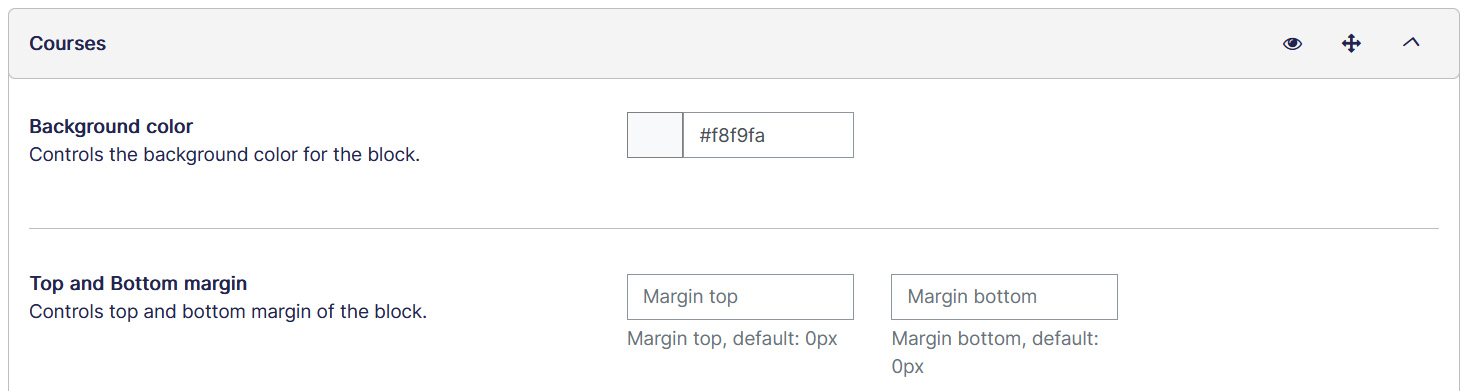
This section has:
- Background color – Controls the background color for the section.
- Top and bottom margin – Controls top and bottom margin of the section. This will create space between two sections.
- Top and Bottom padding – Controls top and bottom padding of the section. This will create space within the section.
- Content alignment – Choose alignment of the title and description.
- Title and font style – Title of the section goes here, and controls the font style of the title.
- Description and font style – Description of the section goes here, and controls the font style of the description.
- Show courses – Choose featured courses to show on homepage.
Testimonials #
Testimonials are the perfect way to show your potential clients the kind of work you can provide. These settings gives the option to add testimonials on the home page.
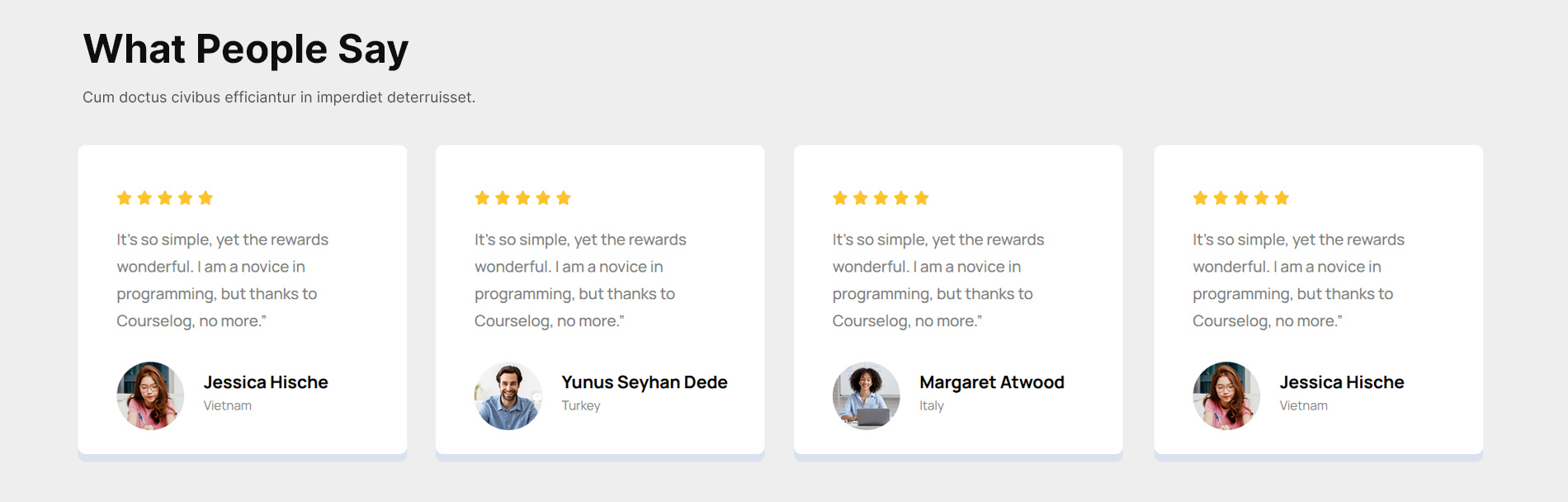
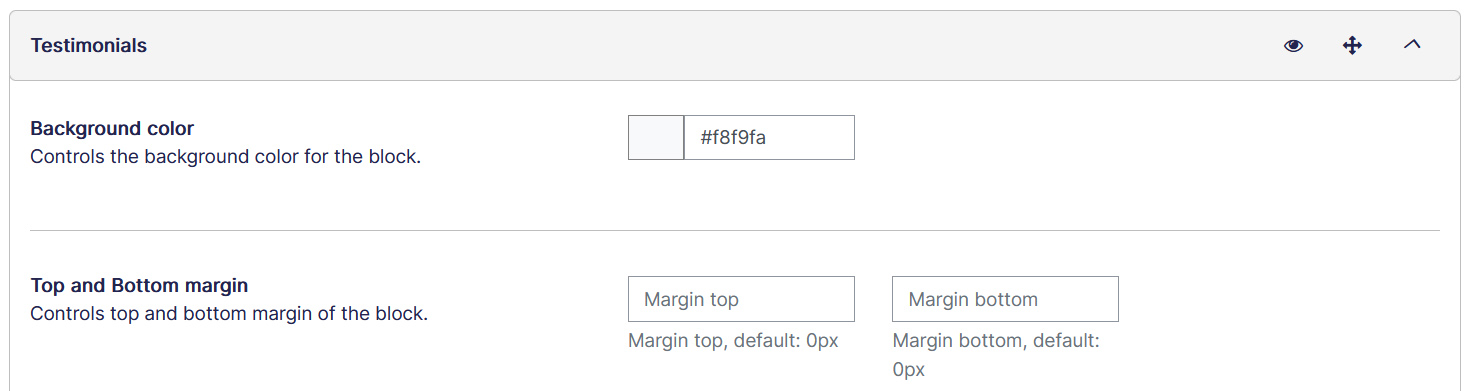
This section has:
- Background color – Controls the background color for the section.
- Top and bottom margin – Controls top and bottom margin of the section. This will create space between two sections.
- Top and Bottom padding – Controls top and bottom padding of the section. This will create space within the section.
- Content alignment – Choose alignment of the title and description.
- Title and font style – Title of the section goes here, and controls the font style of the title.
- Description and font style – Description of the section goes here, and controls the font style of the description.
- Number of testimonials – Choose the number of logo images to display. You can showcase up to 10 client logos.
Further more, there are options available to add profile details for a testimonial, including Name, content, image, company name & URL. You can add up to 8 testimonials.
Client Logo #
The Logo Images section gives you the option to add clients’ logos on the home page. Like all other sections you can customize Title, add Description, and their font settings.

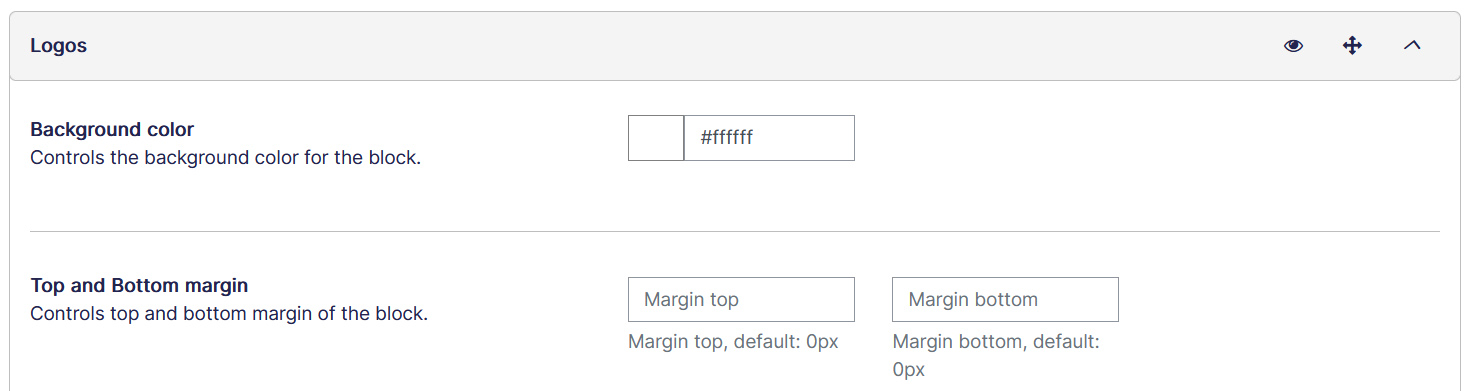
This section has:
- Background color – Controls the background color for the section.
- Top and bottom margin – Controls top and bottom margin of the section. This will create space between two sections.
- Top and Bottom padding – Controls top and bottom padding of the section. This will create space within the section.
- Content alignment – Choose alignment of the title and description.
- Title and font style – Title of the section goes here, and controls the font style of the title.
- Number of logo images – Choose the number of logo images to display. You can showcase up to 10 client logos.
- Logos – For each logo upload logo, and URL page that you would like to connect.
For each Logo Image you can add the logo itself, it’s URL and an alt description.
