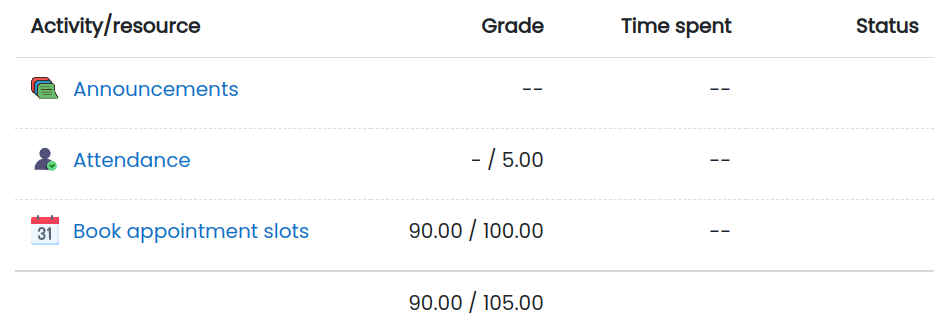
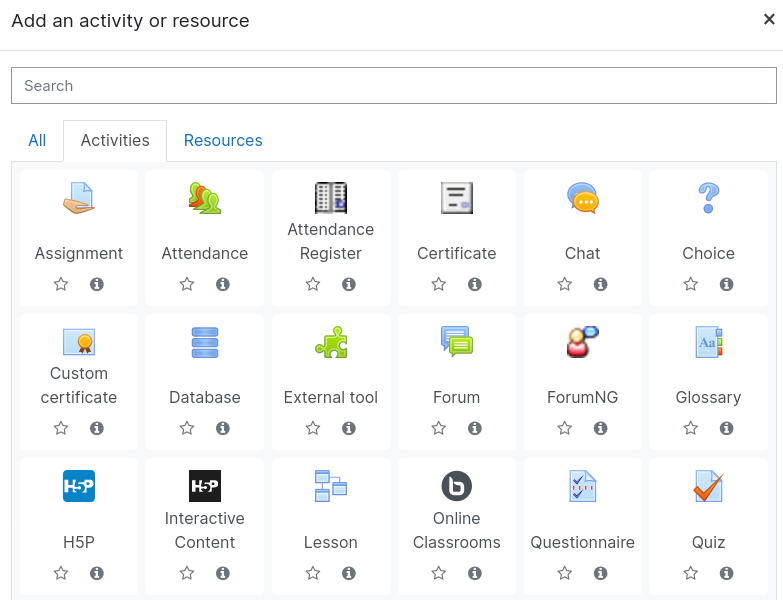
In ScholarLMS each activity or resource has its own unique default icon. The icons visually help students in recognizing what type of activity (Assignment, Quiz, Forum, etc) they are going to attend. For brand’s consistency or other obvious reasons, an institute/organization using LMS may want to have its own set of icons for its students. This is where the custom activity/resource icons feature comes handy. It is an extended feature (plugin) which allows you to have custom icons for activities/resources.
Adding Custom Icon for an Activity #
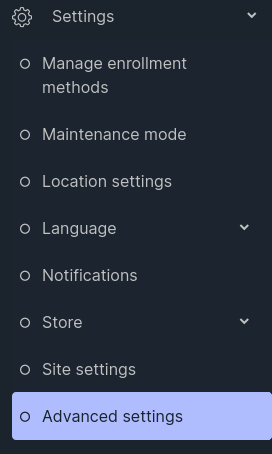
Step 1: To upload a custom icon for an activity, go to Settings → Advanced Settings →Site administration → Appearance → Manage Activity Icons (from left navigation)
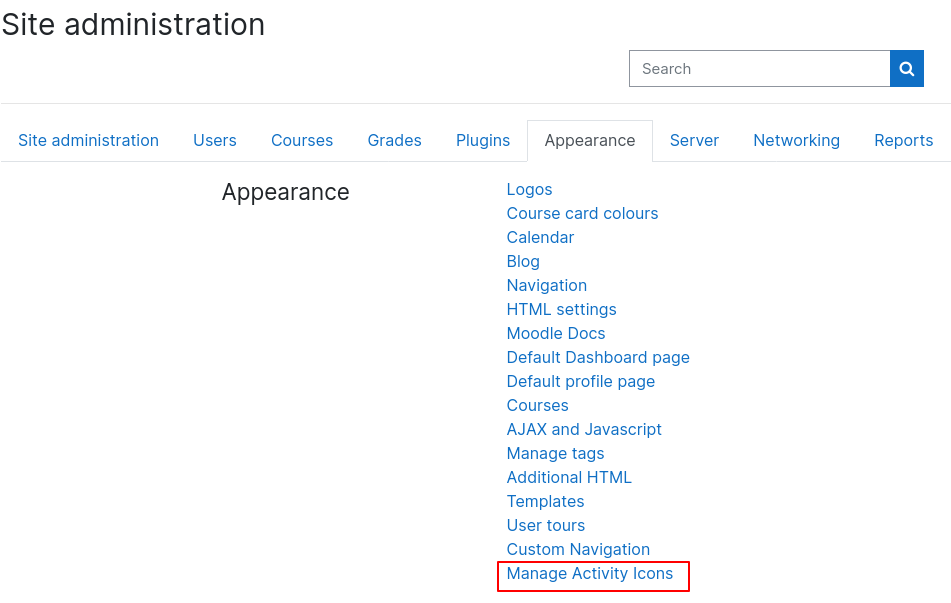
Step 2: Click on “Manage Activity Icons” which will take you to the Manage Activity Icons page like below.
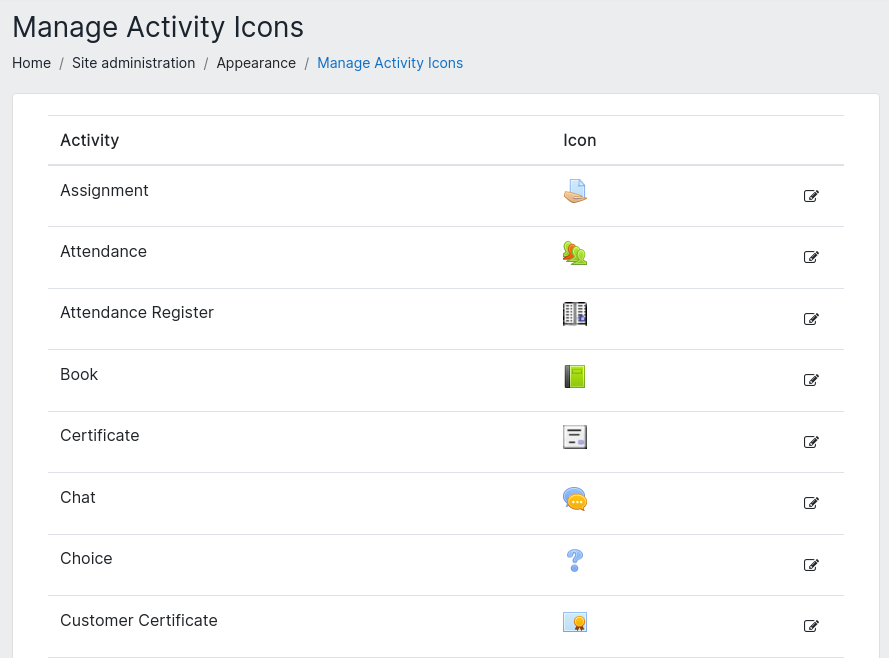
Step 3: Click on the edit icon for the activity you want to upload a custom icon. A popup opens where you can upload png, jpeg, jpg, and svg icon. Square sized images like 64×64 pixels are recommended.
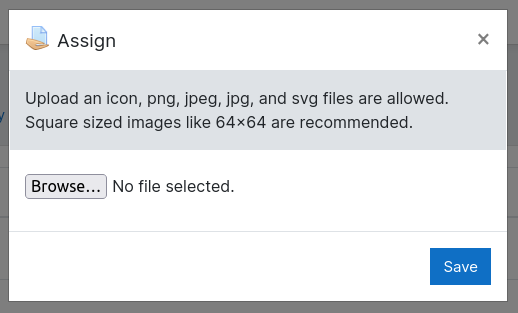
Once done, the activity will show a custom icon throughout the LMS which is applicable for any user roles.