
Welcome to ScholarLMS! This guide will walk you through the process of setting up your account and customizing the branding of your Learning Management System (LMS) to align with your organization’s identity and requirements.
What will you learn in this section?
- How to get started with the platform?
- What is a dashboard and how to make use of it?
- Customizing LMS branding
- Customizing Home page
Getting Started #
Upon signing up for ScholarLMS, you gain access to a powerful platform designed to streamline your learning processes. If you haven’t already created an account, you can do so effortlessly by following these steps:
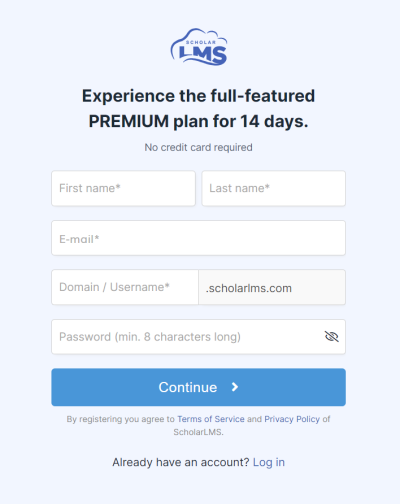
- Navigate to the sign-up page and provide your First and Last name, Email, and a Username.
- Your chosen Username is going to be your LMS’s permanent URL. For instance, if your username is ‘mycompany’, your LMS URL will be ‘mycompany.scholarlms.com’. This URL can later be customized using the ‘Custom domain‘ feature, which we’ll discuss further in this guide.
Every ScholarLMS account comes with the full-featured PREMIUM trial plan for 14 days. (No credit card required). All features (including premium features) will be accessible throughout the trial period.
Account Confirmation #
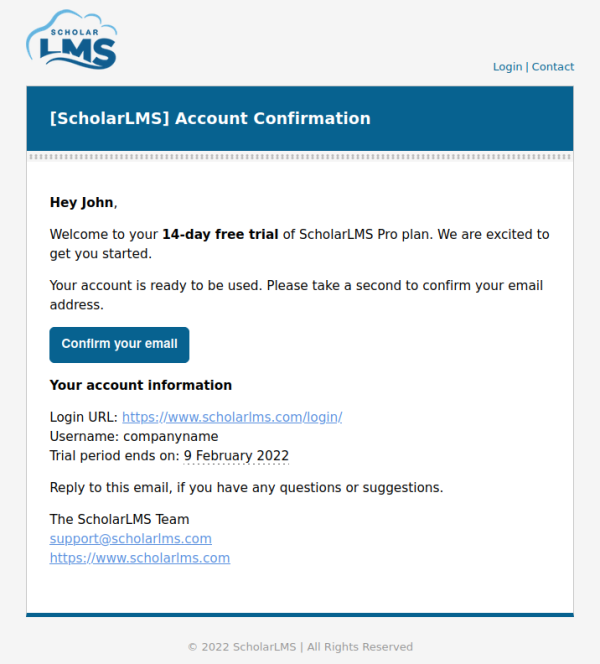
After completing the registration process, an account confirmation email will be sent to you. Follow the instructions in this email to confirm your account.
Admin Dashboard #
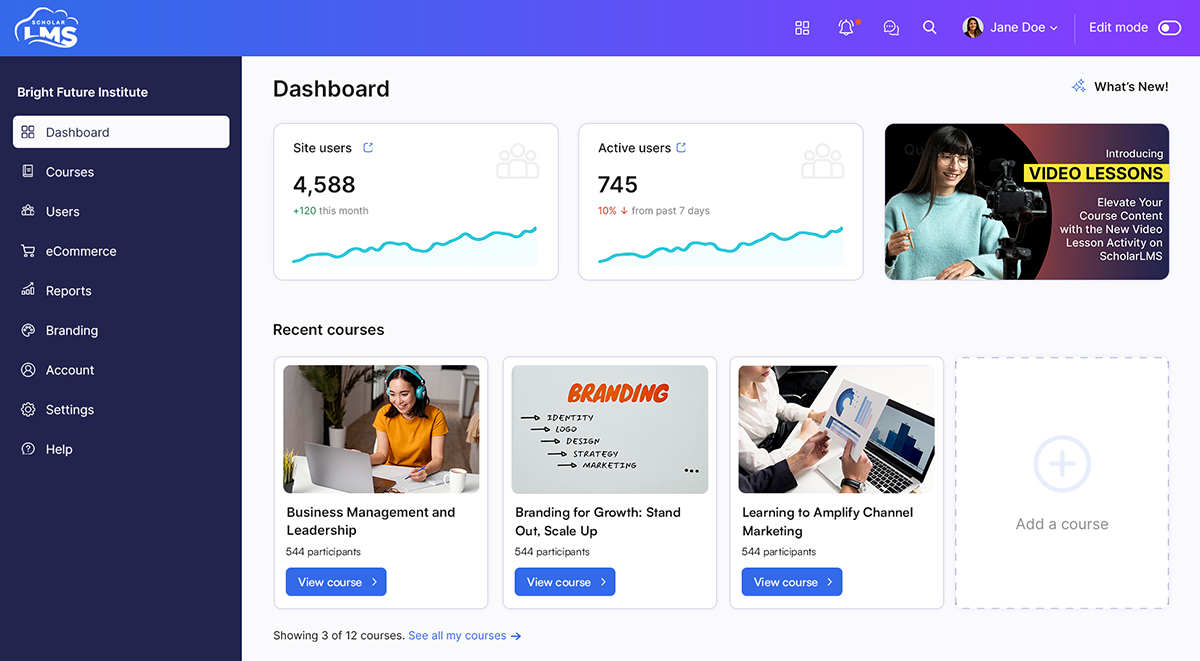
Once logged in, you’ll be greeted by the Admin Dashboard, your central hub for managing various aspects of your LMS. Here, you’ll find essential statistics and quick access to different sections of the platform. Please note that you need to have a ‘Manager’ or above role to access the Admin Dashboard.
Customizing Your LMS #
Site Name and Custom Domain
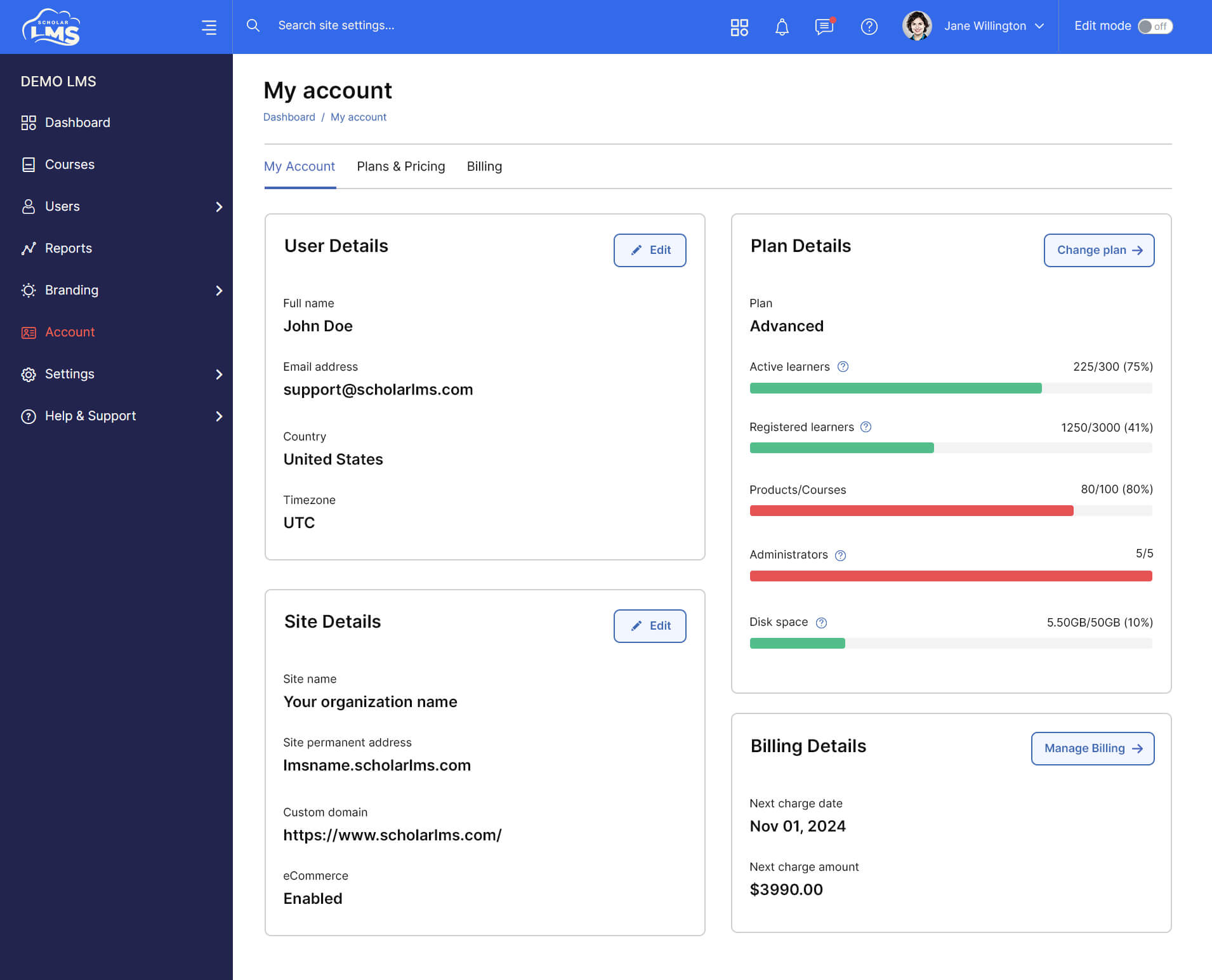
In the ‘Account Details’ section of the ‘My Account’ page, you have the flexibility to personalize the following:
- Site name – Customize the name of your LMS to reflect your company, institution, or any other relevant identity.
- Custom domain – ‘Custom domain’ is a feature that allows your LMS to be accessible via a domain (sub-domain) that you own. This is especially important if you already have a website with your own branding and regular visitors.
Branding and Home Page
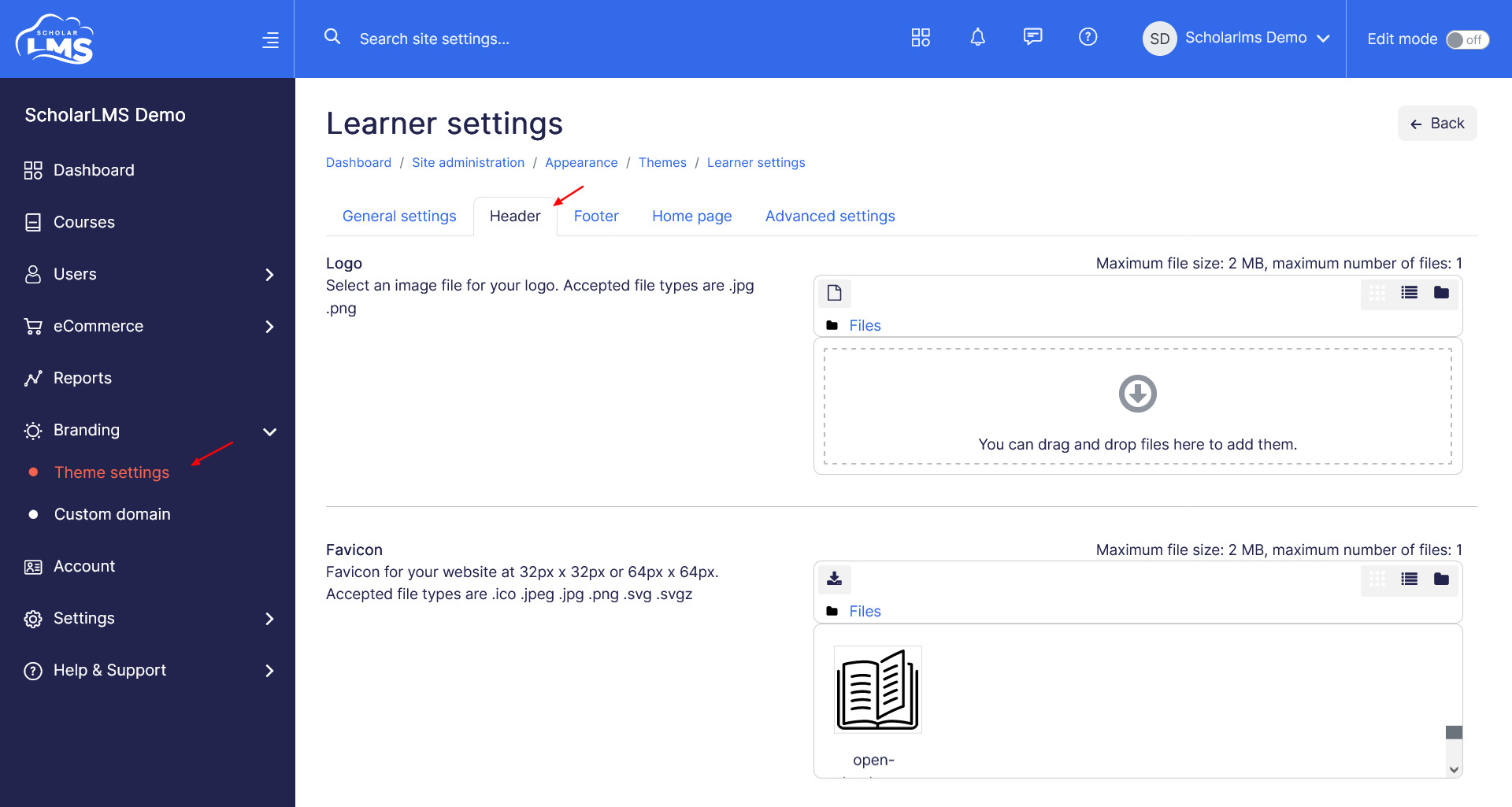
The ScholarLMS theme settings page empowers you to tailor the branding of your LMS to your exact preferences. To access this customization:
- Navigate to the Theme Settings page from the left navigation menu.
- Here, you can customize the following elements:
- Site’s Primary Color: Define the accent color that aligns with your brand identity.
- Logo and Favicon: Upload your organization’s logo and favicon for consistent branding across the platform.
- Fonts (Typography): Choose fonts that complement your branding and enhance readability.
- Header and Footer: Customize the header and footer elements, including height, background color, contact information, copyright details, and more.
Once you’ve personalized the branding of your site, you’re ready to explore further customization options and Build Your Home Page according to your preferences.
