
The user dashboard serves as the central hub for navigating and managing your ScholarLMS site. Its is designed to provide users with easy access to relevant pages like courses, users, announcements, notifications, and site settings.
There are two types of user dashboards on the SchoarLMS platform: the Admin dashboard and the User dashboard. Let’s explore what they are, their key elements, and the differences between them.
Admin dashboard #
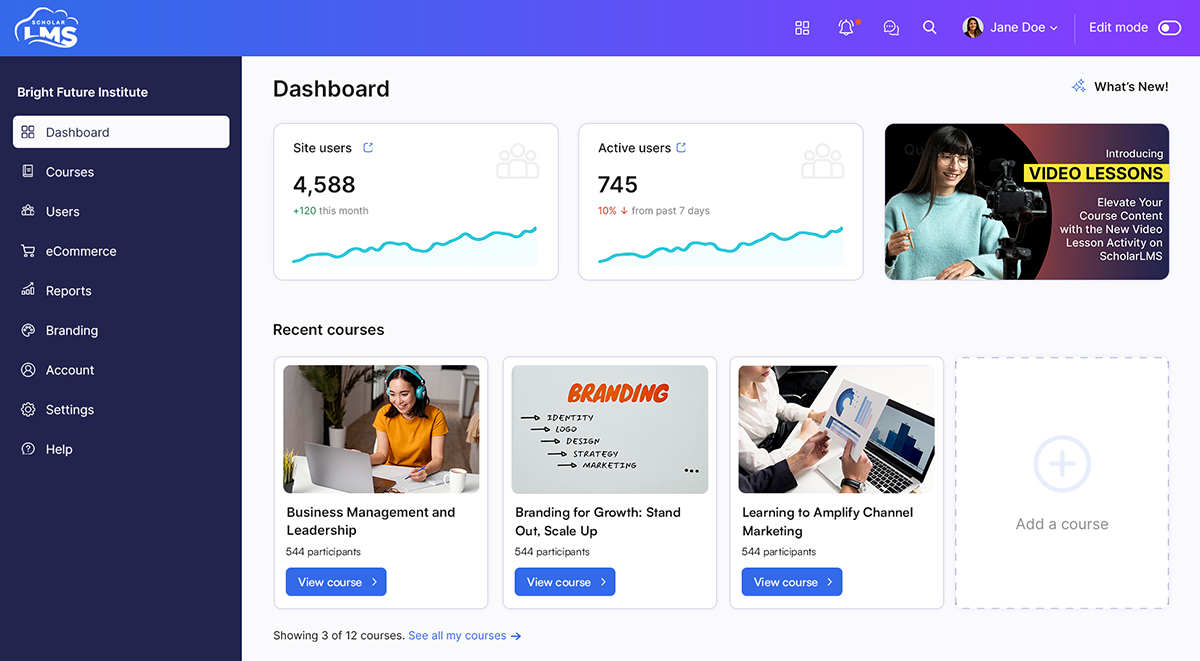
The admin dashboard functions as a control panel, providing comprehensive control over its various functions and settings such as course creation, managing user and site configuration, the Admin dashboard empowers administrators to effectively govern the platform.
Site administrator and users with the Manager role have access to the admin dashboard.
The admin dashboard can be divided into four parts:
- Header – The header provides quick access to essential tools and actions available across the platform.
- Left navigation – The left navigation is your primary way to move across different areas of the LMS.
- Central area – The central area displays key insights and important information about your platform.
User dashboard #
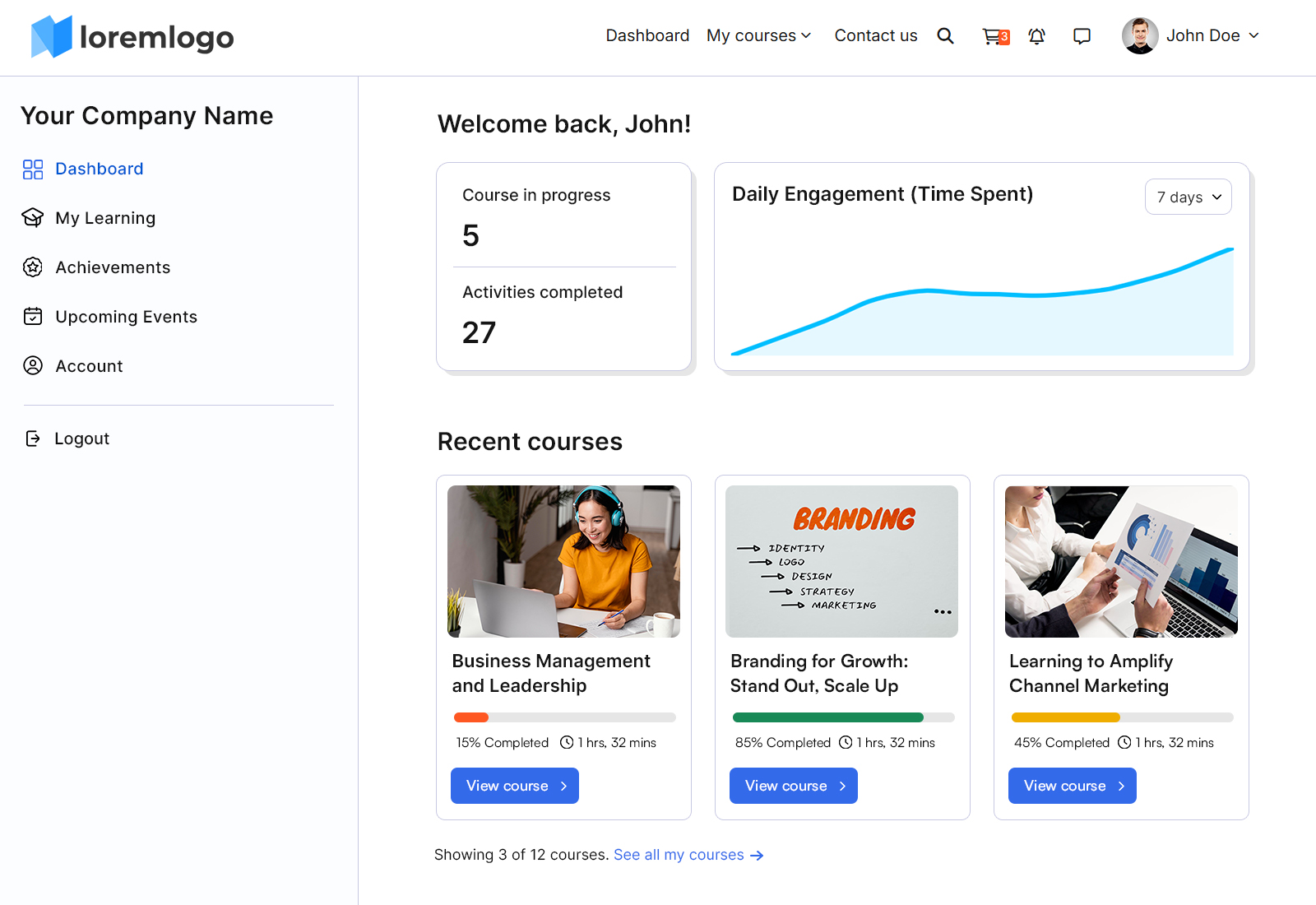
The User Dashboard is the default dashboard for roles such as students, teachers, and course creators. It provides a personalized space where users can view their courses, track progress, and access important updates.
Unlike the Admin Dashboard, the User Dashboard is designed to be more flexible and user-focused.
Key Differences from Admin Dashboard
- Customizable Layout — Users can personalize their dashboard using blocks
- Personalized Branding — The dashboard reflects the site’s branding and can be tailored for a consistent learner experience
- User-Centric View — Focuses on courses, progress, and upcoming activities rather than site-wide management
Customizing the Dashboard #
The User Dashboard can be tailored to display the most relevant information for each user.
To customize the dashboard:
- Go to Users → User Dashboard from the left navigation
Using blocks, you can:
- Add or remove sections
- Rearrange dashboard elements
- Display information such as courses, deadlines, and activity updates
This allows you to create a dashboard experience that best fits your workflow.
Summary #
The User Dashboard provides a personalized and flexible workspace for users, helping them stay organized, track progress, and quickly access their courses and activities.
