
Introduction #
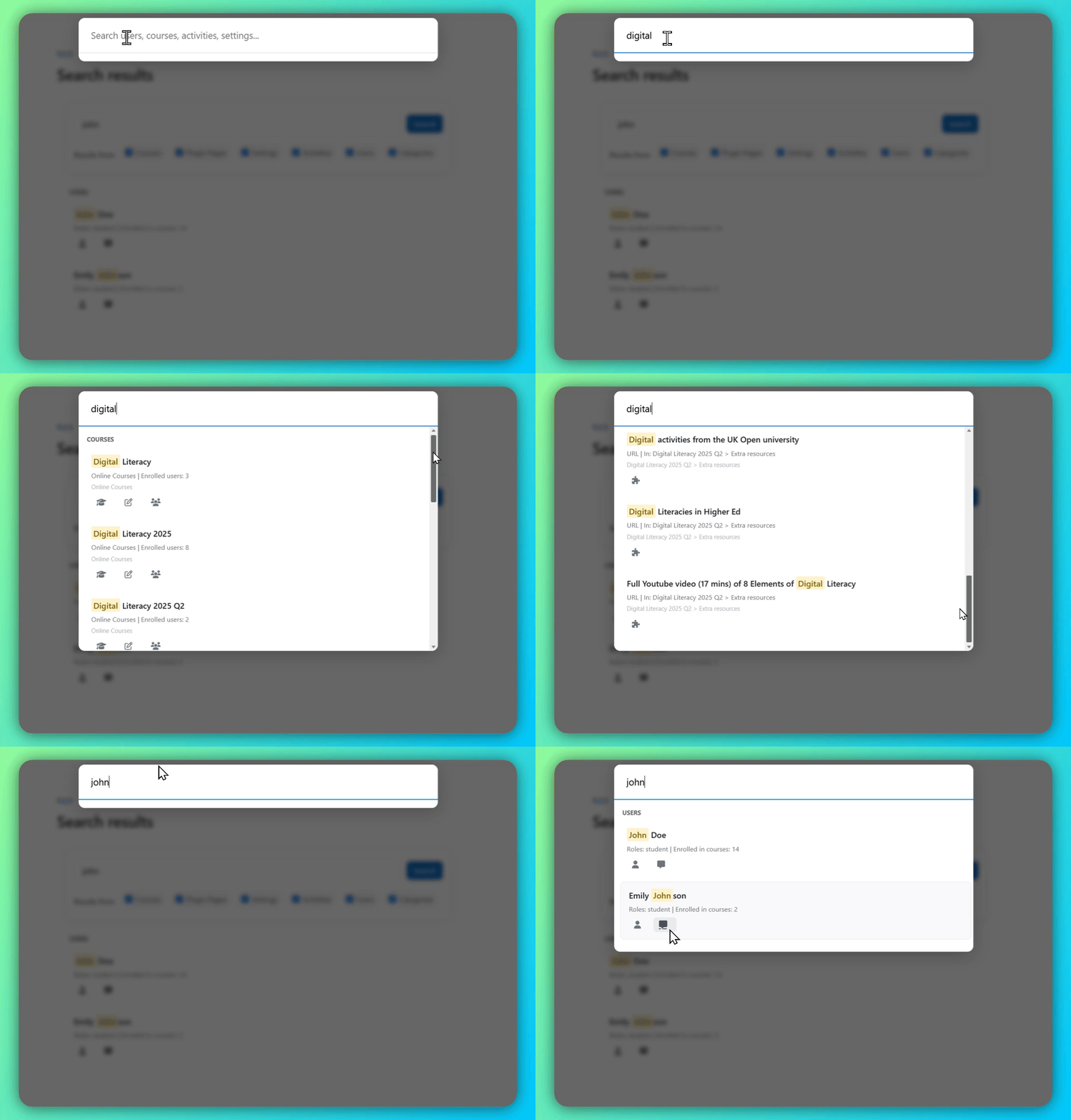
Smart Search is built for administrators and instructors to quickly find information across the entire LMS from a single search bar.
Instead of navigating through multiple pages, users can instantly search for courses, activities, users, and other items. The search results smartly display the most relevant matches, helping you locate information faster and manage your LMS more efficiently.
This feature is particularly useful for large LMS installations where navigating manually through courses and settings can take significant time.
Enabling Smart Search #
Note: Smart Search is enabled by default in your LMS account. If it is not enabled on your platform, you can activate it by following the steps below.
To enable Smart Search:
- Log in as an Administrator.
- From left navigate go Settings → Site Settings
- Enable the Enable “Smart Search” option.
Once enabled, Smart Search replaces default Global Search (if enabled) and becomes the primary search tool across the platform.
Note: Smart Search depends on the system’s search index to provide results. Newly created content may take some time to appear if indexing is still in progress.
Using the Smart Search #

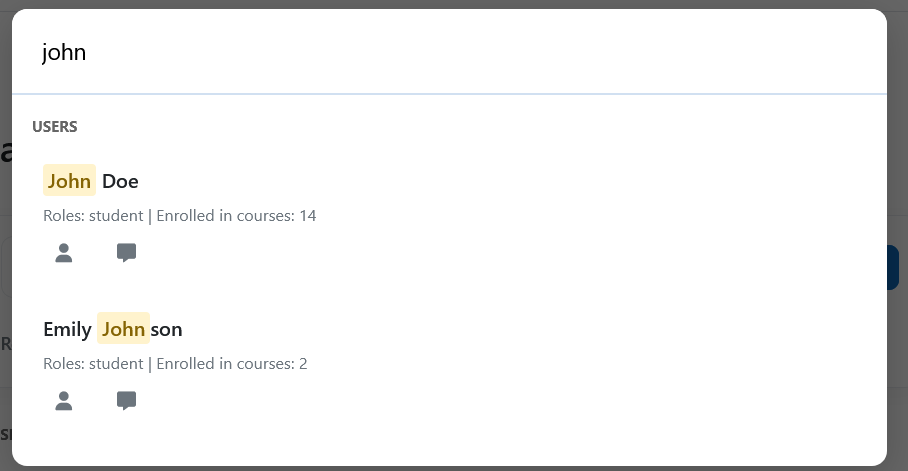
Smart Search is available from the main navigation area of the platform. You can start searching by following these simple steps:
- Locate the Search bar in the platform header.
- Click inside the search field.
- Type keywords related to what you are looking for.
Smart Search allows you to quickly locate different types of content across the platform. You can search using a course name, activity title, user’s name, or keywords from course content. As you type, the system immediately displays relevant matches in a dropdown list and also provides a link to view a page with all related search results.
Some Use Cases #
Smart Search can help users quickly locate different types of information across the platform. Common use cases include:
- Finding a course quickly without navigating through course categories
- Locating an activity when you remember the activity name but not the course it belongs to
- Finding a user by searching for their name or email address
- Accessing course content by searching for keywords within activities or resources
- Quickly navigating to settings or admin pages without browsing through multiple menus
Smart Search Settings #
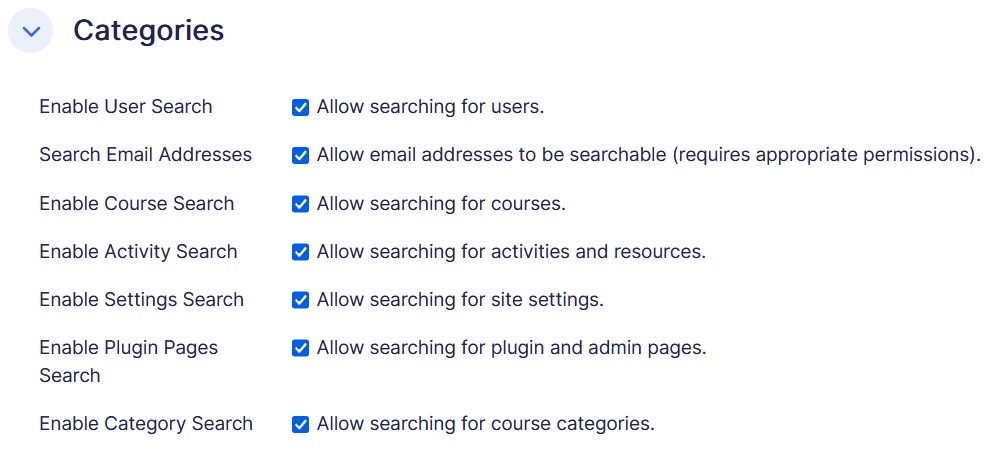
Administrators can configure Smart Search to control what type of content can be searched across the platform. This allows organizations to tailor the search experience based on their needs.
Search Categories
Administrators can choose which types of content should be included in Smart Search results. Available categories include users, courses, activities and resources, site settings, course categories, plugin and admin pages, and email addresses (if permissions allow).
Smart Search Analytics #
ScholarLMS also provides Search Analytics to help administrators understand how the search feature is being used across the platform.
The analytics dashboard provides insights such as:
- Most searched keywords
- Top search queries
Privacy and Data Protection #
Smart Search is designed with user privacy in mind. By default, the system records search queries and stores them for 365 days to support search analytics and help administrators understand search trends.
Administrators can disable search logging if analytics are not required.
Even when search logging is enabled, the system does not store any user-specific information. Search records are maintained without capturing personal details such as:
- User ID
- Name
- Email address
This ensures that search analytics can provide useful insights while maintaining user privacy.
