Theme Settings (also known as Learner theme) allows admin/manager to customize the look and feel of the LMS. Theme Settings page will help you place your own logo, your branding colors, typography, copyright information, support information, and many other such customization options truly making your LMS your very own.
With the help of Theme Settings one can build a home page, customize header/footer, and change the color scheme of the LMS. The changes made here will be applied to the home page, course landing page, and some internal pages at once.
Accessing Theme Settings #
The Theme Settings page can be accessed from left navigation Branding -> Theme Settings.
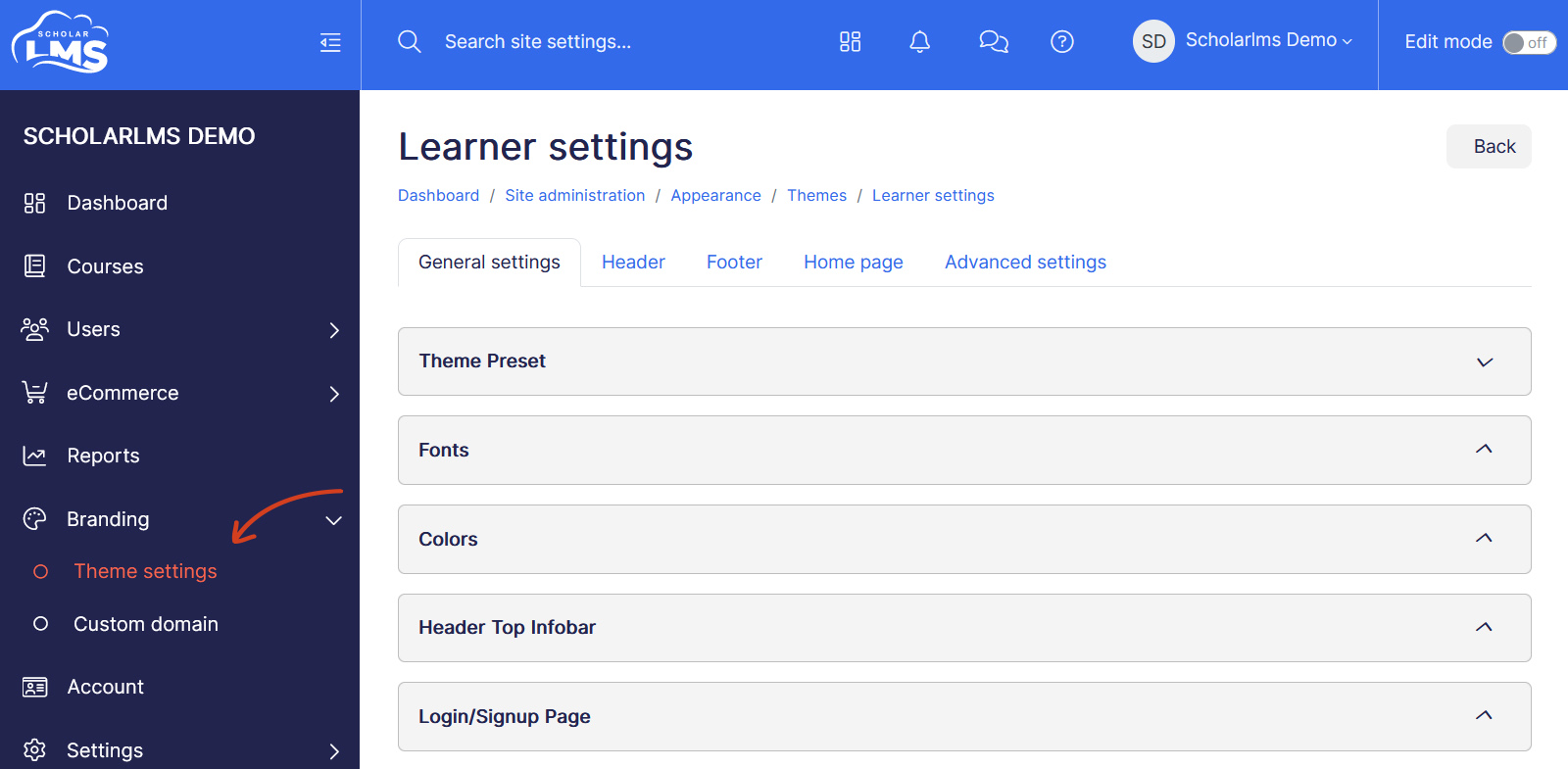
Theme Settings page consists of following tabs:
- General settings — For branding customization like colors and font
- Header — For customizing site’s header
- Footer — For customizing site’s footer
- Home page — To build student facing home page
- Advanced — This page is for custom CSS codes, tracking codes and Javascripts
Let’s explore each of them.
General settings #
The General page help you define the site’s branding colors, and fonts.
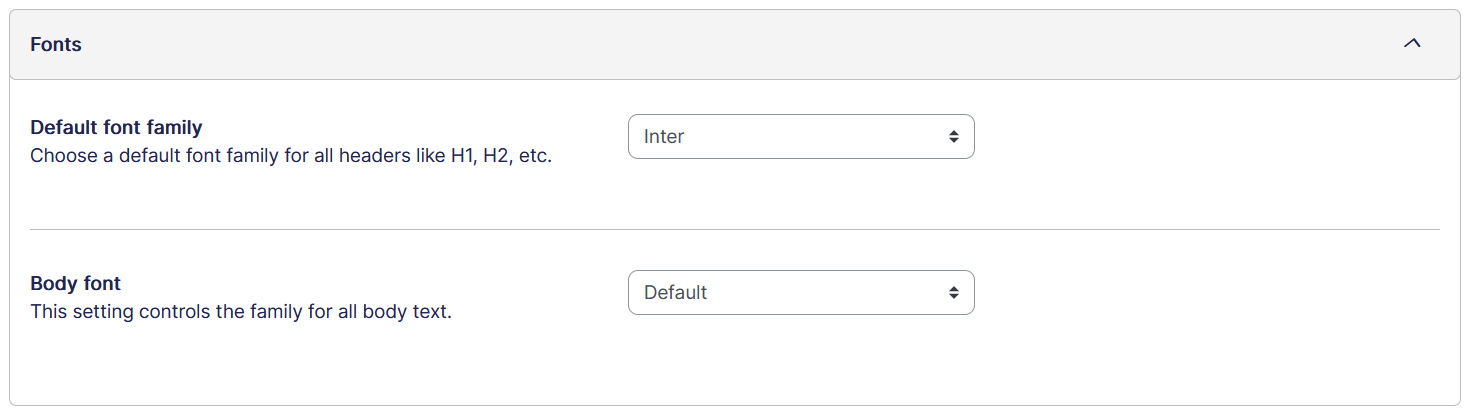
Fonts/Typography
The fonts page gives you option to customize the header (H1 to H6) usually used for headline, title, and body fonts. This will be applied site-wide to home page and user dashboard pages.
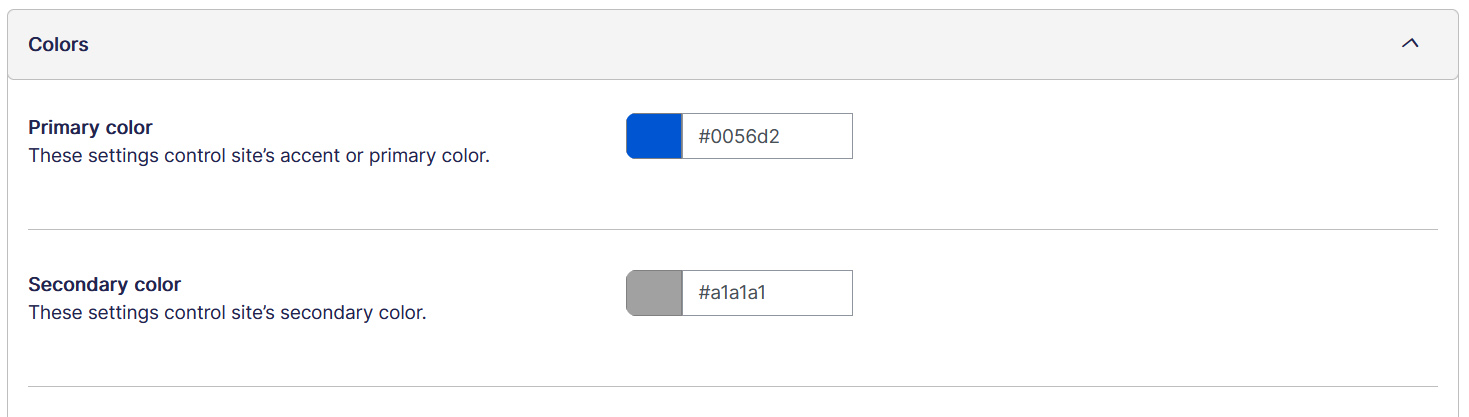
Brand colors
This tab allows you input your brand colors which includes Primary color, Secondary color, Link color, and Link color on hover.
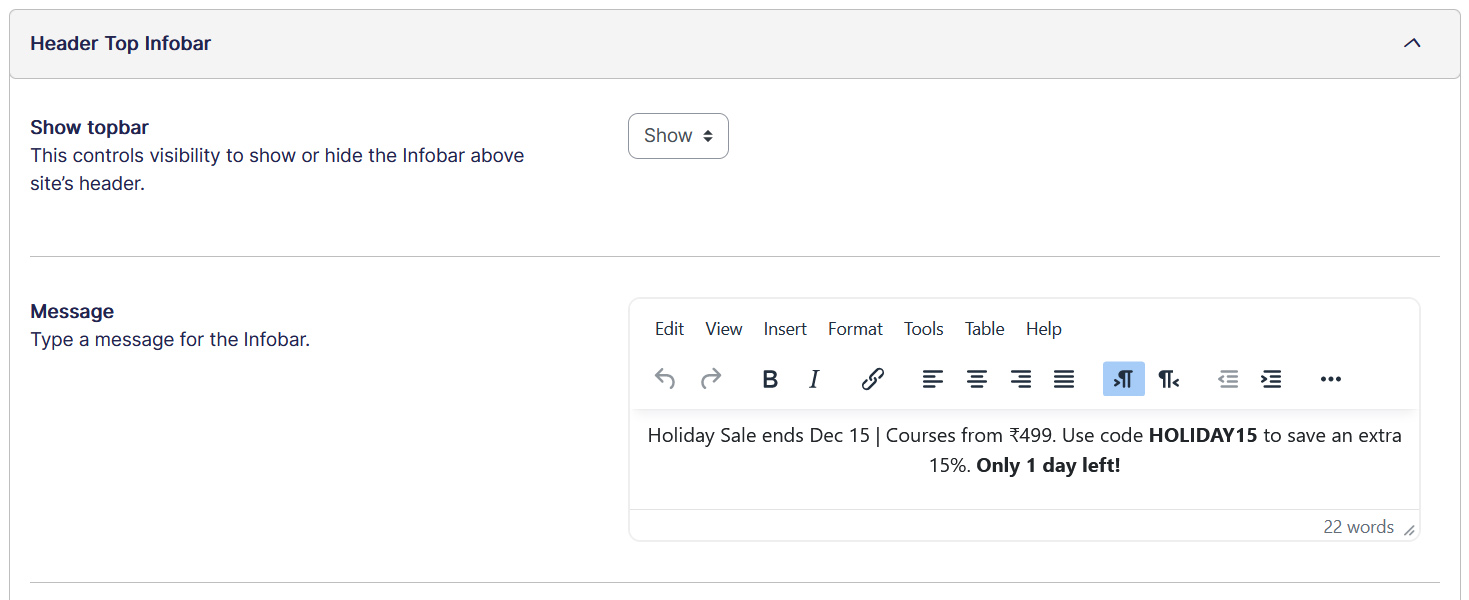
Header Top Infobar
The header top infobar can be used to alerting your audience of an offering, news, updates and you can direct them to a web page with a link.

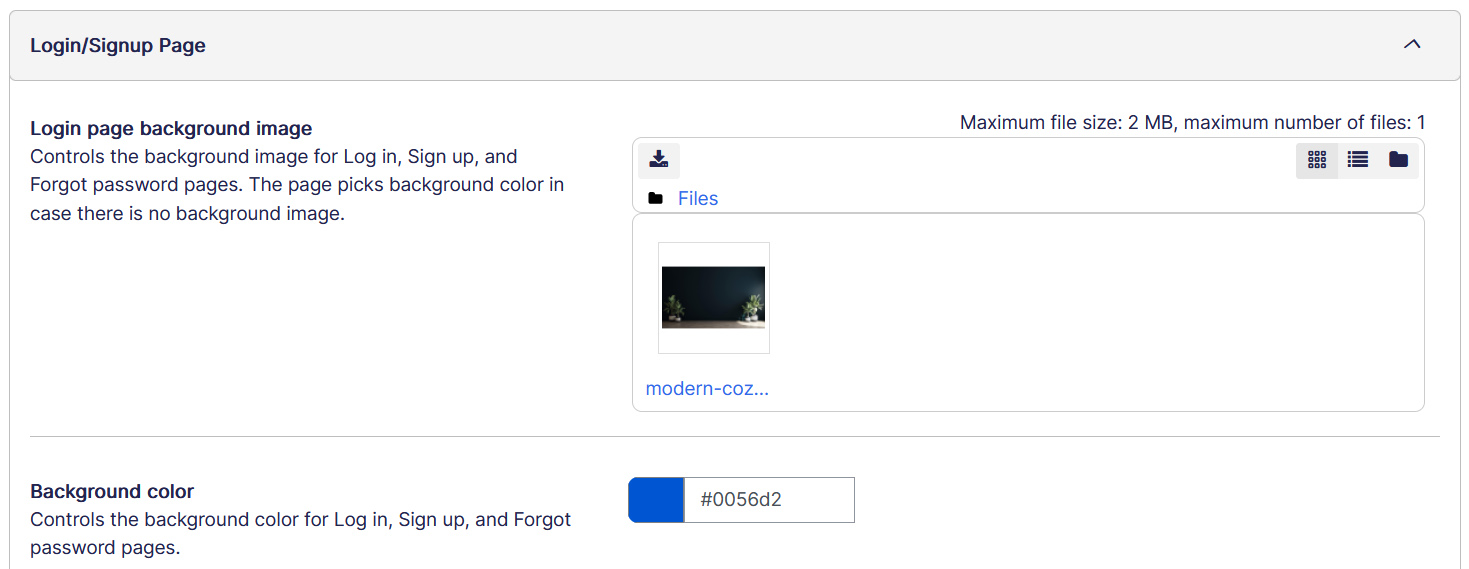
Login/Signup Page
The login/signup tab allows you to choose background for login/sign up page. If not, it will be default apply the background color.
Header #
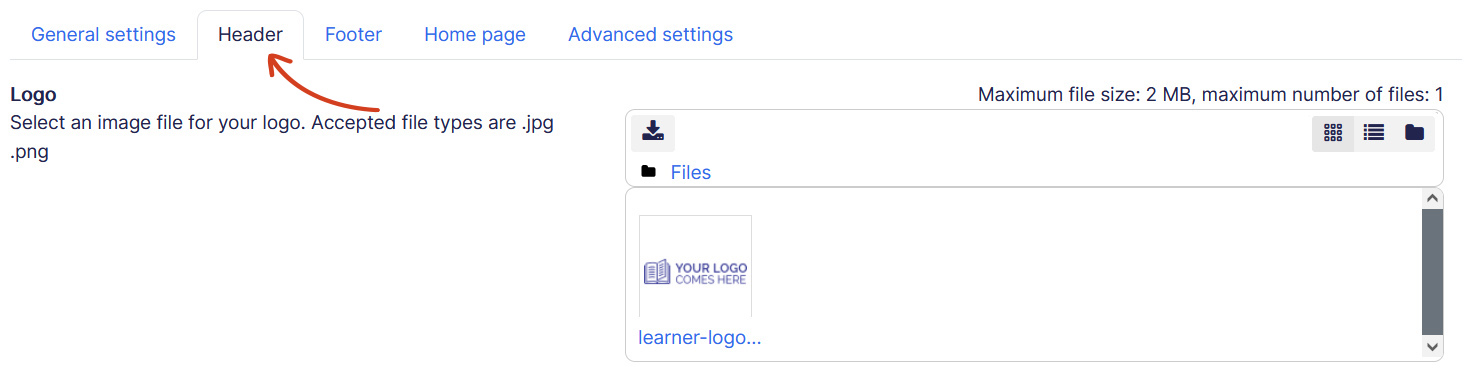
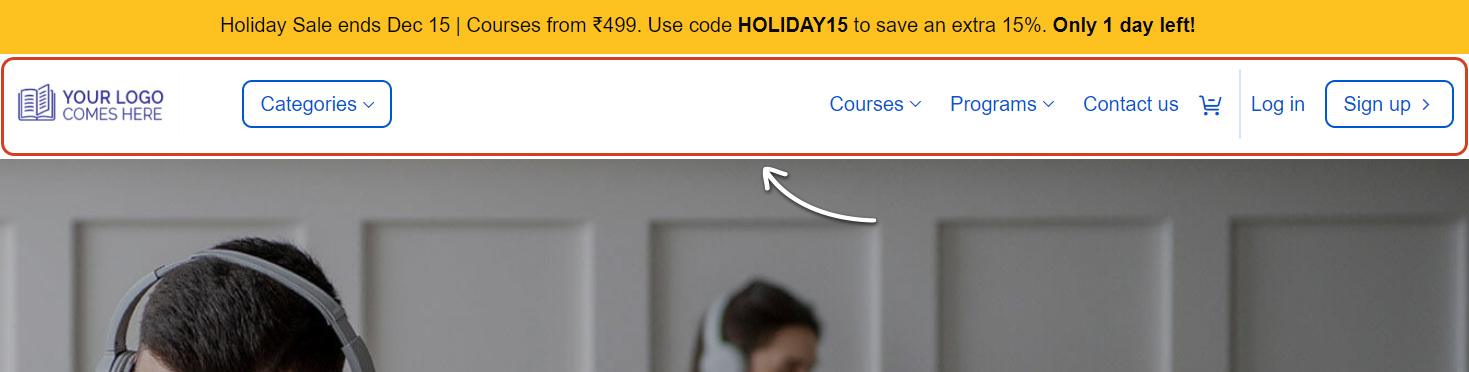
Header page covers elements responsible for site’s header. The page consists of:
- Site’s logo & Favicon — Upload your logo and favicon images.
- Enable/Disable sticky header — Enable to make header sticky even when scroll down on the pages.
- Header padding and height — Customizes header padding and height.
- Show/hide category menu — Show or hide category menu beside logo on header.
- Header background color — Controls the background color of header.
- Menu item colors, and hover colors — Controls the color of the menu items.
- And Custom menu items — Configure menu items from this section.
Footer #
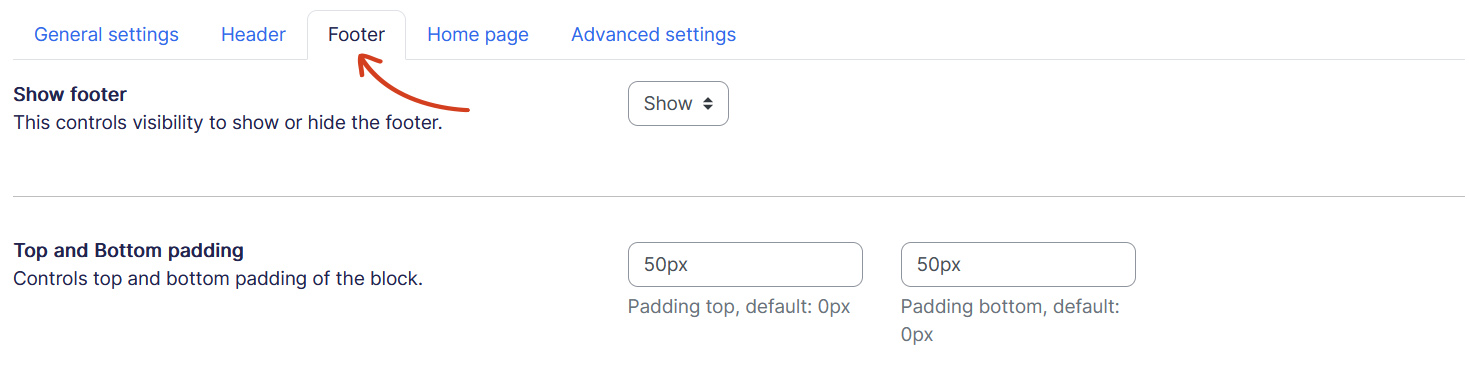
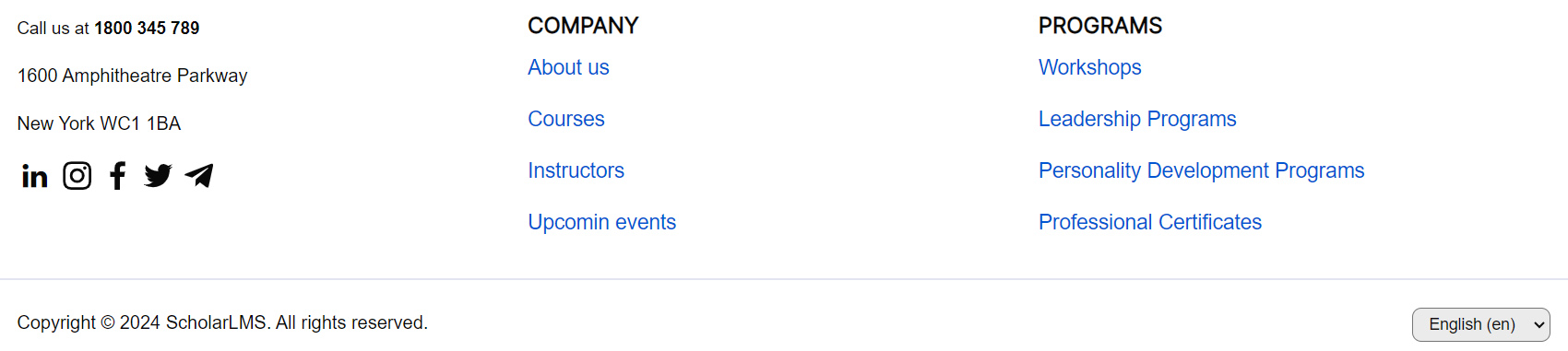
With footer tab you can customize site’s footer elements, and branding. You have below options to customize footer section:
- Show/hide footer — This controls visibility to show or hide the footer.
- Top and Bottom padding — Controls top and bottom padding of the block.
- Background color — Controls the background color of footer.
- Text color — Controls the text color of footer.
- Show social icons — This controls visibility to show or hide the social media icons.
- Social icons color — Controls the color of the social media icons.
- Footer columns — Controls the number of columns in footer.
- Footer column title — Insert title for the column.
- Footer column content — Insert content for the column.
- Copyright message — Insert copyright information of your business or site.
- Show language picker — This controls visibility to show or hide the language picker below footer.
- Show currency picker — This controls visibility to show or hide the currency picker below footer.
Home Page #
A home page is the first impression to the site’s users and hence we offer a plethora of options to help you build the Home page portraying the best you have to offer from your eLearning course site.
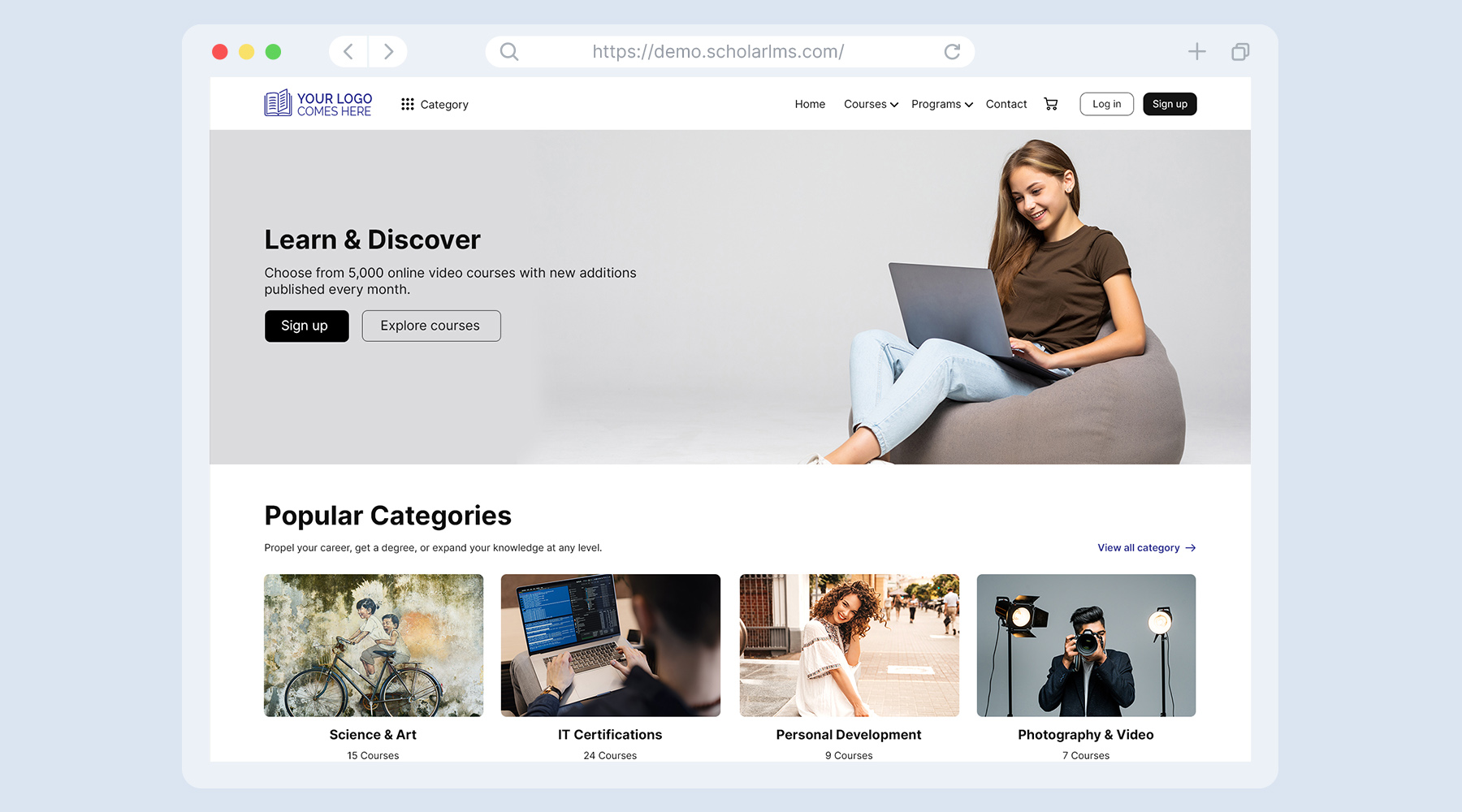
Explore our detailed guide on how to Build Your Home Page →
Advanced settings #
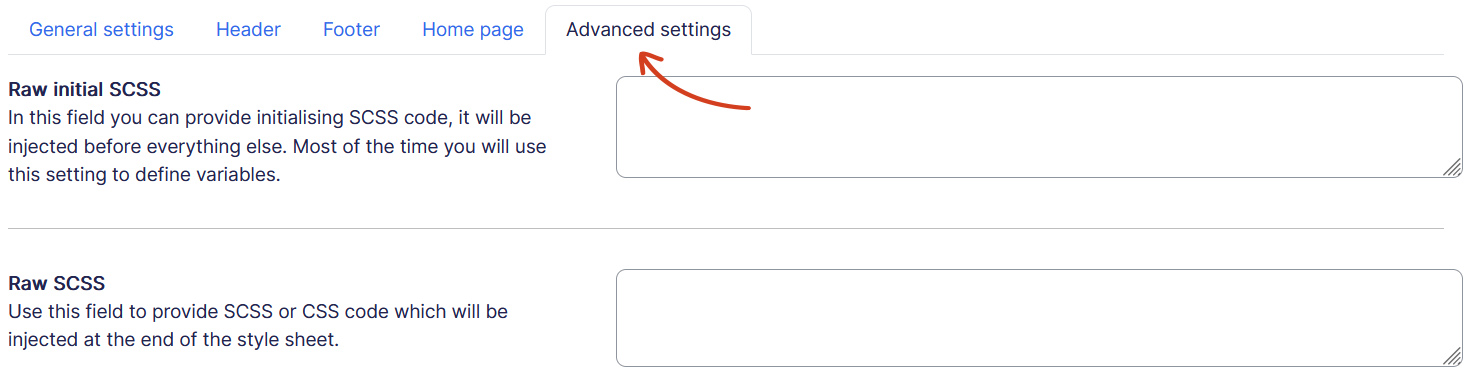
And lastly we have an advanced settings page for those who would like to tweak site further. The page have:
- Raw initial SCSS
- Raw SCSS – For custom CSS changes
- Google Analytics Code – Add Google tracking code here
- Javascript Section – Third party widgets like Live chat scripts can be added here.
We highly recommend getting help from a skilled webmaster or from the ScholarLMS team for custom CSS changes. Adding an incorrect custom code might affect the performance and look of your eLearning site.