
Recording an Online Classroom session has many advantages. Sharing recordings with students who might have missed the lecture, or using as a course content in future courses are some of its efficient uses. In this article we will explore what download options does ScholarLMS has to offer for recording a session and which option is best in the given scenarios.
Accessing classroom recordings #
The classroom recordings can be accessed in two ways:
- From the Online Classroom reports page (recommended): Go to Reports page from left navigation and click on “Online Classroom report”. This page lists all the classroom sessions (even if they were not recorded)that have been conducted so far in your LMS.
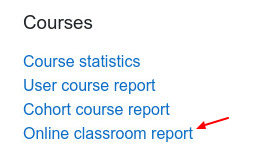
- From the classroom activity page: Alternatively, you can also access recorded sessions from the Classroom activity of a course. Room/Activity with recording options must be chosen for the classroom instance.

Download Options #
Once you access the Online Classroom reports page, you should see all the classroom instances that have happened so far. Each recorded session allows you to:
- Preview the session
- Download MP4 file version
- Download HTML5 zipped files
- Publish/Unpublish
- Or even delete it
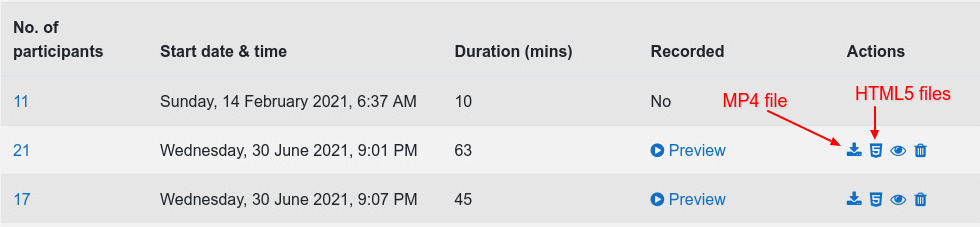
Downloading MP4 file: By default the system preserves a recorded session in HTML5 files and prepares an MP4 format file on request. As soon as you click on “Download MP4 file” the system starts preparing the MP4 file version and will email you once it’s done. The MP4 file preparation might take some time depending on the size of the recorded session. Once ready, you should get an email with the download link.
The download link expires after 7 days of its request, after that you will have to follow the same steps to download this file again.
Downloading HTML5 zipped file: The HTML5 files of a recording can be downloaded for any recorded session as well. Since this is the default file that the system preserves, it could be downloaded almost instantly.
Pros and Cons of MP4 file
MP4 file format is a widely recognized format which makes it useful right after you have it. You can share it with desired users, colleagues, upload to Youtube or keep it in your local hard drive which you can play on any modern player.
A MP4 file would fix to a single view of the classroom which is a downside if there were many tools used in the classroom.
Pros and Cons of HTML5 file
Having a HTML5 file comes handy in cases where in a classroom instructor and students’ interactions were using several tools like whiteboard, webcam, polls, breakout rooms, etc. The view from the HTML5 files is going to give you more control of the recorded session like
- Minimizing windows like chat window, webcam window
- Seek through the session via thumbnail
- Play picture-in-picture mode
- Scroll through participants list, search a participant
- Copy chat
- Make the classroom full screen view
- Switching between views,
- Resize a window.
For running the HTML5 files you will have to upload them to your site, which makes it less portal then a MP4 file, and is the biggest downside of it. This option is for companies/institutes who have access to a webmaster for uploading these files to their server. And so most of the time the MP4 option will be more fitting to you.
Who can download the recorded sessions?
Any user having access to “Online Classroom report” can download the recorded sessions. By default this permission stays with Admin and Manager roles.
