
The Forum activity allows students and teachers to exchange ideas by posting comments as a part of a ‘thread’. Files such as images and media may be included in forum posts. The teacher can choose to grade and/or rate forum posts and it is also possible to give students permission to rate each other’s posts.
Note: You have the option to utilize the Announcements forum, a special forum designed for sharing general news and announcements relevant to the course.
Features of a Forum activity:
- There are several forum types to choose from, such as a standard forum where anyone can start a new discussion at any time; a forum where each student can post exactly one discussion; or a question and answer forum where students must first post before being able to view other students’ posts.
- A teacher can allow files to be attached to forum posts.
- Participants can subscribe to a forum to receive notifications of new forum posts.
- A teacher can set the subscription mode to optional, forced or auto, or prevent subscription completely.
- If required, students can be blocked from posting more than a given number of posts in a given time period; this can prevent individuals from dominating discussions.
- Forum posts can be rated by teachers or students (peer evaluation). Ratings can be aggregated to form a final grade which is recorded in the gradebook.
Forums have many uses, such as:
- A social space for students to get to know each other.
- For course announcements (using a news forum with forced subscription).
- For teachers-only discussions (using a hidden forum).
- Operating as a help center where tutors and students can exchange advice and support.
- A one-on-one support area for private student-teacher communications (using a forum with separate groups and with one student per group)
- Presenting extension activities, such as ‘brain teasers,’ for students to contemplate and propose solutions.
Adding a Forum activity #
To add a Forum activity:
- Navigate to the Courses page.
- Click on “Edit” under Actions for the desired course.
- This takes to Course Builder page. Ensure that the Edit mode is activated on the Course Builder page.

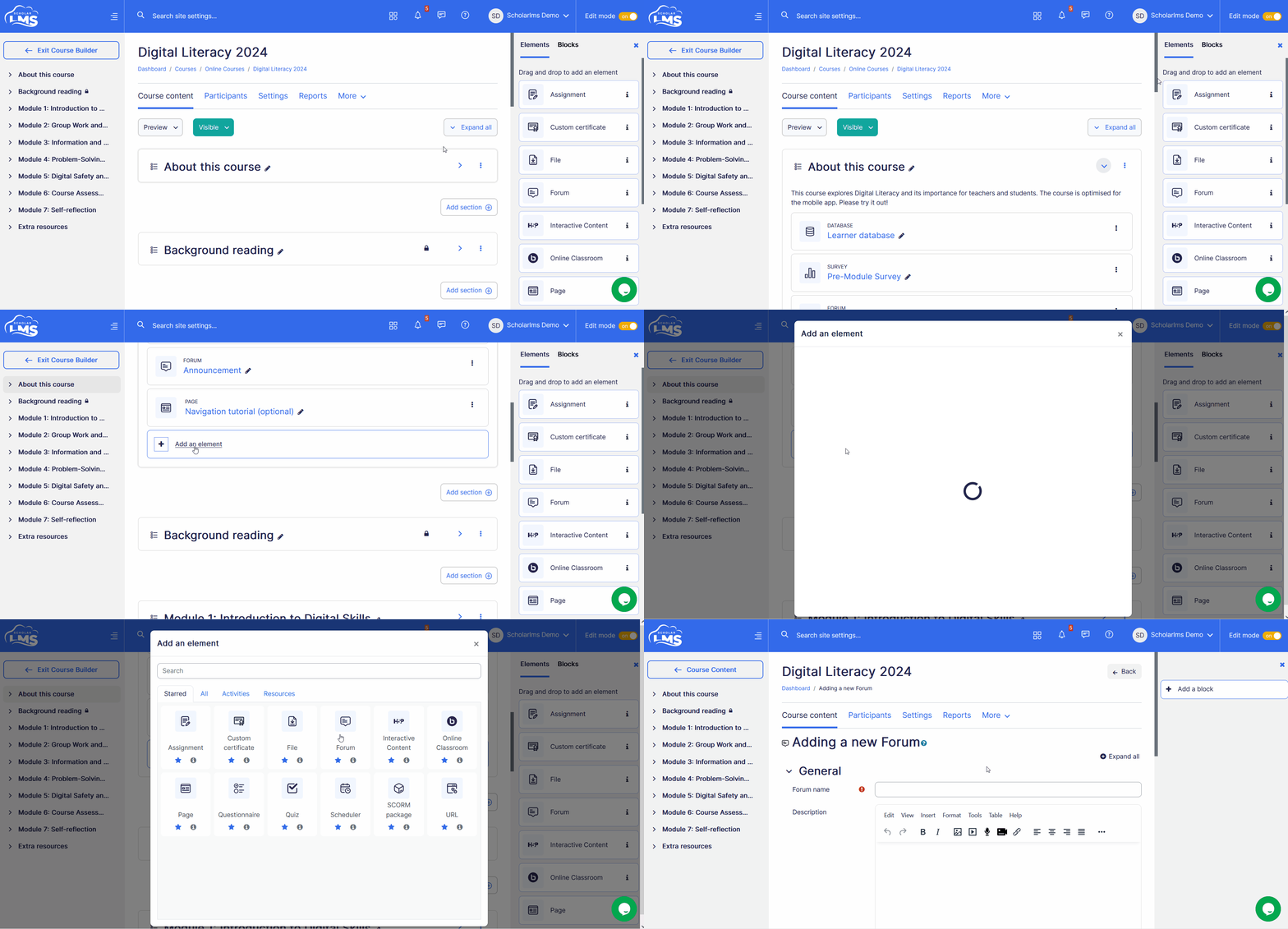
- Navigate to the Course Section, click the ‘Add an element’ button, which opens a pop up window, add Forum.
Forum settings #
This section explores the Forum activity settings once you have added it to your course.
General
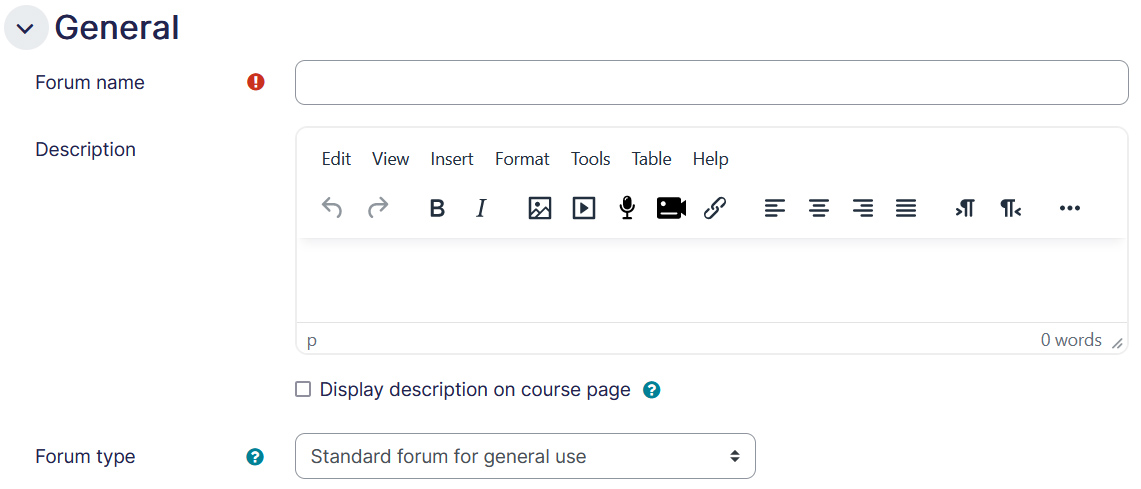
- Name – This is a mandatory field. Put in the name as you desire for the Forum activity.
- Description – Any details about the Forum activity could be put in here. If “” is enabled, it will display the description on the course page below the page title.
- Forum type – There are five forum types to choose from:
- Standard forum for general use (default) – An open forum where anyone can start a new discussion at any time, this is the best general-purpose forum.
- A single simple discussion – A single discussion topic which everyone can reply to (cannot be used with separate groups).
- Each person posts one discussion – Each student can post exactly one new discussion topic, which everyone can then reply to.
- Q and A forum – A student must first post their reply to a question posted by the teacher, before viewing other students’ posts.
- Standard forum displayed in a blog-like format – An open forum where anyone can start a new discussion at any time, and in which discussion topics are displayed on one page with “Discuss this topic” links.
Availability
- Due date – If enabled, displays the due date of the forum post and on the calendar as well. The posting will still be allowed after this date though. Use cutt-off date to prevent forum posts after a certain date.
- Cut-off date – If enabled, the forum will not accept posts after this date.

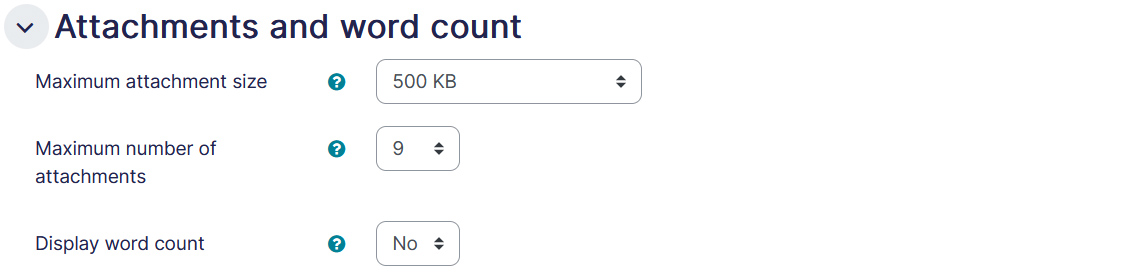
Attachments and word count
- Maximum attachment size – Specifies the largest size of the file that can be attached in a forum post.
- Maximum number of attachments – Specifies maximum number of files that can be attached in a post.
- Display word count – Allows you to display word count of a post.
Subscription and tracking
- Subscription mode – When a user is subscribed to a forum it means that they will receive notification (usually by email). People can usually choose whether or not they want to be subscribed to each forum. However, the teacher can choose to force subscription on a particular forum then all course users will be subscribed automatically, even those that enroll at a later time. There are 4 subscription mode options:
- Optional subscription – Participants can choose whether to be subscribed.
- Forced subscription – Everyone is subscribed and cannot unsubscribe.
- Auto subscription – Everyone is subscribed initially but can choose to unsubscribe at any time.
- Subscription disabled – Subscriptions are not allowed.
- Read tracking – “Read tracking” for a forum allows users to track read and unread forum posts.

Discussion locking
Discussions may be automatically locked after a specified time has elapsed since the last reply.

Post threshold for blocking
This setting allows you to block students from posting more than a given number of posts in a given time period.

Forum grading
Select the type of grading used for this activity. If ‘scale’ is chosen, you can then choose the scale from the dropdown menu. If using ‘point’ grading, you need to enter the maximum grade available for this activity.

Ratings
You can set an aggregate type, in other words, decide how all the ratings given to posts in a forum are combined to form the final grade (for each post and for the whole Forum activity). Some scales do not lend themselves to certain types of aggregates. There are five options:
- Average of ratings (default) – This is the mean of all the ratings given to posts in that forum. It is especially useful with peer grading when there are a lot of ratings being made.
- Count of ratings – Defines the counts of the number of rated posts which will become the final grade. This is useful when the number of posts is important. Note that the total can not exceed the maximum grade allowed for the forum. A count may be used if the teacher simply wants to acknowledge that a reply was given in the case of students being required to make a certain number of posts in the discussion. Note: Count of ratings does not work for the “Separate or Connected Ways of Knowing” scale or custom scales due to the limitation imposed by the max grade.
- Maximum rating – The highest rating is returned as the final grade. This method is useful for emphasizing the best work from participants, allowing them to post one high-quality post as well as a number of more casual responses to others.
- Minimum rating – The smallest rating is returned as the final grade. This method promotes a culture of high quality for all posts.
- Sum of ratings – All the ratings for a particular user are added together. Note that the total is not allowed to exceed the maximum grade for the forum. Note: Sum of ratings does not work for the “Separate or Connected Ways of Knowing” scale or custom scales due to the limitation imposed by the max grade.

Common module settings
- Availability – If the availability is set to ‘Show on course page’, the activity or resource is available to students (subject to any access restrictions which may be set). If the availability is set to ‘Hide from students’, the activity or resource is only available to users with permission to view hidden activities (by default, users with the role of teacher or non-editing teacher).
- ID number – Setting an ID number provides a way of identifying the activity or resource for purposes such as grade calculation or custom reporting. Otherwise the field may be left blank. For gradable activities, the ID number can also be set in the gradebook, though it can only be edited on the activity settings page.
- Group mode – The group mode defined at course level is the default mode for all activities within the course. Each activity that supports groups can also define its own group mode, though if the group mode is forced at course level, the group mode setting for each activity is ignored. This setting has 3 options:
- No groups
- Separate groups – Each group member can only see their own group, others are invisible
- Visible groups – Each group member works in their own group, but can also see other groups
Restrict access
The restrict access feature enables teachers to restrict the availability of any activity according to certain conditions such as dates, grade obtained, group, user profile field, time spent on a different activity, or activity completion. A complex logic can be used with nested restrictions. To know more, explore our detailed guide on access restriction.
Alternatively, an activity can be hidden from students until they are ready to be used.

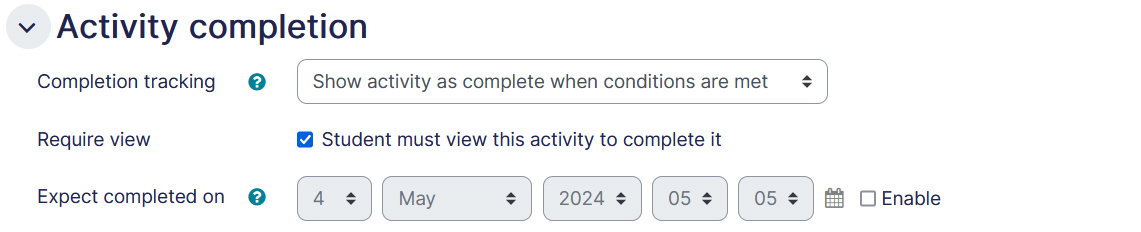
Activity Completion
Activity completion allows you to set completion criteria which basically decides when to consider the activity is completed. The following options are available:
- Students can manually mark the activity completed, here you allow students to make this decision.
- Activity is considered complete when certain conditions are fulfilled, where one or more conditions can be added.
- A date of expected completion of the activity
Competencies
Allows you to link competency to the activity. To know more, explore our guide on Competencies.
