
SCORM (Sharable Content Object Reference Model) is a set of technical standards used for e-learning products. The SCORM activity enables SCORM or AICC packages to be uploaded as a zip file and added to a course.
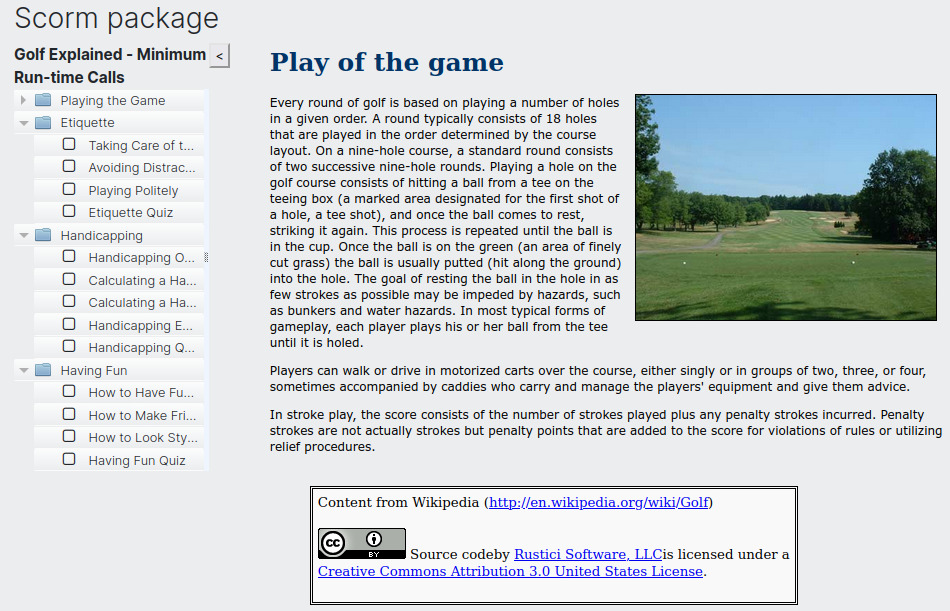
Content is usually displayed over several pages, with navigation between the pages. There are various options for displaying content in a pop-up window, with a table of contents, with navigation buttons etc. SCORM activities generally include questions, with grades being recorded in the gradebook.
SCORM activities may be used:
- For presenting multimedia content and animations
- As an assessment tool
Adding a SCORM lesson #
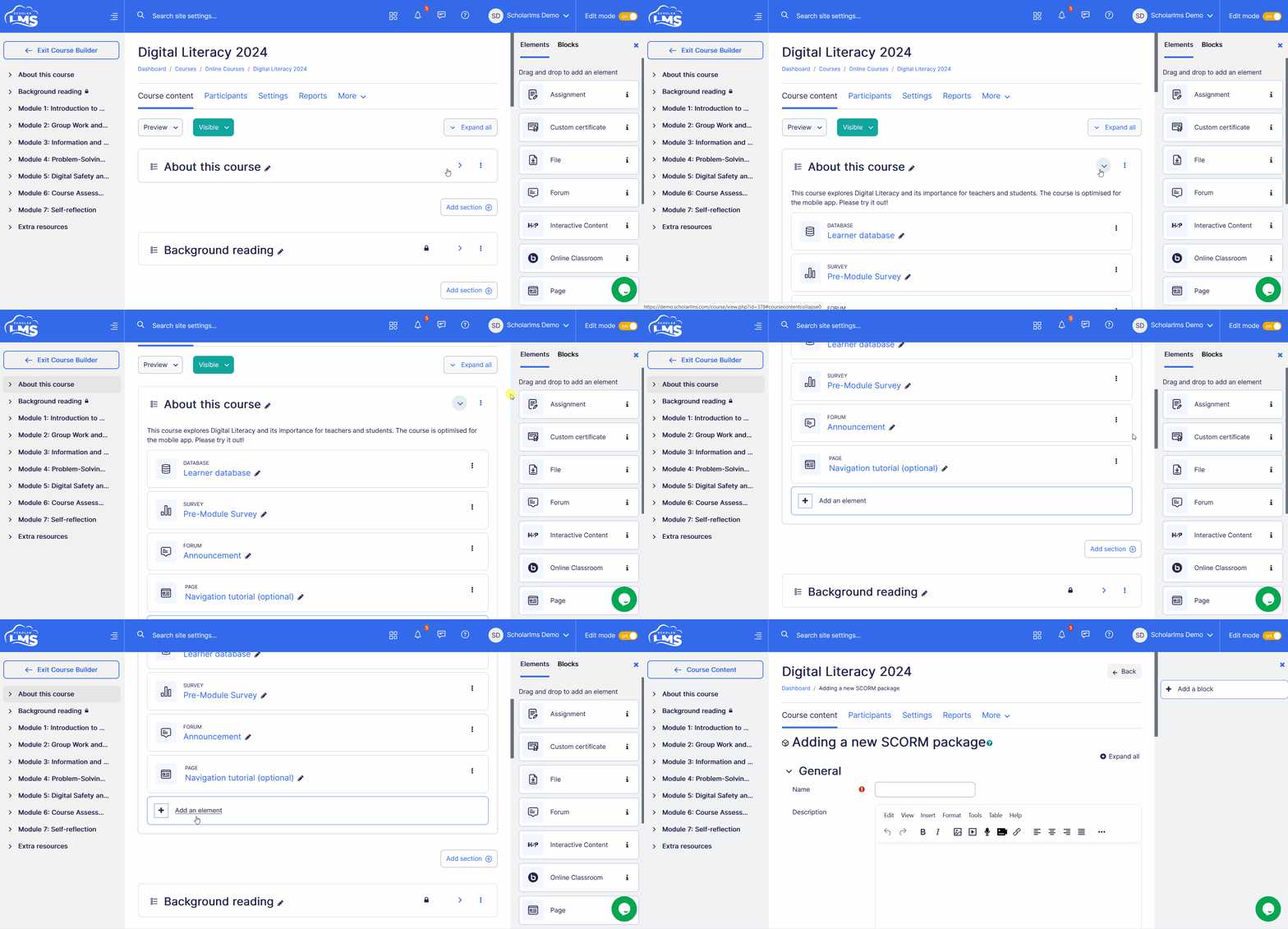
To add a SCORM lesson:
- Navigate to the Courses page.
- Click on “Edit” under Actions for the desired course.
- This takes to Course Builder page. Ensure that the Edit mode is activated on the Course Builder page.

- Navigate to the Course Section, click the ‘Add an element’ button, which opens a pop up window, add SCORM package.
SCORM settings #
This section explores the settings for the SCORM activity once you have added it to your course.
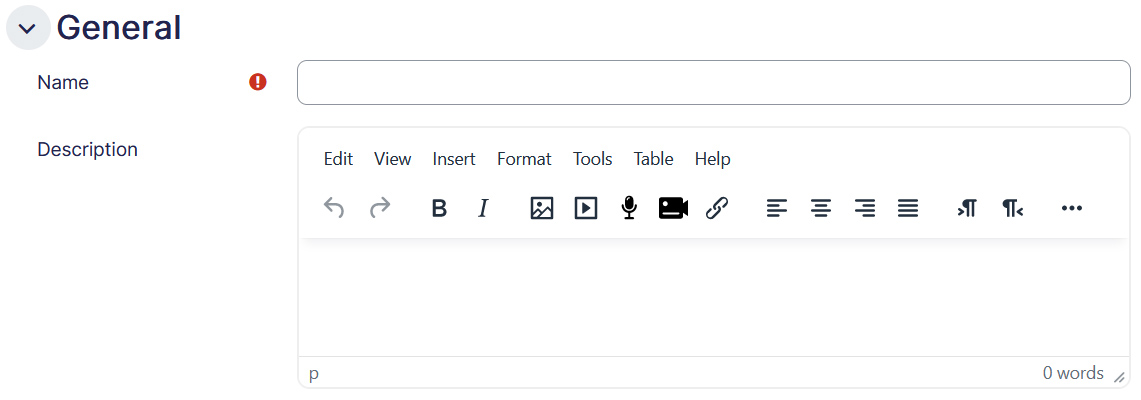
General
- Name – This is a mandatory field, put in the name as you desire.
- Description – Any details about the activity could be put in here. If “” is enabled, it will display the description on the course page below the page title.
Package
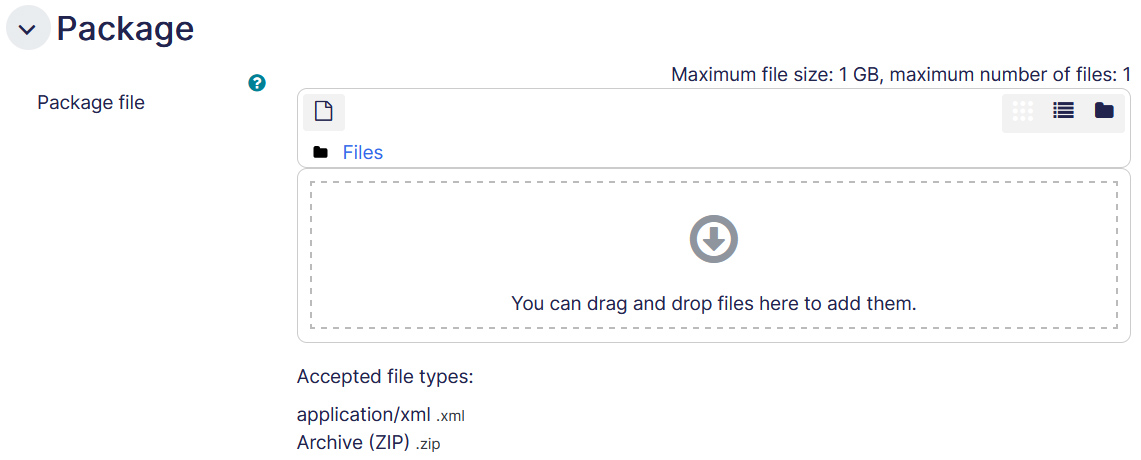
Allows you to add a SCORM package file that you might have exported from an authoring tool. The accepted file types are ‘xml’ and ‘zip’.
Appearance
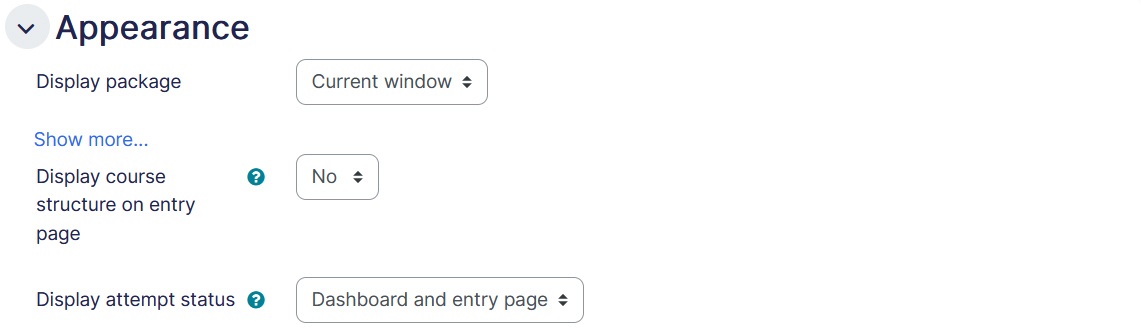
- Display package – Choose if you want to open SCORM content on a new window or within the same activity page. With the below checkbox, you can display the activity name.
- Student skip content structure page – This setting specifies whether the content structure page should ever be skipped (not displayed). If the package contains only one learning object, the content structure page can always be skipped.
- Disable preview mode – Preview mode allows a student to browse an activity before attempting it. If preview mode is disabled, the preview button is hidden.
- Display course structure on entry page – If enabled, the table of contents is displayed on the SCORM outline page.
- Display course structure in player – How the table of contents is displayed in the SCORM player.
- Show Navigation – There are 3 options:
- No – Navigation buttons are not shown
- Under content – Navigation buttons are shown below the SCORM package content
- Floating – Navigation buttons are shown floating, with the position from the top and from the left determined by the package.
- Display attempt status – This preference allows a summary of the user’s attempts to show in the course overview block in Dashboard and/or the SCORM entry page.
Availability
- Available from – If enabled, the SCORM activity will be accessible only after this date/time.
- Available to – If enabled, the SCORM activity will not be accessible after this date/time.

Grades
Allows you to set up grades for the SCORM attempts.
- Grade method – The grading method defines how the grade for a single attempt of the activity is determined. There are 4 grading methods:
- Learning objects – The number of completed/passed learning objects. Tip: If your SCORM package does report cmi.core.lesson_status, and does not report cmi.core.score.raw, then you should use this setting.
- Highest grade – The highest score obtained in all passed learning objects
- Average grade – The mean of all the scores
- Sum grade – The sum of all the scores
- Maximum grade – This setting controls the maximum grade that can be achieved in an attempt.

Attempts management
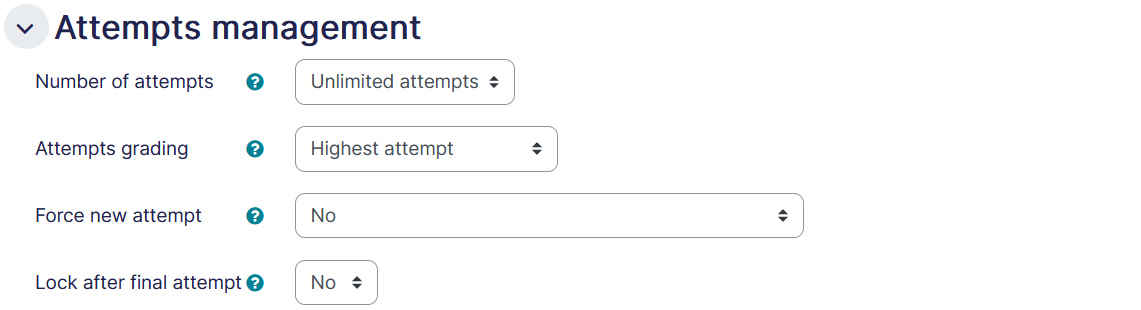
- Number of attempts – This setting enables the number of attempts to be restricted. It is only applicable for SCORM 1.2 and AICC packages.
- Attempts grading – If multiple attempts are allowed, this setting specifies whether the highest, average (mean), first or last completed attempt is recorded in the gradebook. The last completed attempt option does not include attempts with a ‘failed’ status.
- Force new attempt – There are 3 options:
- No – If a previous attempt is completed, passed or failed, the student will be provided with the option to enter in review mode or start a new attempt.
- When the previous attempt is completed, passed or failed – This relies on the SCORM package setting the status of ‘completed’, ‘passed’ or ‘failed’.
- Always – Each re-entry to the SCORM activity will generate a new attempt and the student will not be returned to the same point they reached in their previous attempt.
- Lock after final attempt – If enabled, a student is prevented from launching the SCORM player after using up all their allocated attempts.
Compatibility settings (optional)
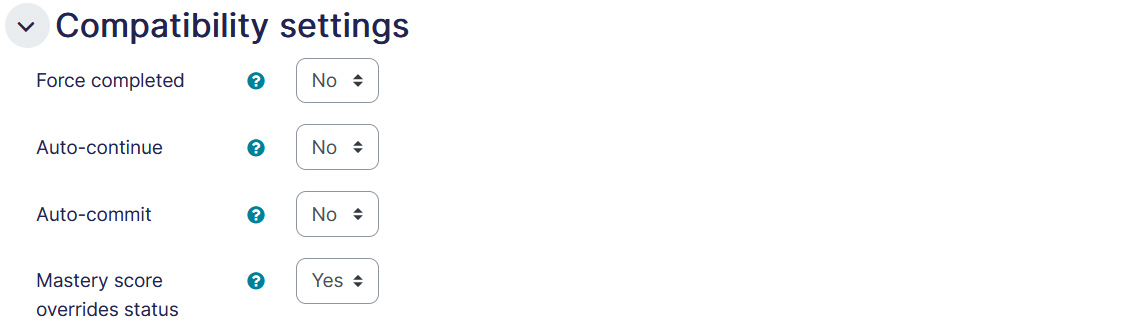
- Force completed – If enabled, the status of the current attempt is forced to ‘completed’. (Only applicable to SCORM 1.2 packages.)
- Auto-continue – If enabled, subsequent learning objects are launched automatically, otherwise the Continue button must be used.
- Auto-commit – If enabled, SCORM data is automatically saved to the database. Useful for SCORM objects which do not save their data regularly.
- Mastery score overrides status – If enabled and a mastery score is provided, when LMS finish is called and a raw score has been set, status will be recalculated using the raw score and mastery score and any status provided by the SCORM (including ‘incomplete’) will be overridden.
Common module settings
- Availability – If the availability is set to ‘Show on course page’, the activity or resource is available to students (subject to any access restrictions which may be set). If the availability is set to ‘Hide from students’, the activity or resource is only available to users with permission to view hidden activities (by default, users with the role of teacher or non-editing teacher).
- ID number – Setting an ID number provides a way of identifying the activity or resource for purposes such as grade calculation or custom reporting. Otherwise the field may be left blank. For gradable activities, the ID number can also be set in the gradebook, though it can only be edited on the activity settings page.
- Group mode – The group mode defined at course level is the default mode for all activities within the course. Each activity that supports groups can also define its own group mode, though if the group mode is forced at course level, the group mode setting for each activity is ignored. This setting has 3 options:
- No groups
- Separate groups – Each group member can only see their own group, others are invisible
- Visible groups – Each group member works in their own group, but can also see other groups
Restrict access
The restrict access feature enables teachers to restrict the availability of any activity according to certain conditions such as dates, grade obtained, group, user profile field, time spent on a different activity, or activity completion. A complex logic can be used with nested restrictions. To know more, explore our detailed guide on access restriction.
Alternatively, an activity can be hidden from students until they are ready to be used.

Activity Completion
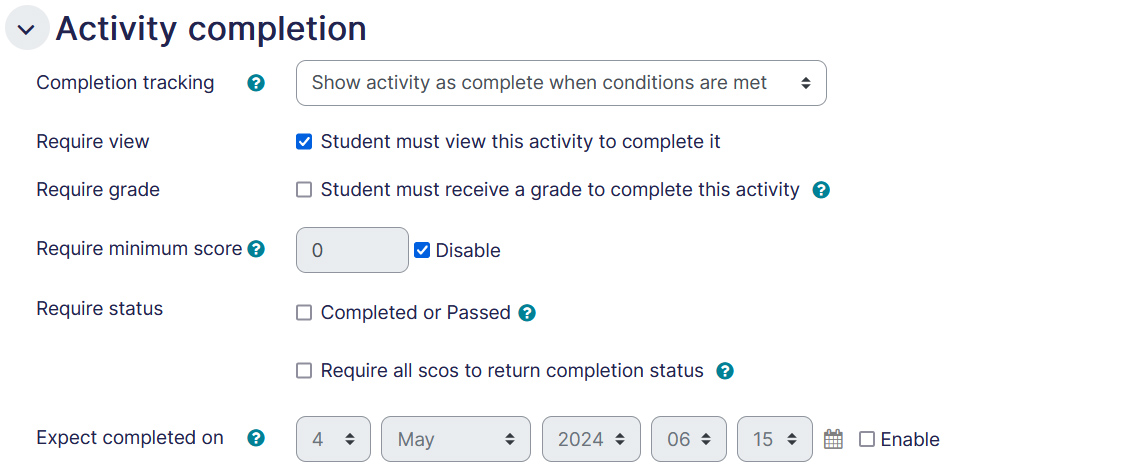
Activity completion allows you to set completion criteria which basically decides when to consider the activity is completed. The following options are available:
- Students can manually mark the activity completed, here you allow students to make this decision.
- Activity is considered complete when certain conditions are fulfilled, where one or more conditions can be added.
- Student must view the activity to complete it
- Student must receive a grade to complete the activity
- Require a minimum score
- ‘Passed’, or ‘Completed’ status are achieved
- Require all scos to return completion status — Some SCORM packages contain multiple components or ‘scos’ – when this is enabled all scos within the package must return the relevant lesson_status for this activity to be flagged complete.
- A date of expected completion of the activity
Competencies
Allows you to link competency to the activity. To know more, explore our guide on Competencies.
