
In this article we will know how to manually add a new user on your site. To add users in bulk, read Bulk uploading users.
To manually add a new user, click Users->Add a new user item on left navigation.
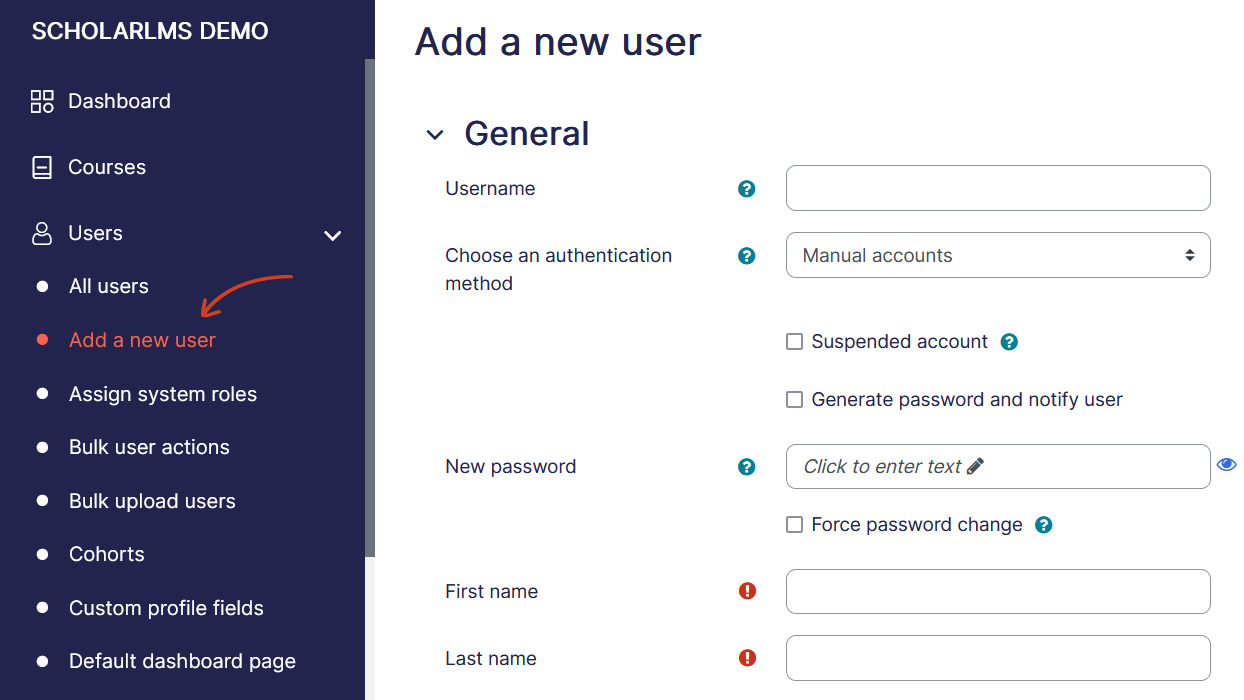
Username
The user will use this username to log in. It needs to be unique. This may be changed. A user’s name can only contain alphabetical letters in lowercase, numbers, hyphen ‘-‘, underscore ‘_’, period ‘.’, or an at character ‘@’.
Authentication method
Accounts created by an administrator use the Manual Accounts method, and accounts created by the user themselves using the email sign-up method use the E-mail based self-registration method.
Suspended account
Suspended user accounts cannot log in or use web services, and any outgoing messages are discarded.
Generate password and notify user
The site will generate a temporary password and email the user with instructions on how to log in and change it.
New Password
This is the user’s password. It is subject to the password policy in Site policies. A user can change their password via User menu -> Preferences.
Force password change
If this is enabled, the user will be prompted to change their password on their next login.
First and last name
The user’s first and last name. Full name is displayed in messages, forum posts, participants list, reports and anywhere where something about the user is shows on the page.
Email address
Email address of user, must be unique. Password reset notices, forum digests and other messages are sent to this email address.
Email visibility
This setting controls who can see the user’s email address.
- Hidden – Only users with appropriate permissions such as teachers can view your email address.
- Visible to everyone – All users on the site can view your email address.
- Visible to course participants – Only participants of courses you are enrolled in can view your email address.
Custom user fields
Custom defined user fields are listed at the end of the page.
Note: City, Country, Timezone, and Language are picked from user’s default settings as explained in User Default Settings guide.
