
What are Competencies? #
Competencies are specific sets of knowledge, skills, abilities, and behaviors that are necessary for performing tasks effectively and achieving desired outcomes in a particular job, role, or activity. They represent a combination of attributes that enable an individual to perform successfully in various contexts.
Key elements of Competencies include:
- Knowledge: Understanding and awareness of information, concepts, procedures, and facts relevant to a particular field or task.
- Skills: The ability to apply knowledge effectively in practical situations. Skills can be technical (e.g., coding, using machinery) or soft (e.g., communication, teamwork).
- Abilities: Innate or learned capacities that enable an individual to perform tasks. Abilities can include cognitive, physical, and social capacities.
- Behaviors: Observable actions or responses of an individual when performing a task or interacting with others. These may include qualities such as leadership, adaptability, and collaboration.
How to setup Competencies in a course #
Pre-requisites
- Before setting up Competencies at course or activity level, you must create competency framework. See our detailed guide on how to create competency framework.
- Add Learning Plans block so that teachers and students can see Competencies waiting for review.
Note: The Learning Plans block only displays for users who are associated with a learning plan.
To add Competencies in a course:
- Navigate to the course in which competency needs to be added.
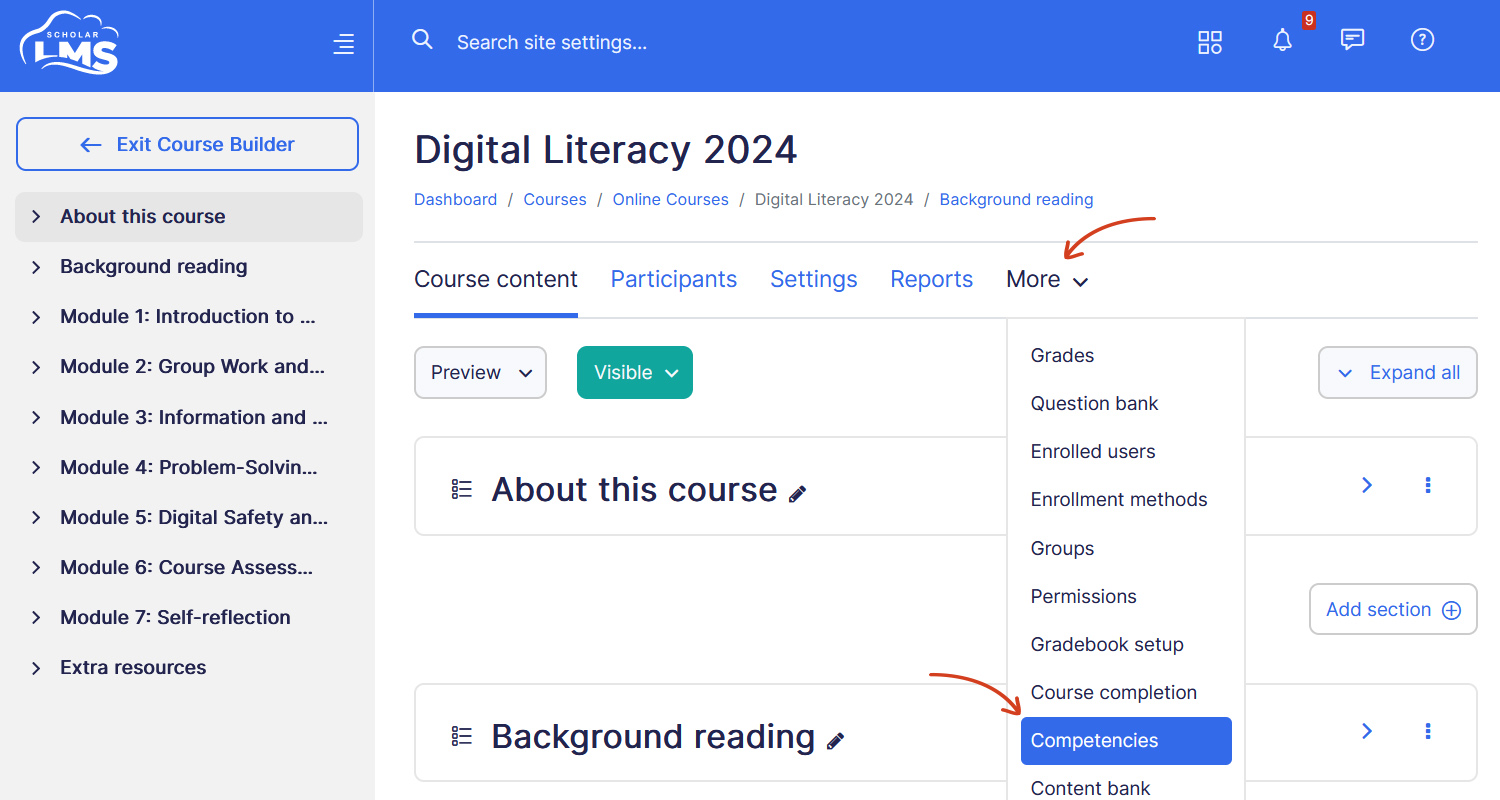
- On course navigation, click on More->Competencies to get to Competencies page.
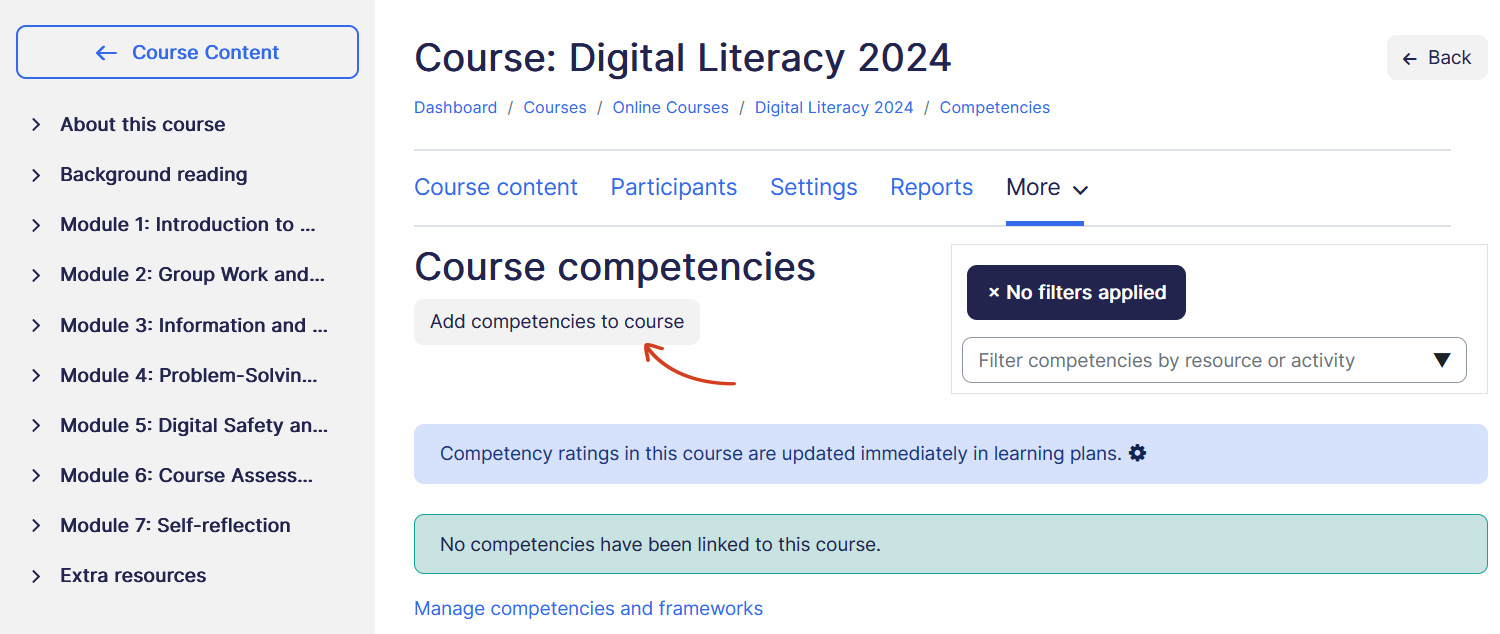
- Click Add Competencies to course button to add Competencies.
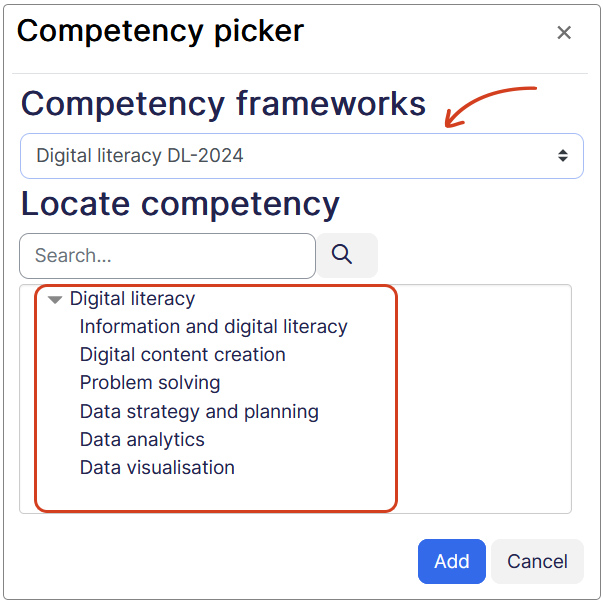
- From the competency picker window select Competencies to be added to the course. Press Control (Command) key plus click to select multiple Competencies.
- Once Competencies are added to a course, they will appear on the Competencies page. From there, you can choose the outcome for each competency when a student completes the course. You have four options to select from:
- Do nothing — Select this option if competency is based on activity completion not on course completion. More details on this are provided later on this page.
- Attach evidence — This option automatically attach evidence to the competency. Completed course details will be used as evidence. However, please note that the teacher will not be notified that evidence is available, this where Learning Plans block comes handy to view all competency evidence waiting to be reviewed.
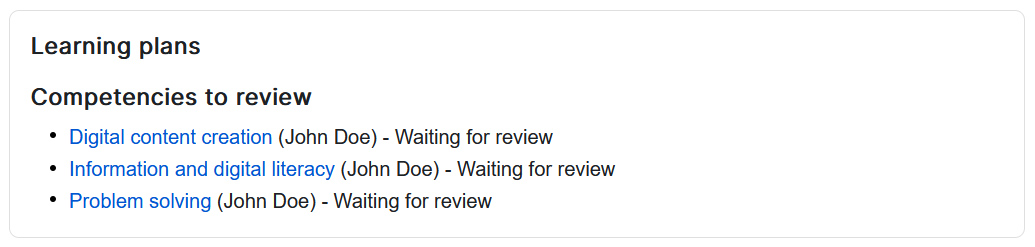
- Send for review — Upon course completion, this option notifies the teacher on Learning Plans block that a competency is left to be reviewed.
- Complete the competency — This option automatically marks the competency as complete when the course is completed.
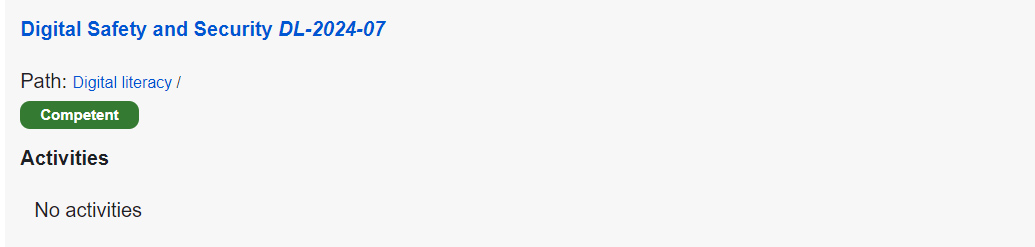
Note: To enable marking Competencies based on course completion, ensure course Completion Tracking is enabled and that completion criteria are clearly defined. For more information, explore our guide on how to add course completion criteria.
How to setup activity Competencies #
Pre-requisites
- Course Completion Tracking must be enabled.
- Activity Completion Tracking criteria must be added. Explore our guide on how to add activity completion criteria.
To setup activity competency:
-
- Navigate to the course in which activity exists.
- Ensure Course Editing is turned ON

- Click on desired activity’s settings link
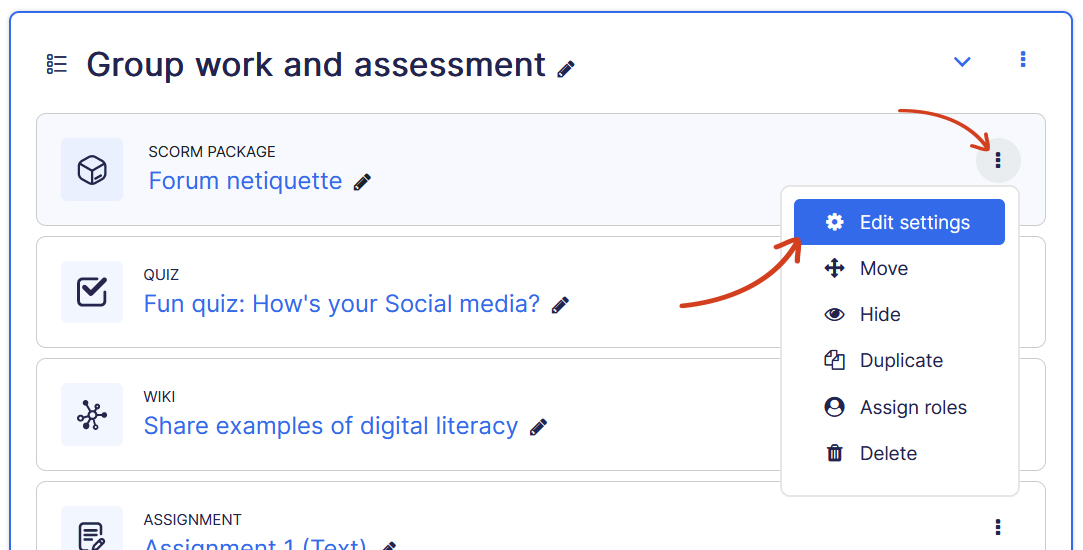
- Scroll down on the settings page to Competencies tab, select one (or more) Competencies and outcome from the dropdown.
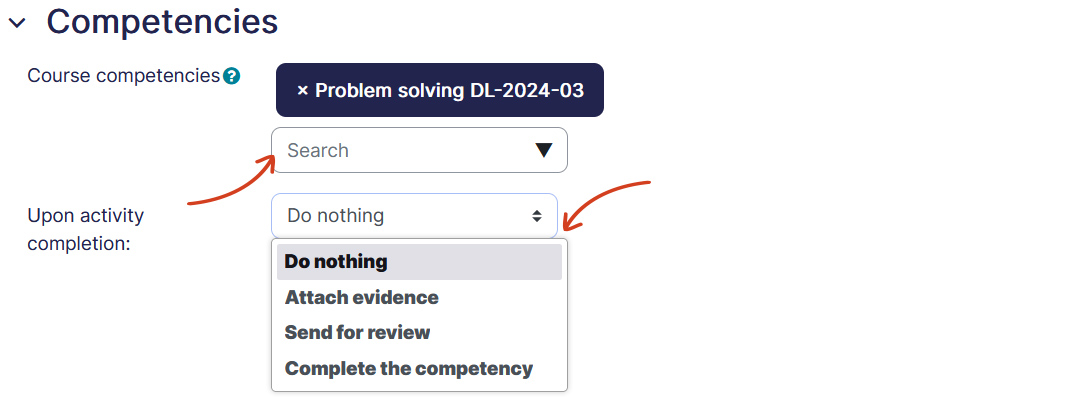
- Attach evidence — This option automatically attach evidence to the competency. Completed activity details will be used as evidence. However, please note that the teacher will not be notified that evidence is available, this where Learning Plans block comes handy to view all competency evidence waiting to be reviewed.
- Send for review — Upon activity completion, this option notifies the teacher on Learning Plans block that a competency is left to be reviewed.
- Complete the competency — This option automatically marks the competency as complete when the activity is completed.
- Attach evidence — This option automatically attach evidence to the competency. Completed activity details will be used as evidence. However, please note that the teacher will not be notified that evidence is available, this where Learning Plans block comes handy to view all competency evidence waiting to be reviewed.
Competency student view #
An instructor or student can access Competencies by visiting the Competencies link in the course navigation. The page displays the following information:
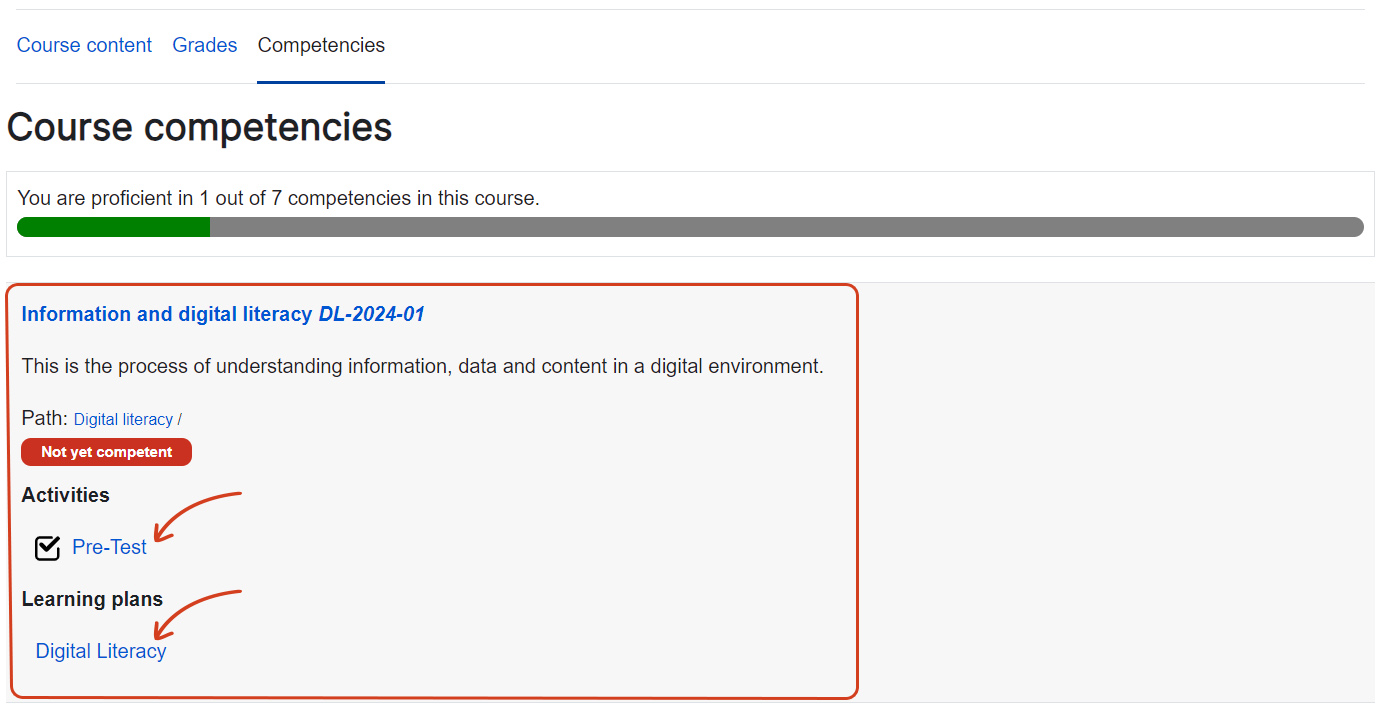
- Total number of Competencies this course is linked to.
- Total number of Competencies a user has achieved.
- Each listed competency then provides the following details:
- Competency name and ID
- Competency description
- Competency path
- Competency status (Not yet competent or Competent)
- Activities to which this competency is linked from this course. A linked activity will not be visible to the student if they do not meet the access criteria for the activity.
- Learning Plans student is associated and to which this competency is linked.
