
A learning plan is a set of Competencies which you can assign to a group of users.
Adding learning plan template #
Once a Competency framework has been set up, you can then create a learning plan template. A learning plan template defines a set of Competencies which you can assign to a group of users. This is better than creating individual Learning Plans for many different students and means you only need update the template and the changes will appear for all students.
To add a learning plan template:
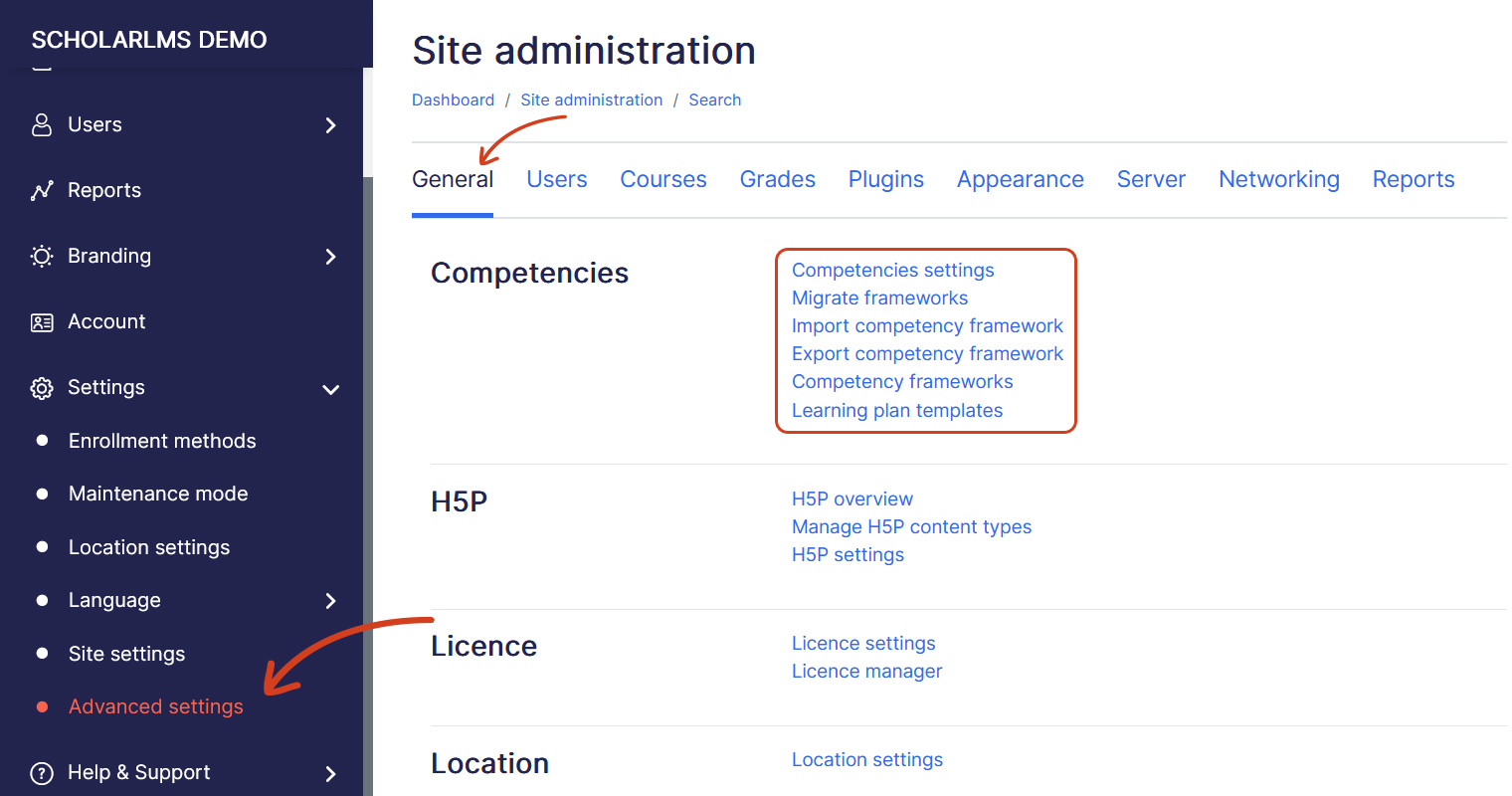
- Navigate to Settings->Advanced Settings, on General tab Scroll to the Competencies section and click Learning plan templates.
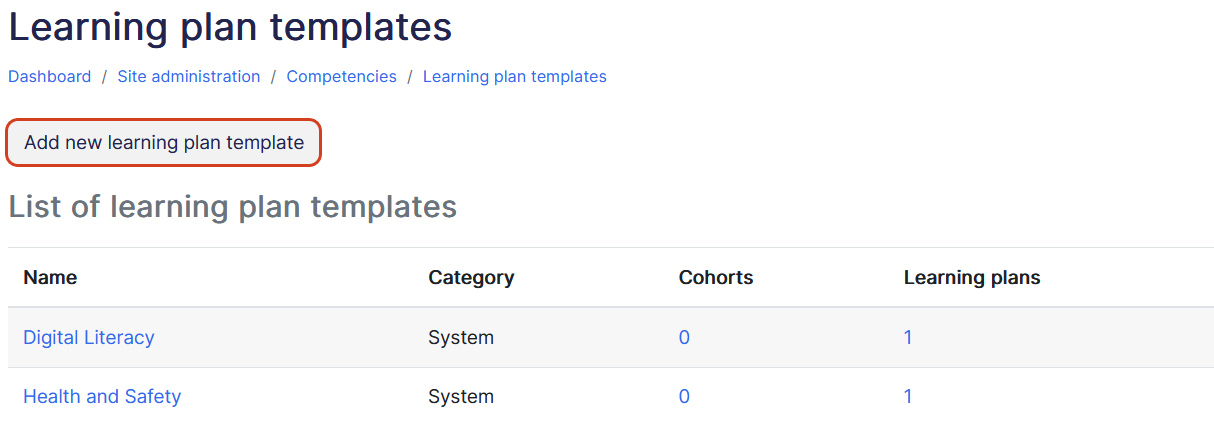
- The Learning plan template page shows any existing template in your system. To create a new template click on Add new competency framework button.
- Fill details for the new framework on Add new competency framework page.
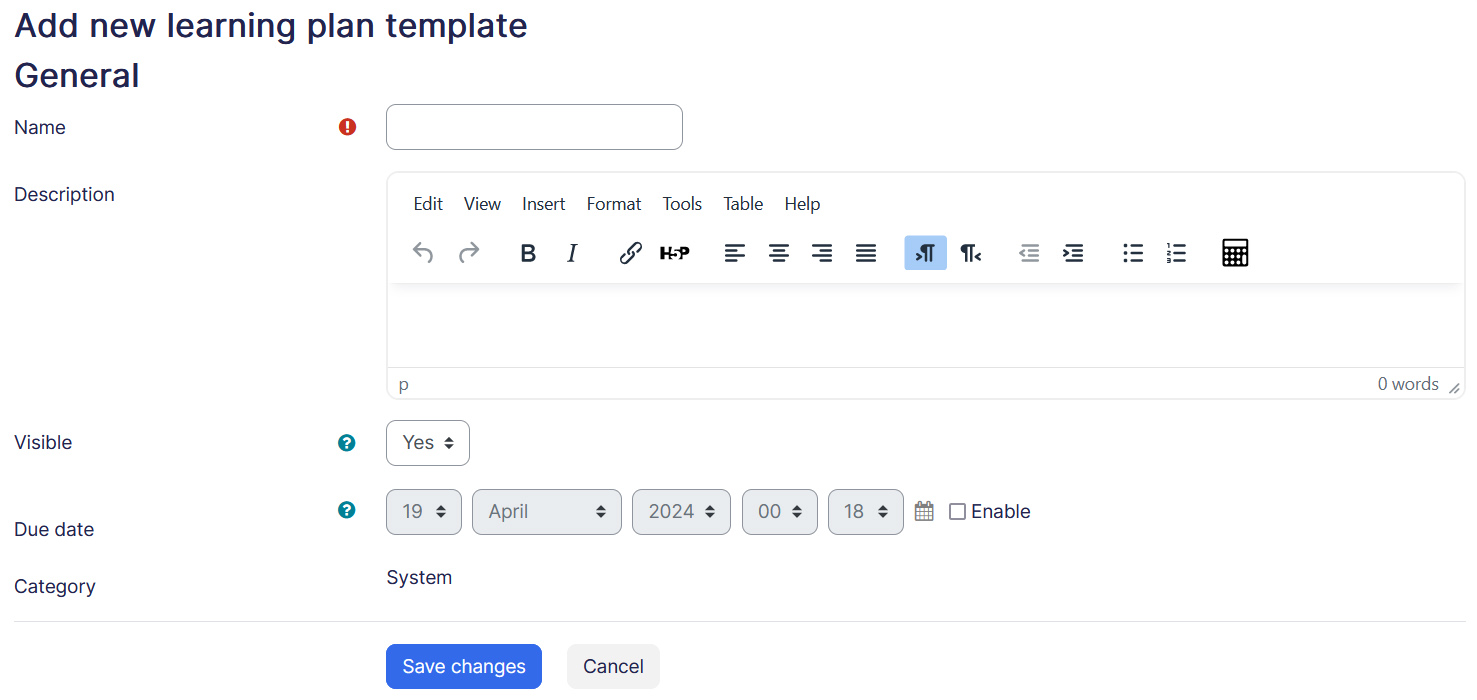
- Name — Name the learning plan template which is short and meaningful for your organization.
- Description — Description is optional but it’s recommended to add description about the learning plan.
- Visible — Allows to show/hide this learning plan template.
- Due date — A date this learning plan should be completed by.
Adding Competencies to a learning plan template #
To add Competencies to a template, click the learning plan’s name (under the left-hand Name column) to go to the page where you can add, edit and remove Competencies. It will also show which Competencies are not assigned to any course.
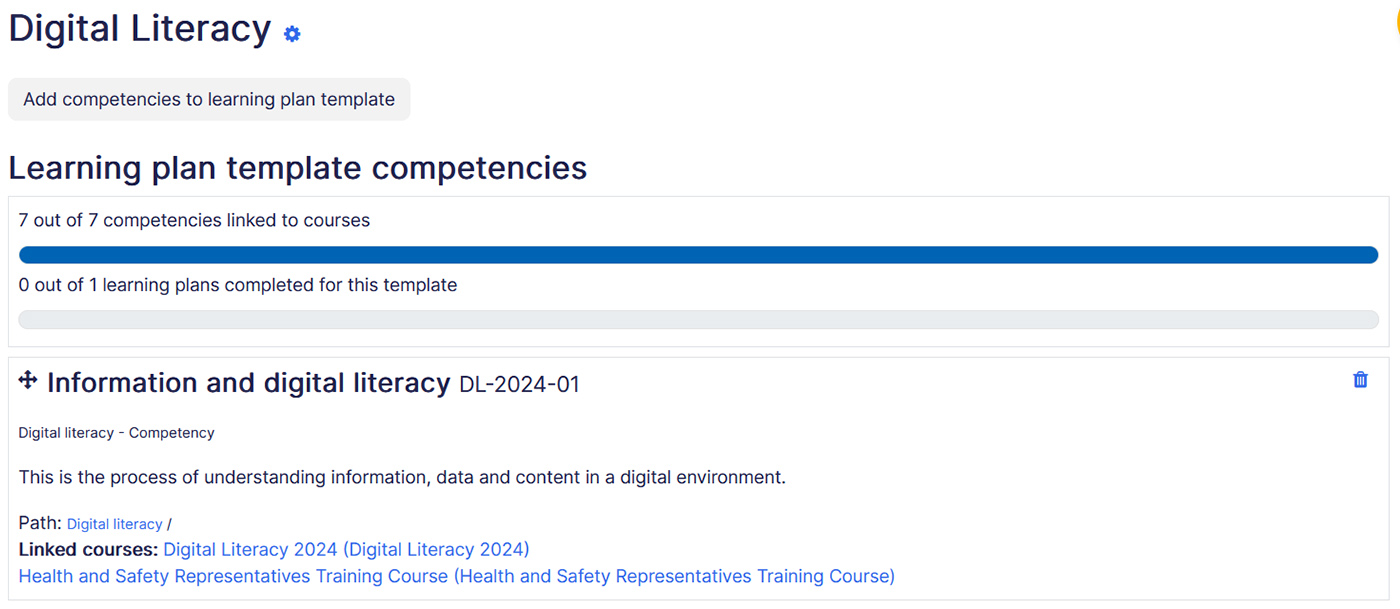
Once you have added Competencies to the template, you can assign it to individual students, or to an entire cohort of students as described below.
Assigning Learning Plans to users or Cohorts #
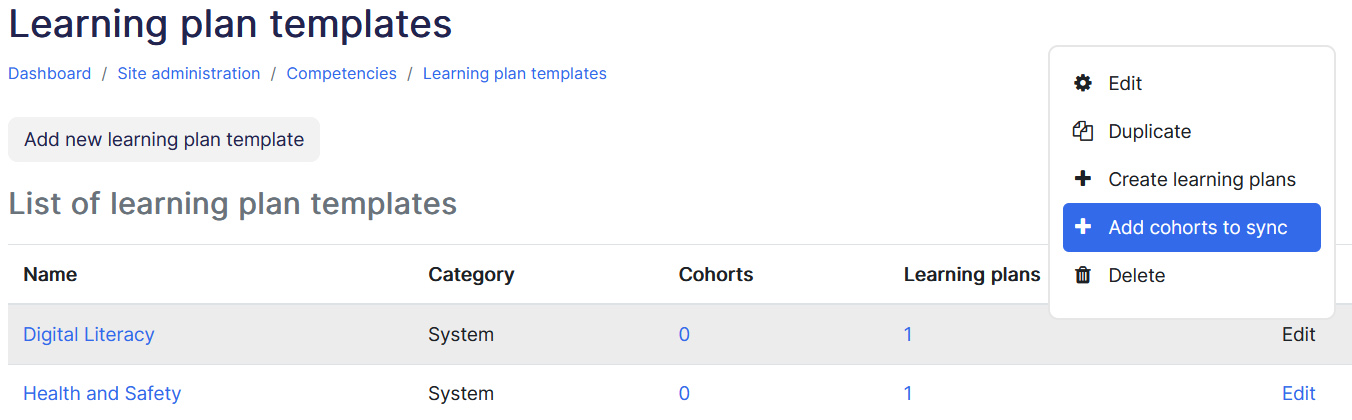
Once a learning plan template has been created, it may be assigned to students individually or in bulk to a (pre-made) cohort. On the row for the template you wish to assign, click the “Edit” icon.
Assign to cohort(s) #
- To assign a learning plan to a cohort, click ‘Add Cohorts to sync’.
Note: The site will only create 50 Learning Plans immediately. If you have a very large cohort, a scheduled task will create the Learning Plans.
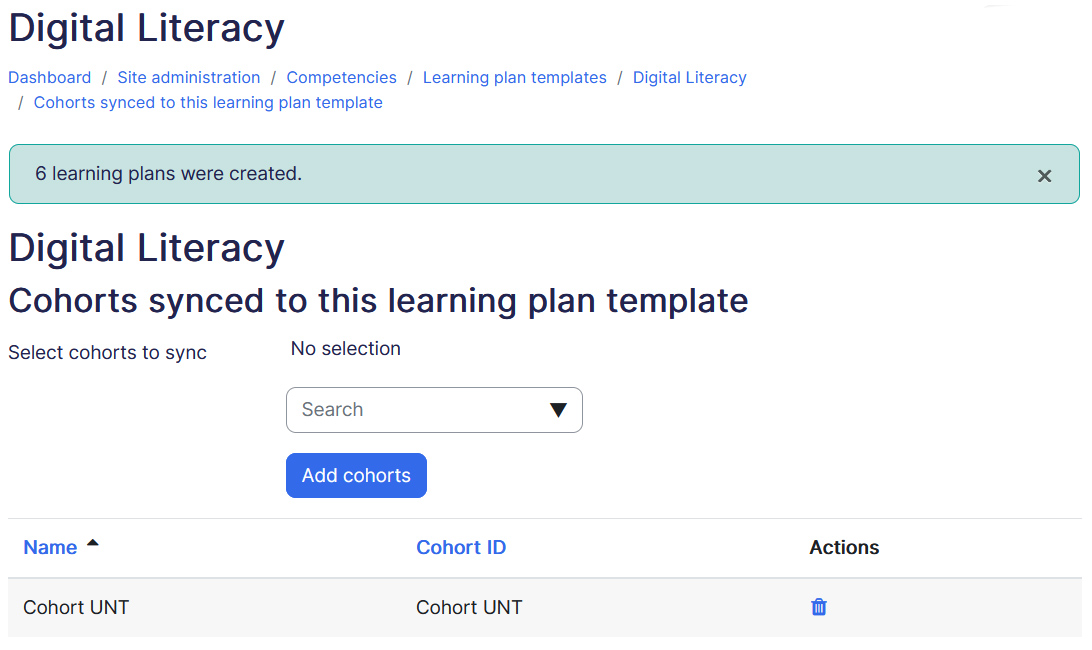
- Search and add your chosen cohort(s). A message will appear with the number of Learning Plans created.
Assign to individual student #
- To assign a learning plan to an individual student, click ‘Create learning plan’.
- Then search for and select the student(s) you wish to make the Learning Plans for.
Removing learners and Learning Plans #
If you have assigned your Learning Plans via cohort it is important to note that simply removing the cohort will not remove the plan from those learners. You are able to remove the plans individually (i.e. via their profile) or delete the entire learning plan which will remove the plan for all users.
Viewing Learning Plans #
Users have two ways to see their own Learning Plans.
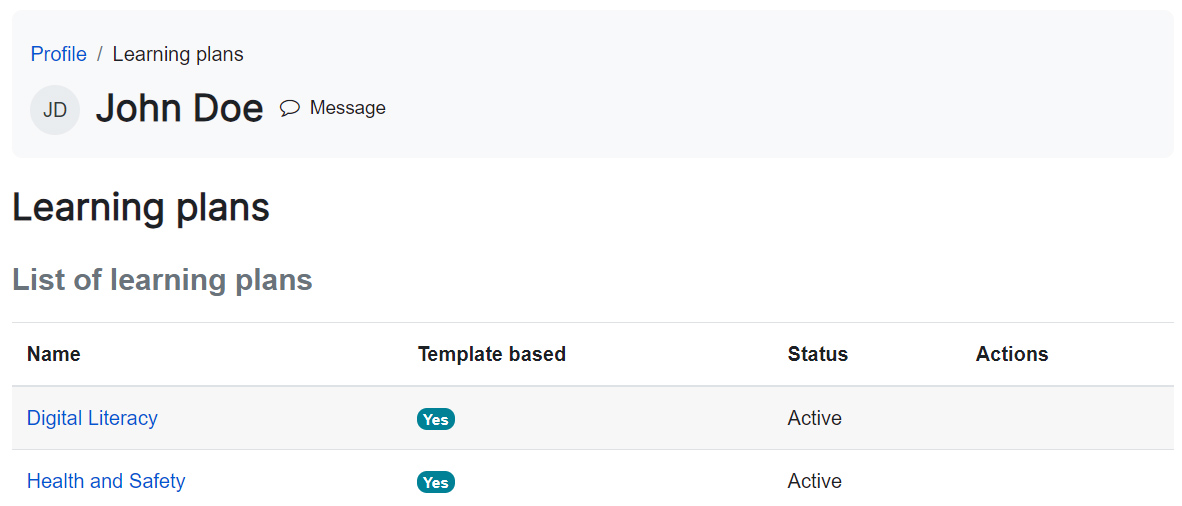
- Anyone can see their own Learning Plans by visiting profile page->Miscellaneous->Learning Plans.
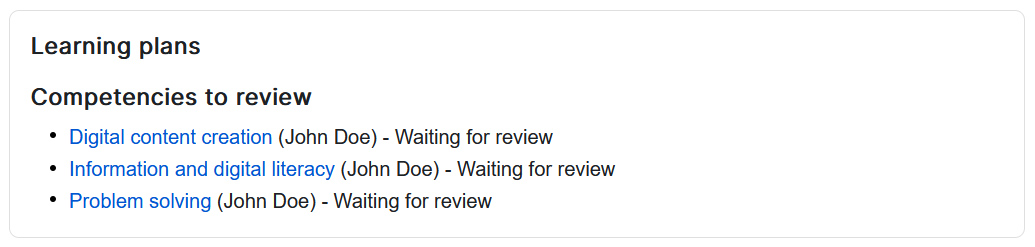
- From the Learning Plans block on Dashboard. The learning plan block must be added by site administrator.
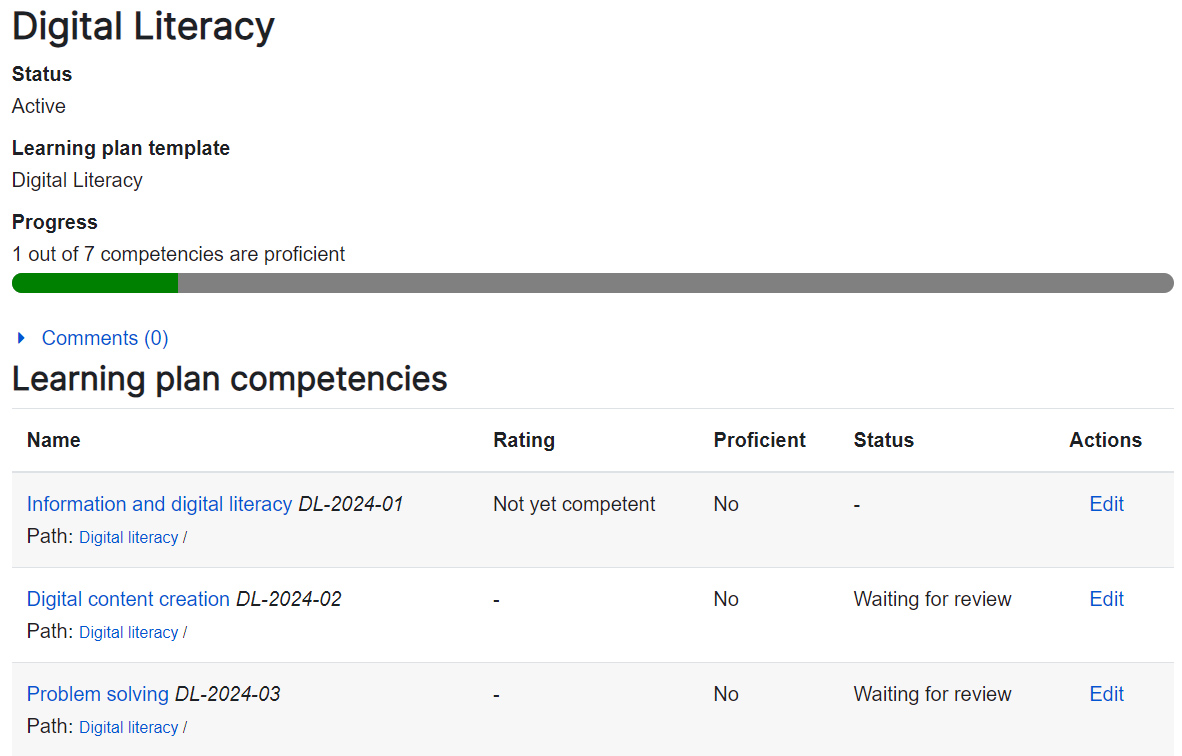
When a student clicks the name of a learning plan, they see the associated Competencies. They can see their progress towards completion and also click ‘Edit’ to request a review of any competency:
Evidence of prior learning #
Evidence of Prior Learning” feature allows students to demonstrate their prior knowledge and experience related to the Competencies outlined in a learning plan. This can be beneficial in personalizing the learning journey and recognizing the skills and knowledge students have already acquired, potentially reducing redundancy in their learning.
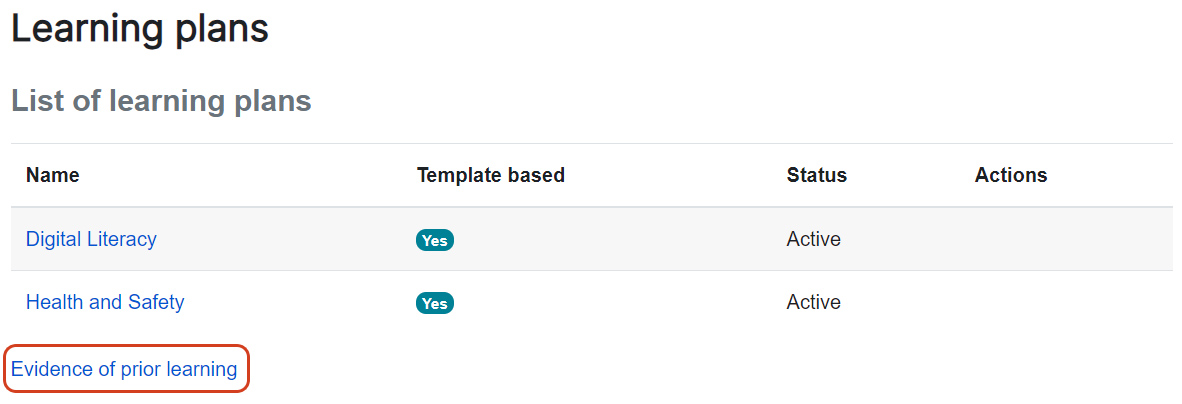
To upload evidence of prior learning, access your own Learning Plans page from your profile and click on the “Evidence of prior learning” link (1) On the next page, click on the “Add new evidence” button (2) and provide as much detail about the evidence as possible (including files and urls to verify the evidence). Once the evidence is listed, you can link it to one or more Competencies from any of your Learning Plans. Then you can request that someone reviews your competency to decide if the evidence is sufficient and rate the competency.
