
Bulk enrollments allows you to enroll students and add them to groups in a course using a CSV file containing the students’ email address or userid. Before you start, you will require an excel file containing a complete list of the students’ email address or userids in the first column. Subsequent columns contain the names of any groups you want to add each student to.
Prepare CSV file #
In order to upload your students successfully, you will need to create a CSV file with the students details. At minimum, your CSV file should contain one column for the main student identifier, usually their email address but it can also be their userid, or student ID number. If you are using email then put ’email’, if you are using user IDs then put ‘userid’. If you want to enrol the students into Groups, include a second column which gives the group name for each student. Be careful to type these exactly. Give it a column heading ‘group’. You can add subsequent groups in subsequent columns.
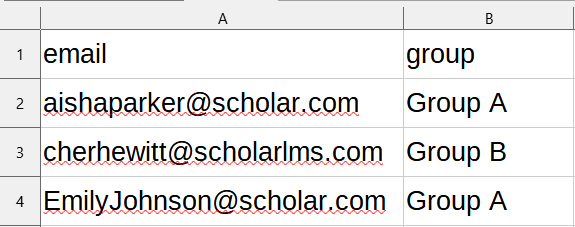
Please note that a user account must already exist before enrolling in a course. If it doesn’t, you can follow the bulk upload users help guide to create accounts and enroll users from a CSV file.
Bulk enrollment #
To bulk enroll users in a course.
- Navigate to your course.
- Click Participants. Change the drop-down menu at the top from Enrolled Users to Bulk enrollments.
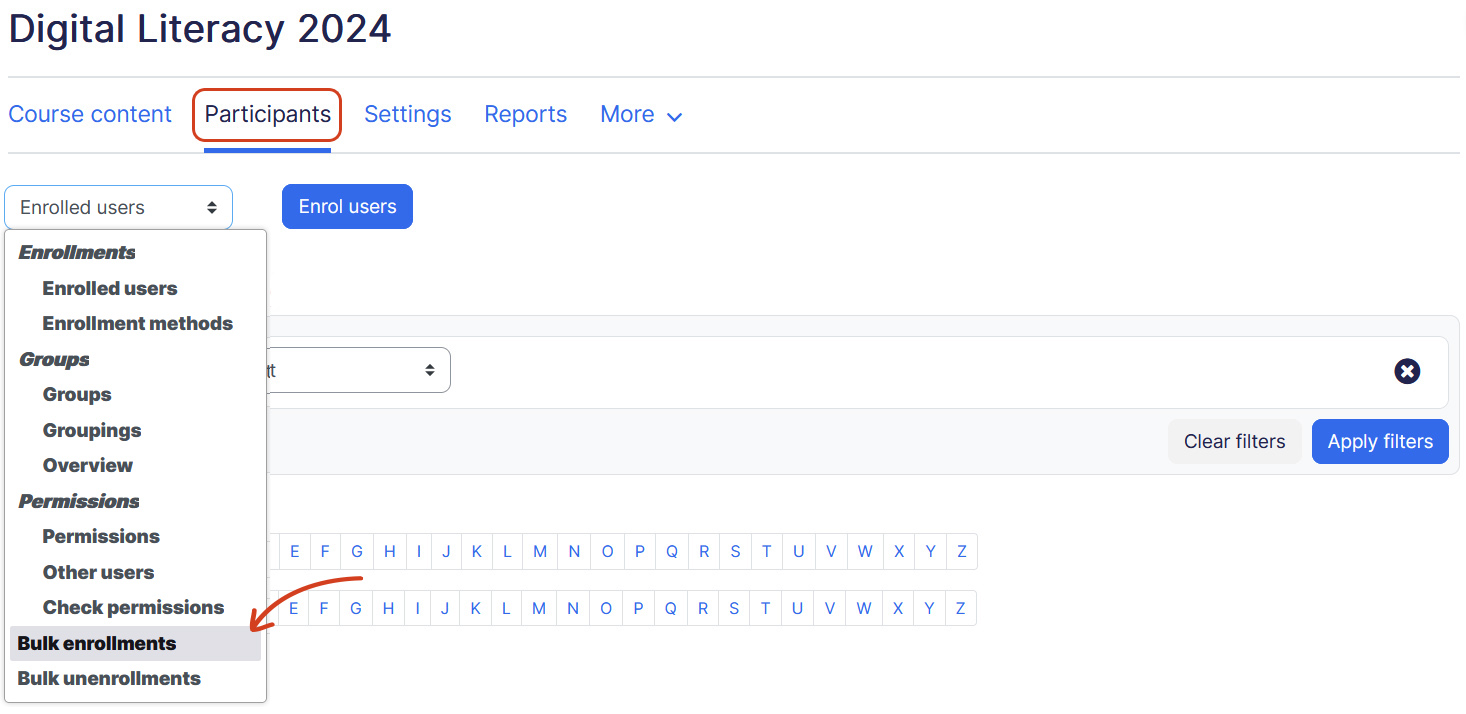
- The bulk enrollment page opens with the following settings.
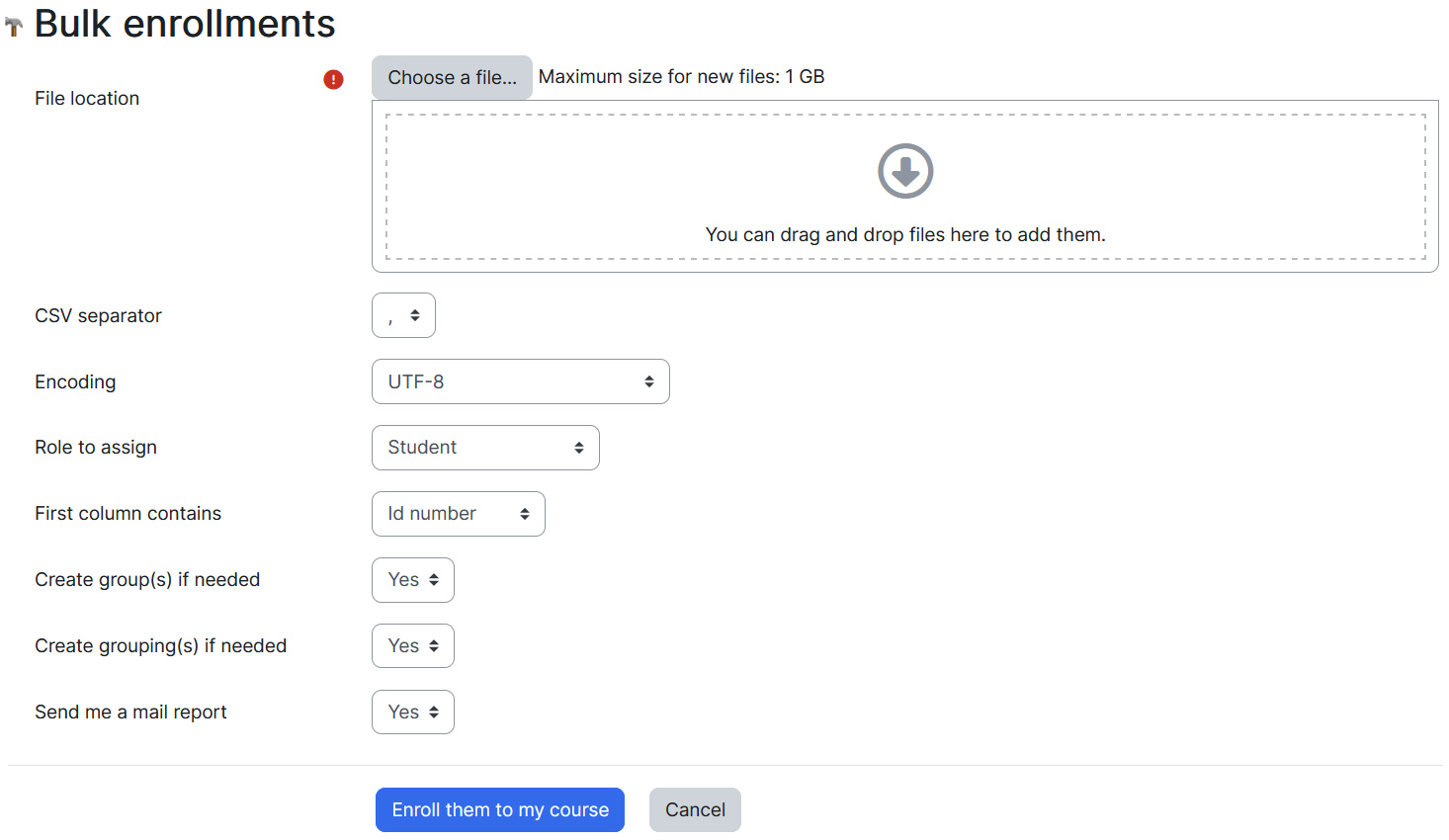
- File location — Upload the csv file here.
- Role to assign — Choose role in this course, this will be applicable to all the users in CSV file. Usually this should be Student.
- First column contains — Choose email if first column contains user’s email. Otherwise choose other options.
- Create group(s) if needed — This will create groups if doesn’t already exists in the course.
- Create grouping(s) if needed — If your course don’t follow grouping structure, you can ignore it.
- Send me a mail report — Chose option as per desired.
- Once done, click on Enroll button.
