
Self Enrollment is the method whereby users can choose to enroll themselves into a course, either immediately by clicking “Enroll me in this course” or by typing in an enrollment key they have been given.
Enable/disable self-enrollment to a course #
- Navigate to your course.
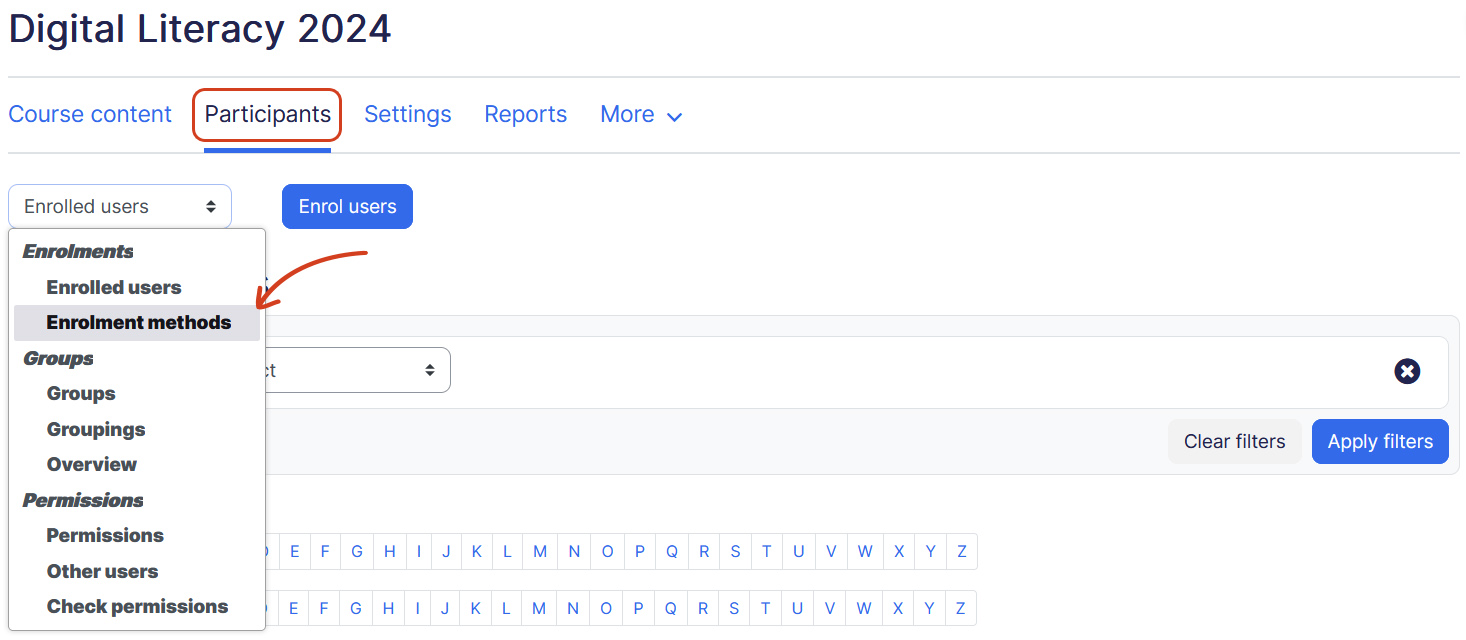
- Click Participants. Change the drop-down menu at the top from Enrolled Users to Enrollment Methods.
- Find Self Enrollment and click the enable/disable toggle as needed:
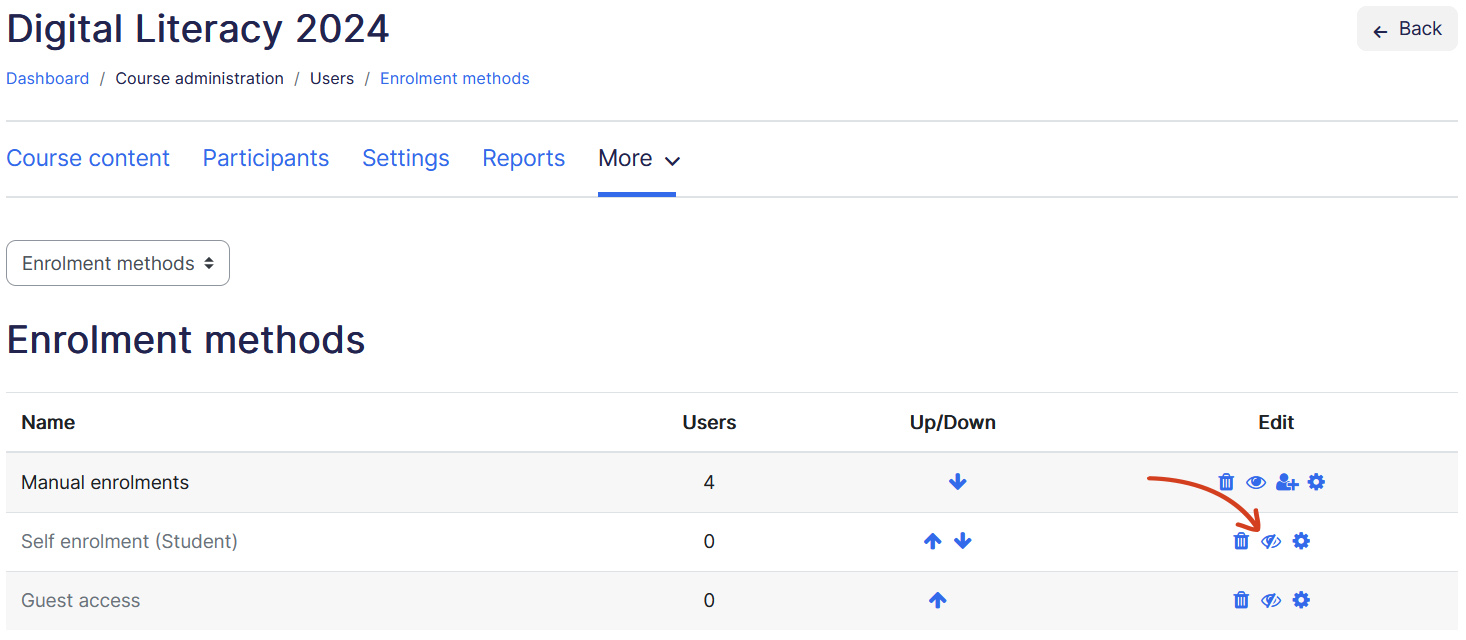
- (Disable) — Self Enrollment is on; click to disable.
- (Enable) — Self Enrollment is off; click to enable.
Self Enrollment settings page #
To customize Self Enrollment options, Click icon (Edit), this opens the Self Enrollment settings page.
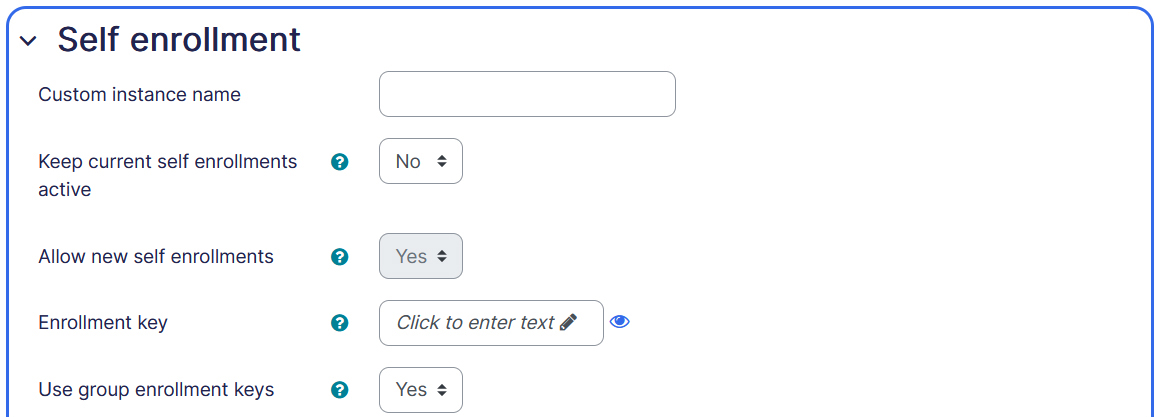
Custom instance name — Type to name this enrollment or leave it empty for no changes.
Keep current self enrollments active — If enabled together with ‘Allow new enrollments’ disabled, only users who self enrolled previously can access the course. If disabled, this Self Enrollment method is effectively disabled, since all existing self enrollments are suspended and new users cannot self enroll.
Allow new self enrollments — This setting determines whether a user can enroll into this course.
Enrollment key — An enrollment key enables access to the course to be restricted to only those who know the key. If the field is left blank, any user may enroll in the course. If an enrollment key is specified, any user attempting to enroll in the course will be required to supply the key. Note that a user only needs to supply the enrollment key ONCE, when they enroll in the course.
Use group enrollment keys — In addition to restricting access to the course to only those who know the key, use of a group enrollment key means users are automatically added to the group when they enroll in the course. To use a group enrollment key, an enrollment key must be specified in the course settings as well as the group enrollment key in the group settings.
Default assigned role — Choose user role for self enrolled users.
Enrollment duration — Length of time that the enrollment is valid, starting with the moment the user enrolls themselves. If disabled, the enrollment duration will be unlimited.
Notify before enrollment expires — This setting determines whether enrollment expiry notification messages are sent.
Notification threshold — How long before enrollment expiry should users be notified?
Start date — If enabled, users can enroll themselves from this date onward only.
End date — If enabled, users can enroll themselves until this date only.
Unenroll inactive after — If users haven’t accessed a course for a long time, then they are automatically unenrolled. This parameter specifies that time limit.
Max enrolled users — Specifies the maximum number of users that can self enroll. 0 means no limit.
Only cohort members — Self Enrollment may be restricted to members of a specified cohort only. Note that changing this setting has no effect on existing enrollments.
Send course welcome message — When a user self enrolls in the course, they may be sent a welcome message email. If sent from the course contact (by default the teacher), and more than one user has this role, the email is sent from the first user to be assigned the role.
Custom welcome message — A custom welcome message may be added, including HTML tags and multi-lang tags. The following placeholders may be included in the message:
- Course name {$a->coursename}
- Link to user’s profile page {$a->profileurl}
- User email {$a->email}
- User fullname {$a->fullname}
Comparing Guest Access and Self Enrollment methods #
Guest access and Self course Enrollment Methods aim to address a common challenge for instructors: automating the enrollment process. However, they are utilized in different scenarios to meet distinct needs.
1) Purpose:
- Guest Access: Provides users with limited access to course content without requiring them to have an account. It’s primarily used for course preview purposes.
- Self Enrollment: Allows users to enroll themselves in a course without requiring manual intervention from the instructor. It grants full access to the course content and activities.
2) User Account Requirement:
- Guest Access: Users can access the course without having an account.
- Self Enrollment: Users need to have an account to enroll themselves in the course.
3. Access Level:
- Guest Access: Users can view course content but cannot participate in activities like quizzes or assignments.
- Self Enrollment: Users have full access to the course content and can participate in all activities.
4. Use Cases:
- Guest Access: Useful for showcasing course content to potential students or visitors without the need for them to create an account.
- Self Enrollment: Suitable for situations where users need immediate access to course materials and activities, without waiting for Manual Enrollment by the instructor.
5. Security Considerations:
- Guest Access: Since users don’t need an account, it may pose security risks if sensitive information is shared in the course content.
- Self Enrollment: Requires users to have an account, which may enhance security as user activities can be tracked and managed through site logs.
