
Cohort Sync automatically enrolls members of a cohort in a course. If a user is added or removed from the cohort, they are automatically enrolled or unenrolled, respectively. In other words, Cohort Sync synchronizes cohort membership with course enrollment and any changes to the cohort are reflected in the course.
Before adding the Cohort Sync enrollment method to a course, you should have Cohorts on your site. Learn how to create Cohorts here.
Enabling Cohort Sync method on your site #
To enable Cohort Sync method:
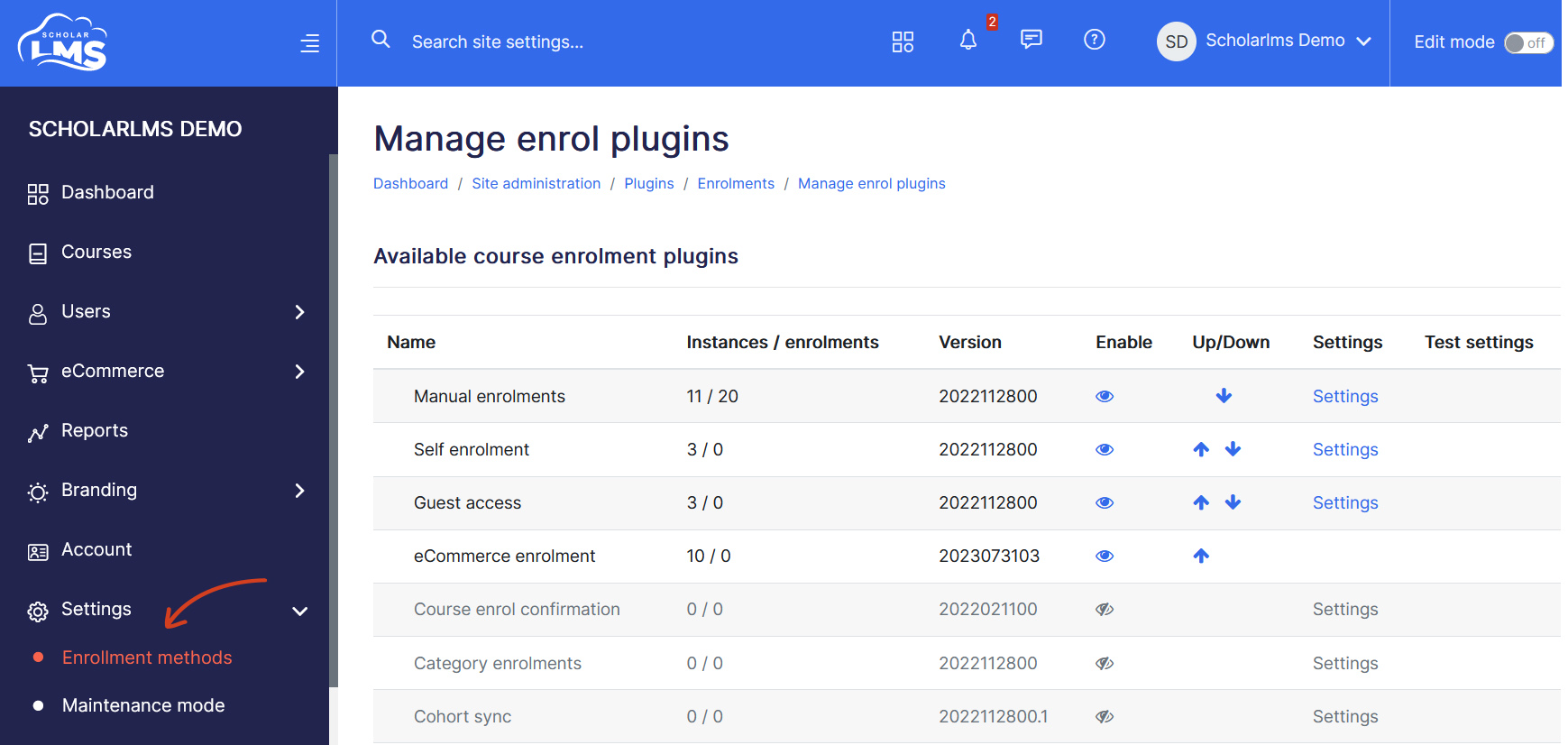
- Navigate to Settings -> Enrollment methods from left navigation.
- Click close eyeball icon to enable Cohort Sync method.
Adding Cohort Sync method to a course #
To add Cohort Sync method to a course:
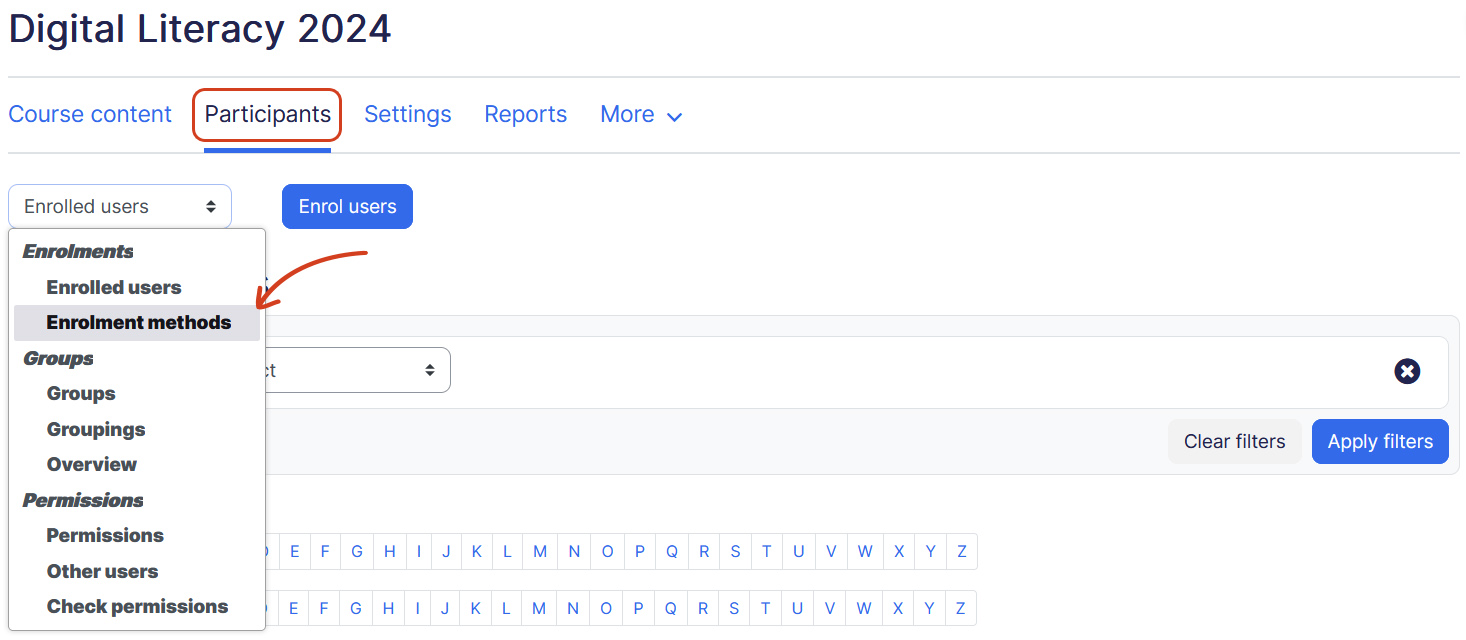
- Navigate to your course.
- Click Participants. Change the drop-down menu at the top from Enrolled Users to Enrollment Methods.
- Add Cohort Sync from the dropdown.
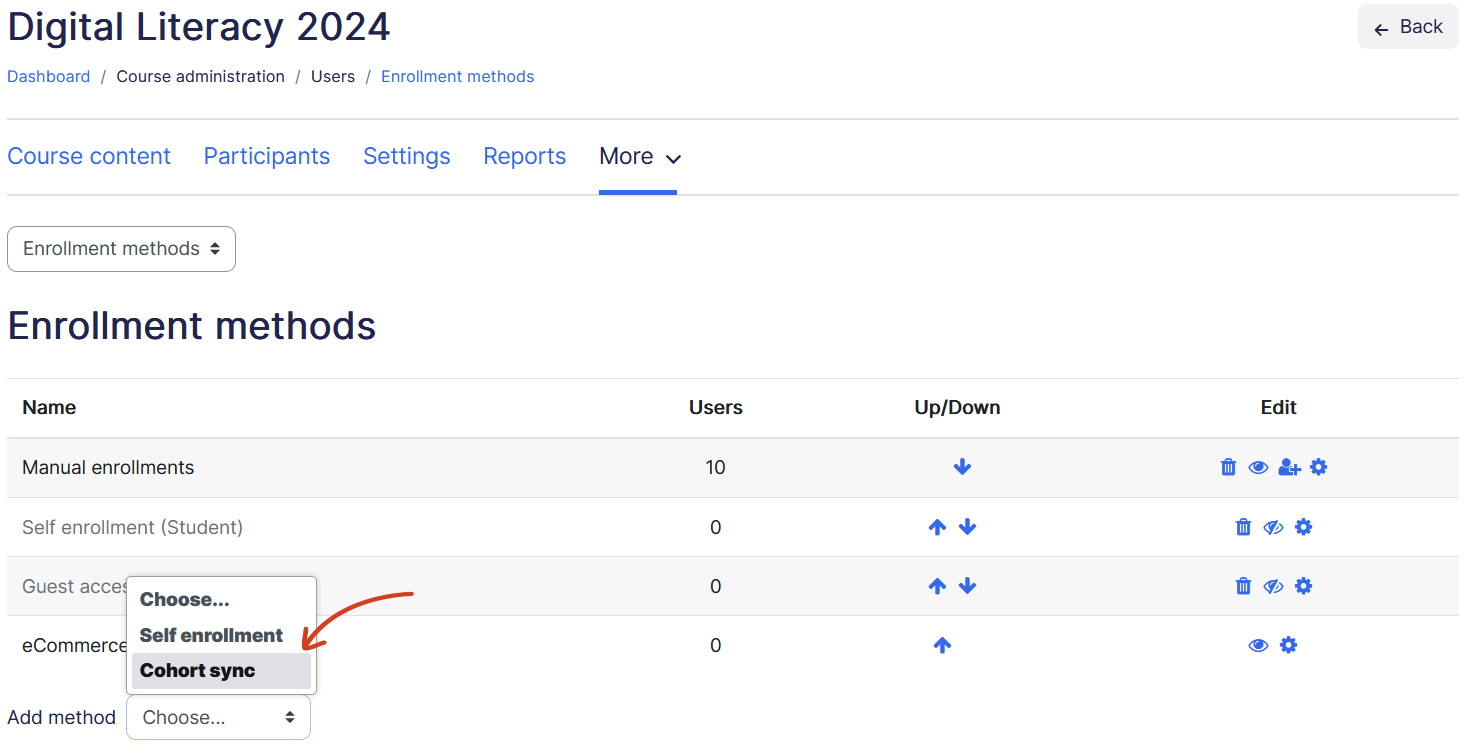
- This opens Cohort Sync settings page
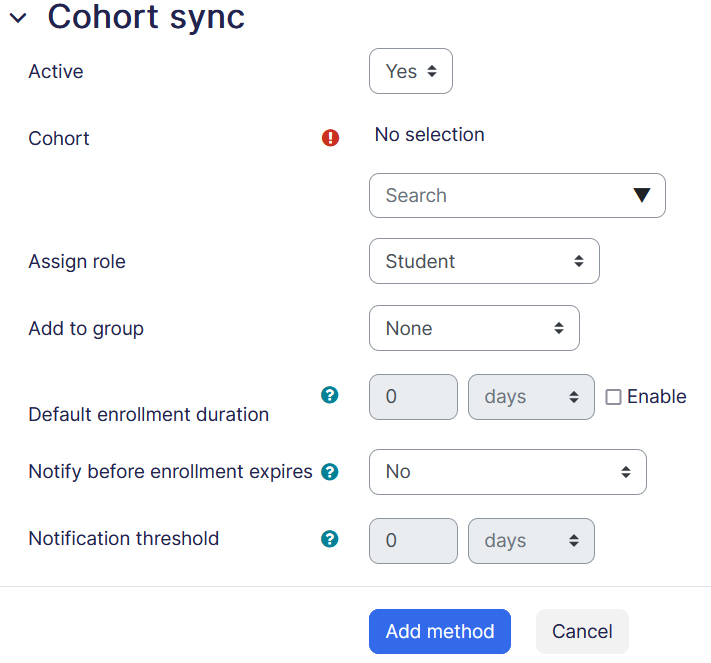
- Active — Choose ‘Yes’ to enable.
- Cohort — Search and select the Cohort you would like to sync with this course.
- Assign role — Allows you to assign a course role to all cohort members enrolled in this course. Typically, this would be the ‘Student’ role.
- Add to group — Choose group if you would like to add this cohort to a course’s group.
- Default enrollment duration — Length of time that the enrollment is valid, starting with the moment the user enrolls themselves. If disabled, the enrollment duration will be unlimited.
- Notify before enrollment expires — This setting determines whether enrollment expiry notification messages are sent, and if yes to whom.
- Notification threshold — How long before enrollment expiry should this users be notified.
- Once done, click ‘Add method‘ button to add this enrollment method.
How it works #
The purpose of the Cohort Sync method is to bulk enroll user groups that exist at the site level (outside of the course). Once the Cohort Sync method is configured with a course, it synchronizes user enrollment.
For example, let’s consider a cohort named ‘University of Arizona’ synced with two courses: ‘Digital Literacy’ and ‘Work Ethics, Attitude, and Personality.’ If a new user, ‘Alisha Parker,’ is added to the cohort, she will automatically be enrolled in both courses. Similarly, if a user, ‘John Doe,’ is removed from the cohort, he will be unenrolled from both courses.
Warning! Removing a user from a cohort will unenroll them from all courses synced with that cohort. Students will lose their course progress, and this action cannot be undone.
Frequently asked questions #
What happens if you disable Cohort Sync method from a course?
If you disable the Cohort Sync method from a course, all users enrolled through this method will be suspended from the course, but their course progress will be retained.
What happens if you delete Cohort Sync method from a course?
Deleting the Cohort Sync method from a course will unenroll all users enrolled through this method. As a result, all users will lose access to the course and their progress will be lost too.
Is there another way to bulk enroll users in a course?
Yes, there are a few other methods that can be used to bulk enroll users if you don’t want to use the Cohort Sync method:
- Use the bulk enrollment method to enroll users through a CSV file.
- Enroll users at the time of account creation while performing the bulk upload users action.
- Bulk enroll users through manual course enrollment action.
