
Overview #
The User Switching feature in ScholarLMS allows administrators, managers, and designated roles to switch between user accounts without requiring passwords. This is useful for troubleshooting, support, and reviewing the learning experience from a user’s perspective.
Who Can Use User Switching? #
By default, only users with the “Switch User” capability can access this feature. Typically, this includes:
- Administrators
- Site Managers
- Editing Teachers (if assigned the capability)
This feature is not available for regular users, students, unless explicitly granted the required permissions.
How to Switch to Another User #
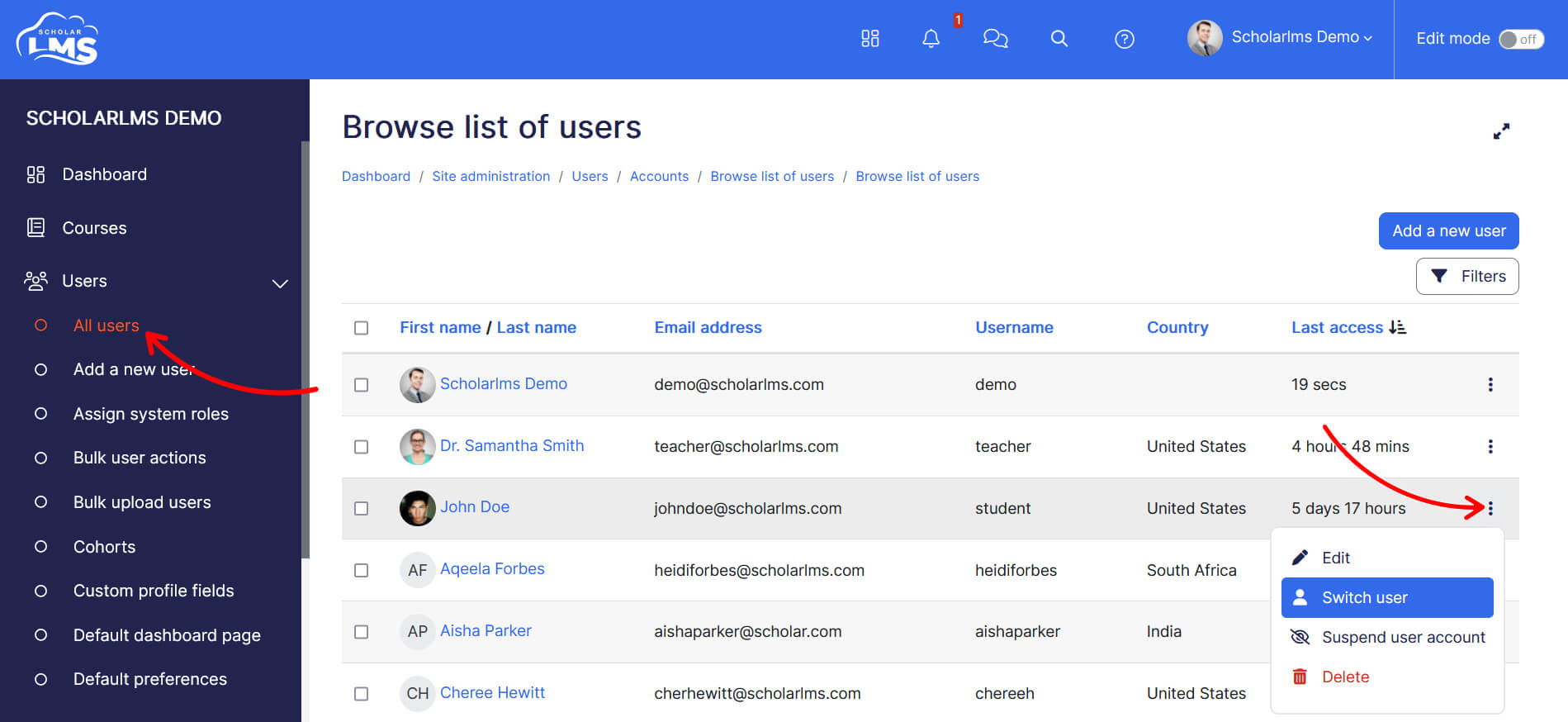
1. From All Users page
- Go to Users > All Users in your ScholarLMS dashboard.
- Find the user you want to switch to.
- Click the “Switch User” link from the three dots icon.
- Click ‘Continue’ on the Notice page, and you will be instantly logged in as that user.
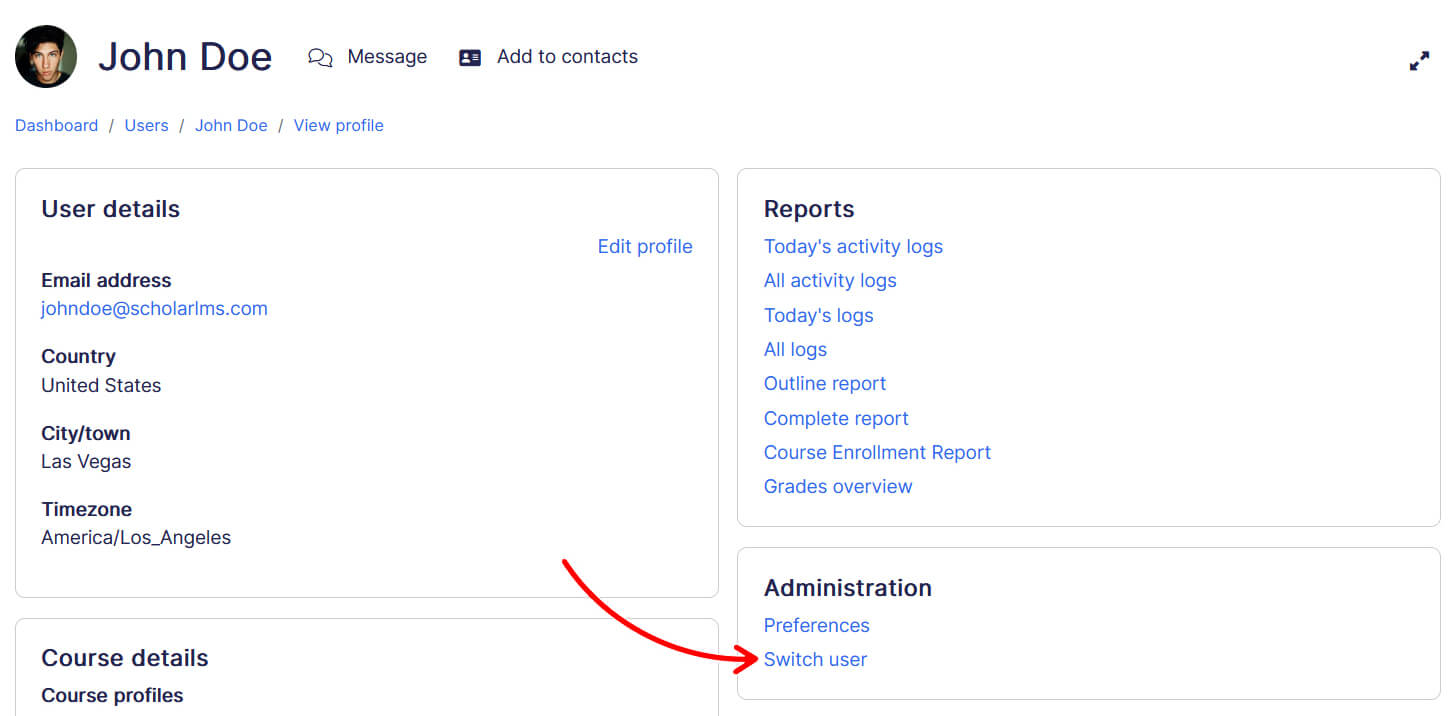
2. From the User profile page
- If you are already viewing a user’s profile, you can switch directly from there.
- This method is convenient when you’re already on a user’s profile or find it easier to access their account from this page.
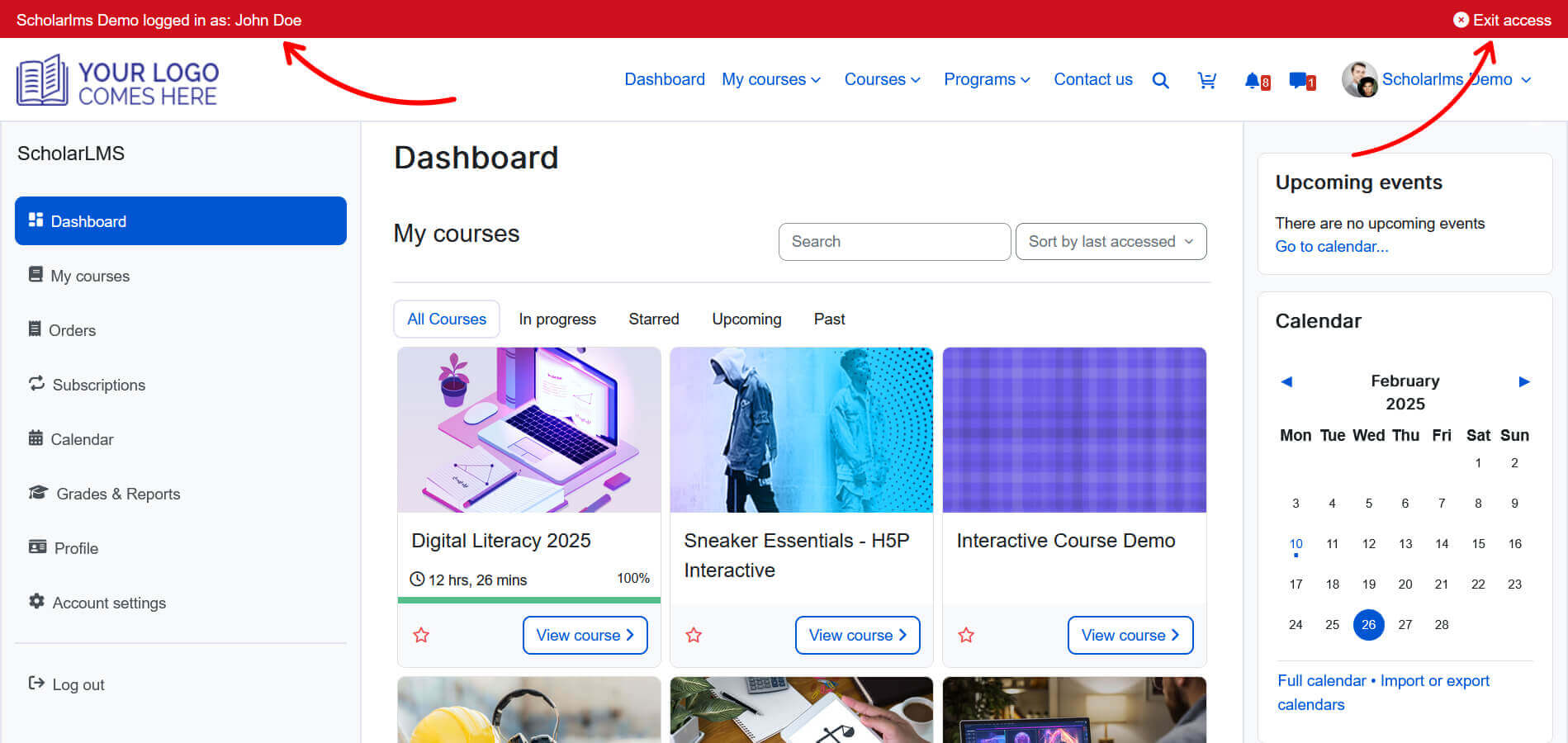
3. Perform Actions as the Switched User
- You can now experience the LMS as the selected user.
- Any changes you make (e.g., submitting assignments, changing settings) will be recorded as if they were done by that user.
4. Return to Your Original Account
- Click the “Exit access” button on header bar to revert to your original account.
Security Precaution: Disabled User-Generated Scripts #
When switching to another user, you may encounter this message:
“As a security precaution, user-generated scripts have been disabled within this session.”
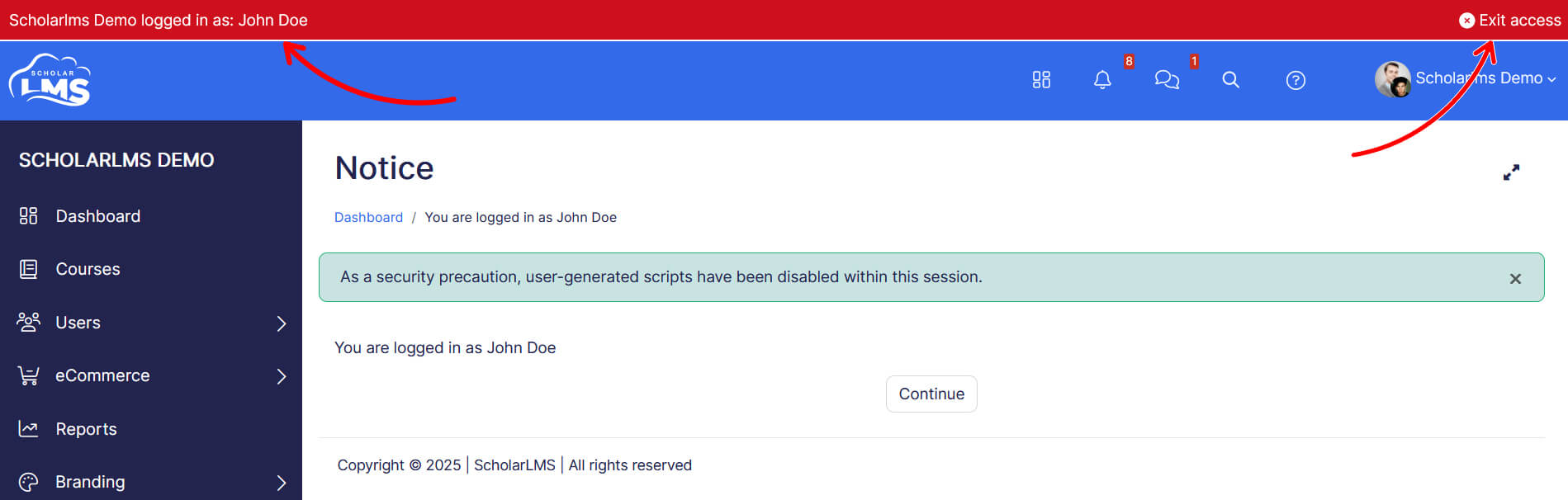
This means that any custom JavaScript or scripts that were uploaded or injected by users (such as those added via third-party plugins, custom HTML blocks, or user-generated content) are disabled for the duration of the switched session.
This is a security measure to prevent cross-user scripting vulnerabilities, ensuring that switching between accounts does not expose sensitive data or allow unauthorized script execution.
However, core system scripts and built-in platform functionality remain active, so most standard LMS operations should work as expected.
Best Practices & Limitations #
- Avoid making critical changes while switched into another user’s account.
- Test courses and site settings carefully to ensure they behave as expected.
- Logout and log back in manually if you encounter unexpected issues.
- User-generated scripts will be re-enabled once you log back into your original account.
This feature enhances support efficiency while maintaining security and accountability within ScholarLMS.
