
Introduction #
Managing users individually can become time-consuming when working with large learner groups. Bulk Actions simplify this process by allowing administrators to apply common management tasks to multiple users at once.
Instead of editing each user profile separately, administrators can select multiple users and perform actions such as enrollment, suspension, or messaging in a single step.
This feature is especially useful for organizations managing onboarding, compliance training, or large training programs.
Accessing Bulk User Actions #
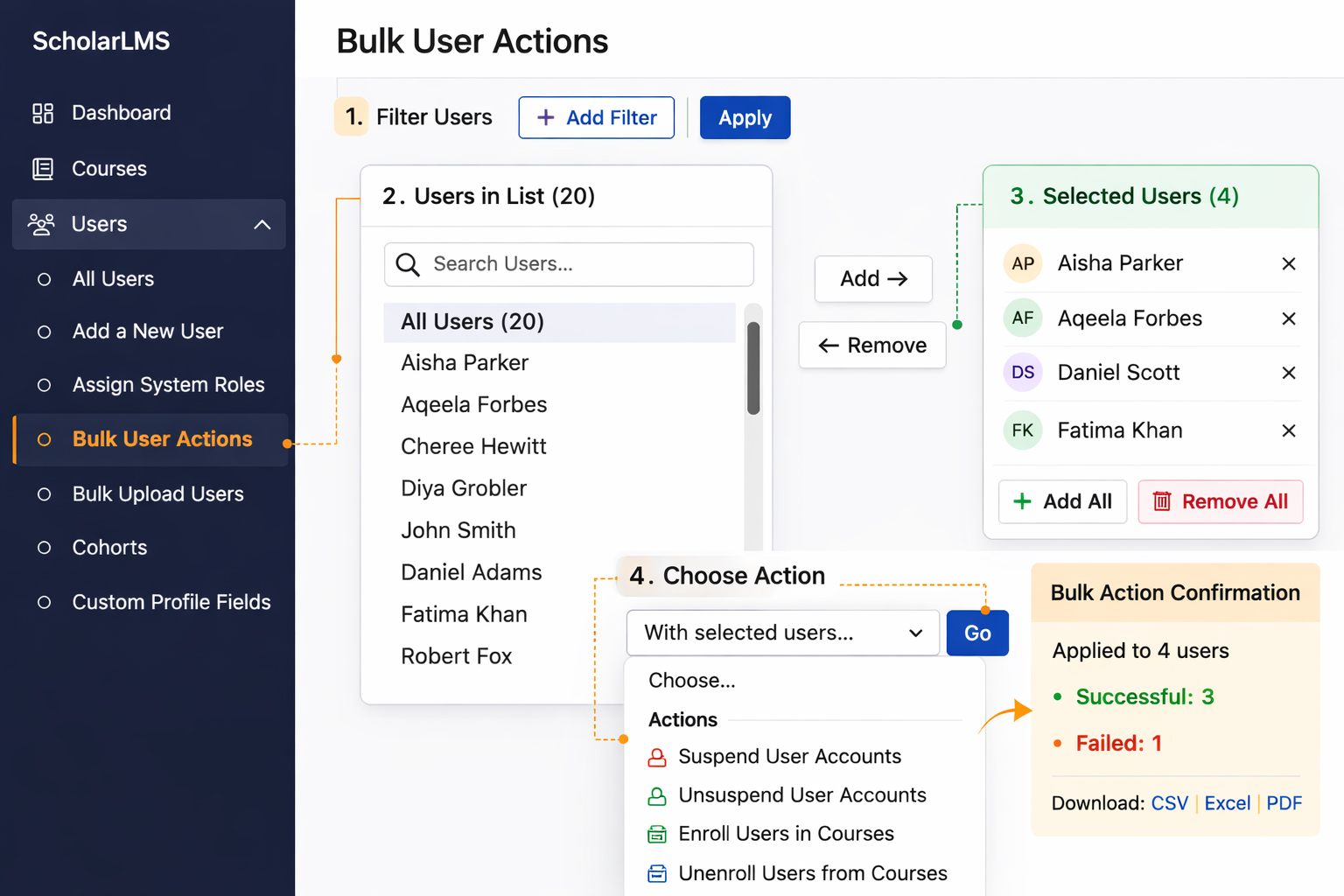
- Navigate to Users → Bulk user actions from the left navigation menu.
- Use the Add filter option to locate specific users based on criteria such as name, email, or role.
- The filtered results appear in the Users in list panel.
- Select the required users and move them to the Selected users panel.
- The Selected users panel represents the group of users on which the bulk operation will be performed.
- From the With selected users… dropdown, choose the required action.
- Confirm the action to apply it to all selected users.
Please Note
- Bulk user actions can also be performed from the “All Users” page Users → All Users.
- If an action is not applicable to a selected user, it will be skipped.
For example:- Users already enrolled in a course will not be enrolled again.
- Users who are not enrolled in a course will be skipped during unenrollment.
Bulk Actions #
Below are the most commonly used actions available when managing users in bulk.
1. Confirm
The Confirm action manually confirms selected user accounts. This is typically used when accounts were created but not yet confirmed through the email verification process. Confirming the account activates it and allows the user to log in without completing the email confirmation step.
2. Send a Message
This option allows administrators to send a message to all selected users.
Common uses include:
- training reminders
- course announcements
- program updates
Messages are delivered through the platform’s messaging system.
3. Force Password Change
This action requires users to change their password during their next login.
Administrators may use this when:
- enforcing password policy updates
- assisting users with login issues
After login, users will be prompted to create a new password.
4. Add to Cohort
The Add to cohort option allows administrators to add selected users to a cohort.
Cohorts are groups of users used for:
- group course enrollment
- department-based training
- program-based learning groups
Users added to a cohort can automatically receive course enrollments assigned to that cohort.
5. Suspend User Accounts
Suspending a user account prevents the user from accessing the platform.
This option is commonly used when:
- a learner leaves an organization
- access must be temporarily disabled
- training access needs to be paused
When suspended:
- the user cannot log in
- course data remains intact
- the account can be restored later
6. Unsuspend User Accounts
The Unsuspend user account(s) action restores access to previously suspended users.
Use this option when:
- a learner returns to training
- temporary suspension ends
- account access needs to be restored
Once unsuspended, users regain normal platform access.
7. Enroll Users in Courses
Bulk enrollment allows administrators to enroll multiple users into one or more courses simultaneously.
This is useful when:
- onboarding new employees
- assigning mandatory training
- enrolling users into a new learning program
Administrators can select the courses and enroll all selected users at once.
8. Unenroll Users from Courses
Bulk unenrollment removes selected users from courses.
Use this option when:
- course access should be removed
- users were mistakenly enrolled
- a training program has ended
After unenrollment, users will no longer appear in the course participant list.
Bulk Action Confirmation & Report #
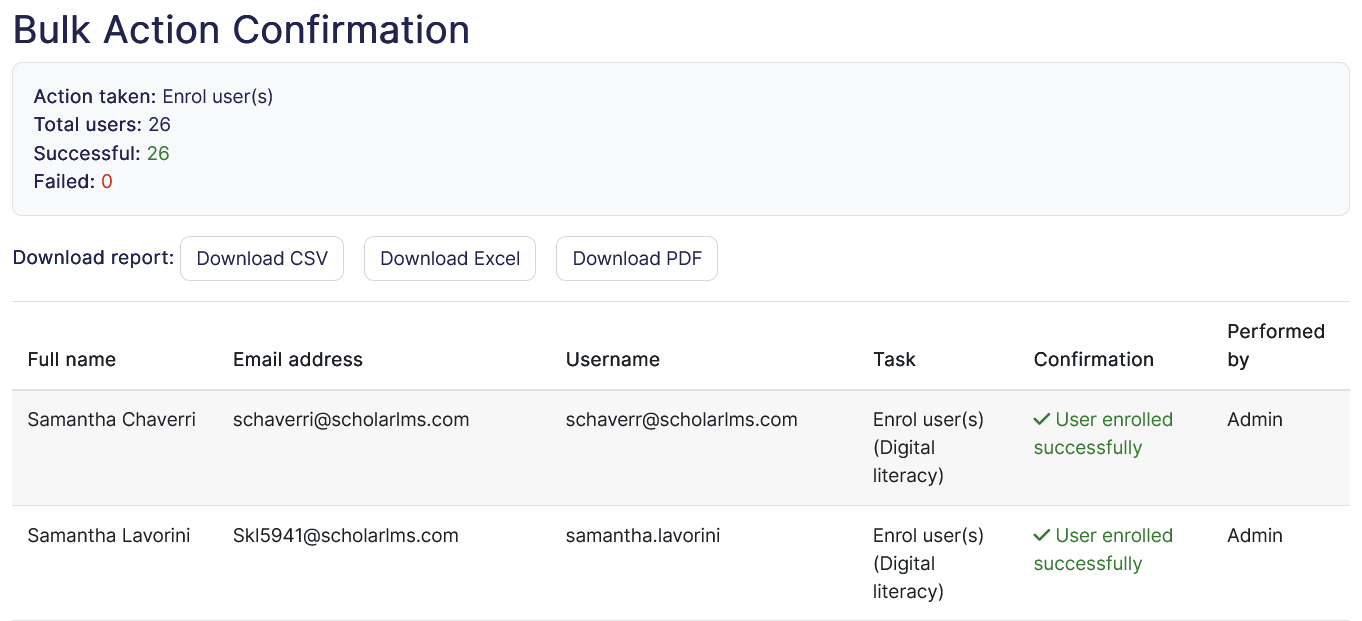
After a bulk action is completed, ScholarLMS automatically generates a confirmation report showing the results of the operation.
This report is available for the following bulk actions:
- Suspend user accounts
- Unsuspend user accounts
- Enroll users in courses
- Unenroll users from courses
The confirmation report includes the following details:
- Action performed
- Total users selected
- Successful actions
- Failed or skipped users
This summary allows administrators to quickly review the outcome of the bulk operation.
Note: It is highly recommended to download the confirmation report after performing a bulk action. The report is not stored in the system and will not be available later.
Common Mistakes #
Administrators should be careful to avoid the following common mistakes when using bulk actions.
1. Selecting incorrect users
Always verify the selected users before performing actions such as suspension or unenrollment.
2. Accidentally suspending active learners
Suspending accounts prevents users from logging in, which may disrupt ongoing training.
3. Removing users from the wrong course
Bulk unenrollment cannot always be easily reversed. Double-check course selections before confirming.
4. Applying actions to very large user sets without filtering
Use search filters to narrow the user list before selecting users. This reduces the risk of unintended actions.
Tips for Using Bulk Actions #
- Always review the selected users before confirming actions.
- Use filters and search tools to find the correct users.
- Perform actions in smaller groups when managing very large user sets.
